
AI Search Guide
Please contact SWIRL for access to SWIRL Enterprise.
Configuring SWIRL AI Search, Enterprise Edition
Licensing
Add the license provided by SWIRL to the installation's .env file in the following format:
SWIRL_LICENSE={"owner": "<owner-name>", "expiration": "<expiration-date>", "key": "<public-key>"}
If the license is invalid, a message appears in logs/django.log. Contact support for assistance.
Licenses can carry additional entitlement fields, such as cache and cache_expiration for the Semantic Cache. See Licensing in the Semantic Cache Guide.
Database
For Proof of Value (POV) testing, SWIRL Enterprise can use SQLite3. Contact support for help configuring it.
For production, SWIRL recommends PostgreSQL.
PostgreSQL Configuration
Modify the database settings in swirl_server/settings.py:
DATABASES = {
    'default': {
        'ENGINE': 'django.db.backends.postgresql_psycopg2',
        'NAME': '<database-name>',
        'USER': '<database-username>',
        'PASSWORD': '<database-password>',
        'HOST': '<database-hostname>',
        'PORT': '<database-port>',
    }
}
Connecting to M365
To connect SWIRL to your Microsoft 365 (M365) tenant, see the Microsoft 365 Guide.
Connecting to Other Authentication Systems
To integrate SWIRL with an Identity Provider (IDP) or Single Sign-On (SSO) system, configure an Authenticator object.
Managing Authenticators
Use the Admin Console at http://localhost:8000/admin/swirl to view, edit, add, or delete authenticators.
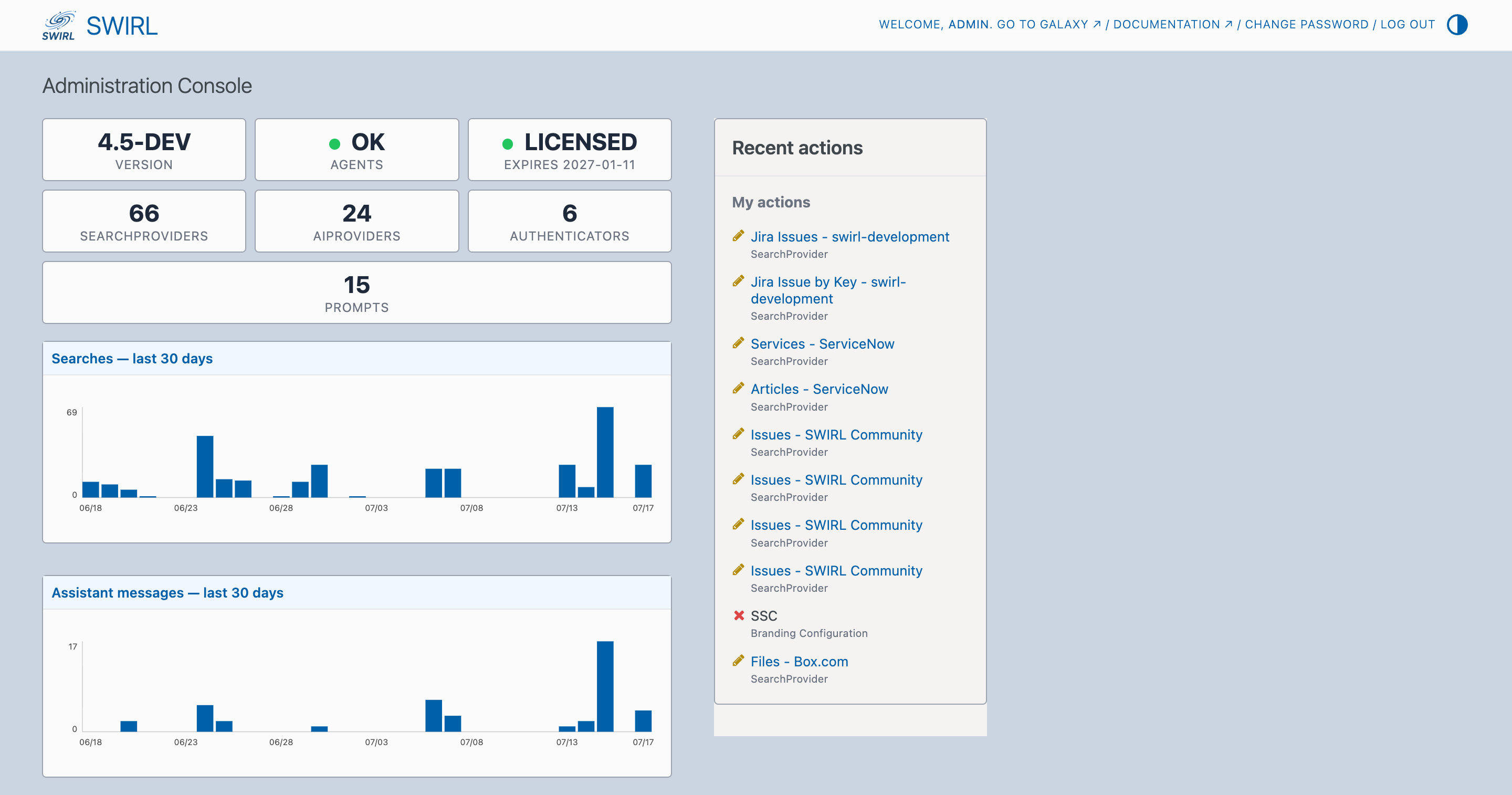
Click Authenticators to view the list, or add a new one:

Click any authenticator in the list to view or edit it. For example, here's the default Microsoft authenticator:
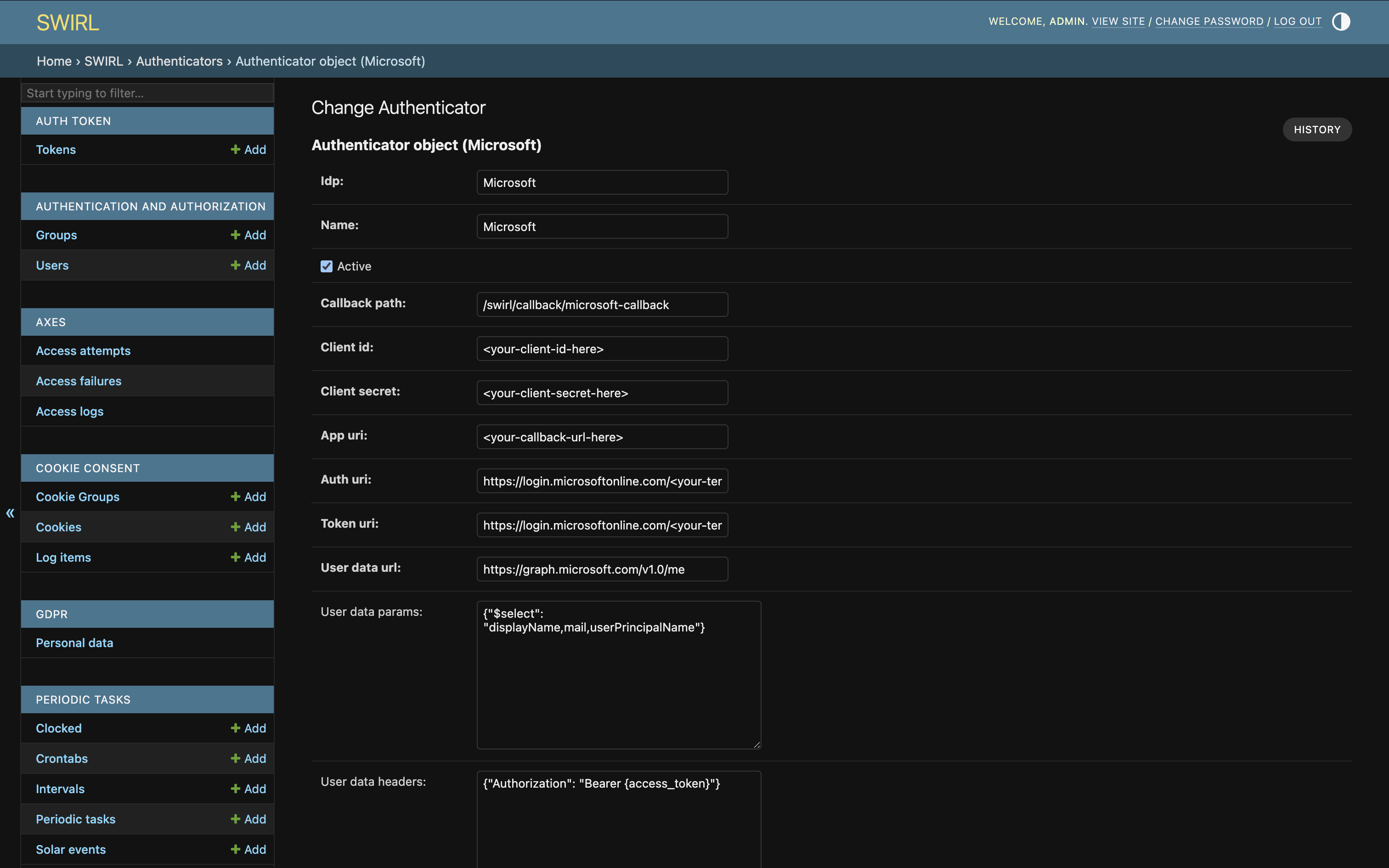
Click SAVE at the bottom of the page to commit changes.
Authenticator Fields
| Field | Description |
|---|---|
idp |
Name of the authenticator object (used as the URL) |
name |
Display name of the authenticator |
active |
Boolean; if false, the authenticator is disabled, and no authentication switch appears in the UI |
callback_path |
URL path where the IDP should redirect with user tokens |
client_id |
Client ID for authentication |
client_secret |
Shared secret for authentication |
app_uri |
Location of the SWIRL application |
auth_uri |
URL of the authentication system |
token_uri |
URL for retrieving authentication tokens |
user_data_url |
URL for retrieving user profile data |
user_data_params |
Parameters needed from the user profile |
user_data_headers |
Headers required for requesting tokens (e.g., "Authorization") |
user_data_method |
HTTP method used to request user profile data |
initiate_auth_code_flow_params |
Extra parameters added when initiating the authorization-code flow (used by CAS2 and other custom flows) |
exchange_code_params |
Parameters for exchanging authorization codes in custom flows |
is_code_challenge |
Boolean; enables the PKCE code challenge on the authorization-code flow (default: False) |
scopes |
List of authorization scopes |
should_expire |
Boolean; determines if tokens need refreshing (default: True) |
use_basic_auth |
Boolean; enables basic authentication instead of SSO (default: True) |
expires_in |
Token lifetime in seconds (default: 0) |
jwks_uri |
Optional JWKS endpoint used to verify ID-token signatures on the OIDC code-exchange login path (e.g. a Keycloak realm's .../protocol/openid-connect/certs). Blank keeps the legacy unverified decode. See the Keycloak Guide. |
issuer |
OIDC issuer URL this row is authoritative for (the iss claim). Bearer-JWT API authentication engages only for active rows that set both issuer and jwks_uri. |
broker_token_map |
On a brokering IdP (e.g. Keycloak): maps a brokered-IdP alias to the SWIRL idp the harvested upstream token is stored under, e.g. {"microsoft": "Microsoft"}. Empty = no brokering (default). See the Keycloak Guide. |
broker_mode |
How brokered tokens are sourced: harvest (read the stored token from the realm broker endpoint; default) or exchange (RFC 8693 token exchange) |
exchange_client_id, exchange_client_secret |
Confidential client used for token exchange; only used when broker_mode is exchange |
For authentication with Elastic, OpenSearch, CAS2, Salesforce, ServiceNow, Okta, Auth0, Ping Federate, and other systems, contact support.
OpenID Connect
OpenID Connect (OIDC) is a standard authentication protocol for secure SSO with identity providers. When you configure an OIDC-compatible authenticator in SWIRL, users can authenticate through their organization's identity provider without requiring manual account creation in SWIRL.
To configure an OpenID Connect authenticator:
- Navigate to the Admin Console at http://localhost:8000/admin/swirl.
- Click
Authenticatorsto view the available authenticators. - Either select an existing OpenID Connect authenticator to edit it, or click
Add Authenticatorto create a new one. - Configure the following fields with your provider's information:
-
auth_uri- your identity provider's authorization endpoint. -token_uri- your identity provider's token endpoint. -user_data_url- your identity provider's user info endpoint. -client_idandclient_secret- credentials provided by your identity provider. - Click
SAVEto apply changes.
When OpenID Connect is enabled and configured, users see an authentication option in the SWIRL interface that lets them log in through their organization's identity provider. Authenticated users are automatically created in SWIRL with their identity provider information.
Connecting to Generative AI (GAI) and Large Language Models (LLMs)
Roles for LLMs
LLMs in SWIRL serve distinct roles, assigned via the provider's tags list (the defaults list marks which roles the provider is the default for):
| Role | Description |
|---|---|
reader |
Generates embeddings for SWIRL's Reader LLM to enhance search-result re-ranking. |
query |
Provides query completions for transformations. |
connector |
Answers direct questions without RAG. |
rag |
Generates RAG responses using retrieved data. |
chat |
Powers the AI Search Assistant conversation (see the AI Search Assistant Guide). |
reranker |
Cross-encoder relevance scoring (SWIRL 5), e.g. the preloaded MS-MARCO MiniLM cross-encoder. |
pin_display |
Normalizes the display label of pinned documents, e.g. swirl gl policy → SWIRL GL Policy (SWIRL 5). |
date_extraction |
Extracts a published date from a result as a last resort, when source date fields and regex extraction both fail (SWIRL 5). |
Managing AI Providers
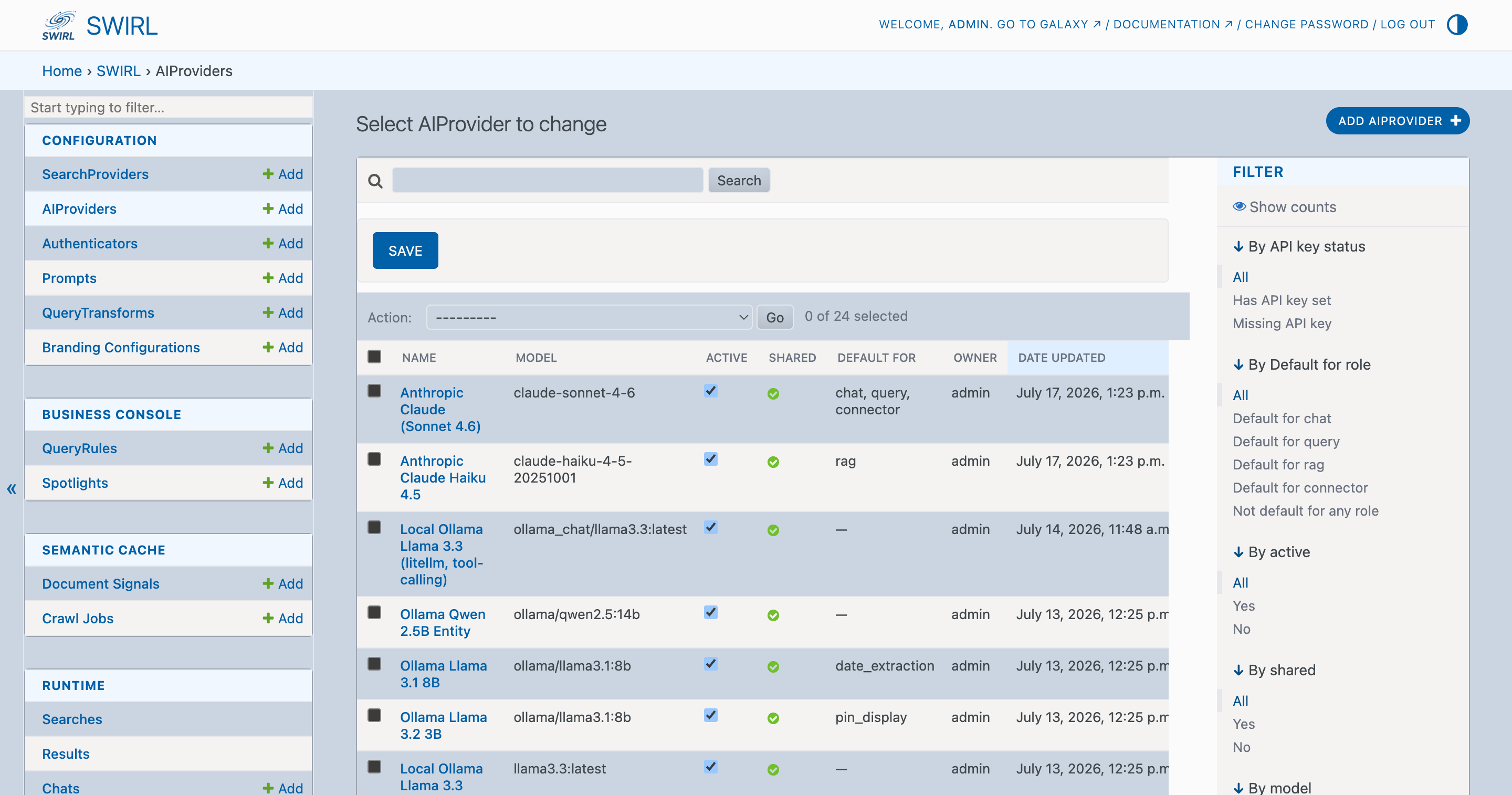
Use the Admin Console at http://localhost:8000/admin/swirl to view, add, edit, or delete AI Providers.
Click AIProviders to access the full list:
Supported LLMs
SWIRL supports major LLMs via LiteLLM and direct connections, including:
- OpenAI (ChatGPT API)
- OpenAI deployed in Azure
- AWS Bedrock
- Google Gemini
- Anthropic Claude
- Cohere
- Meta Llama
- Hugging Face
- Locally fine-tuned models
Full lists are available here:
For any of these or additional models, contact support.
Editing AI Providers
From the Admin Console, click AIProviders to view the list of all available providers. Click a specific AIProvider to edit it:
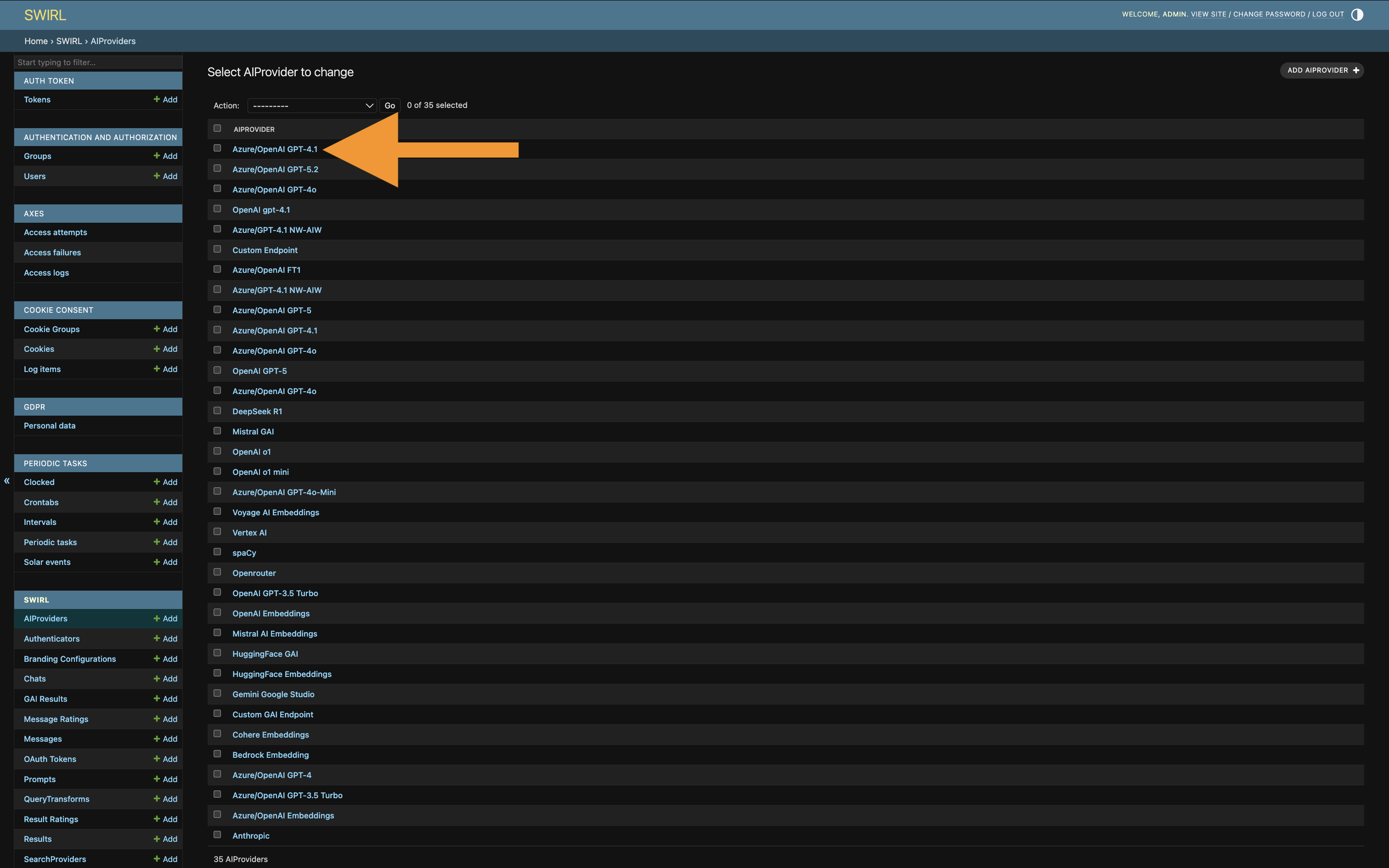
This opens an edit form:
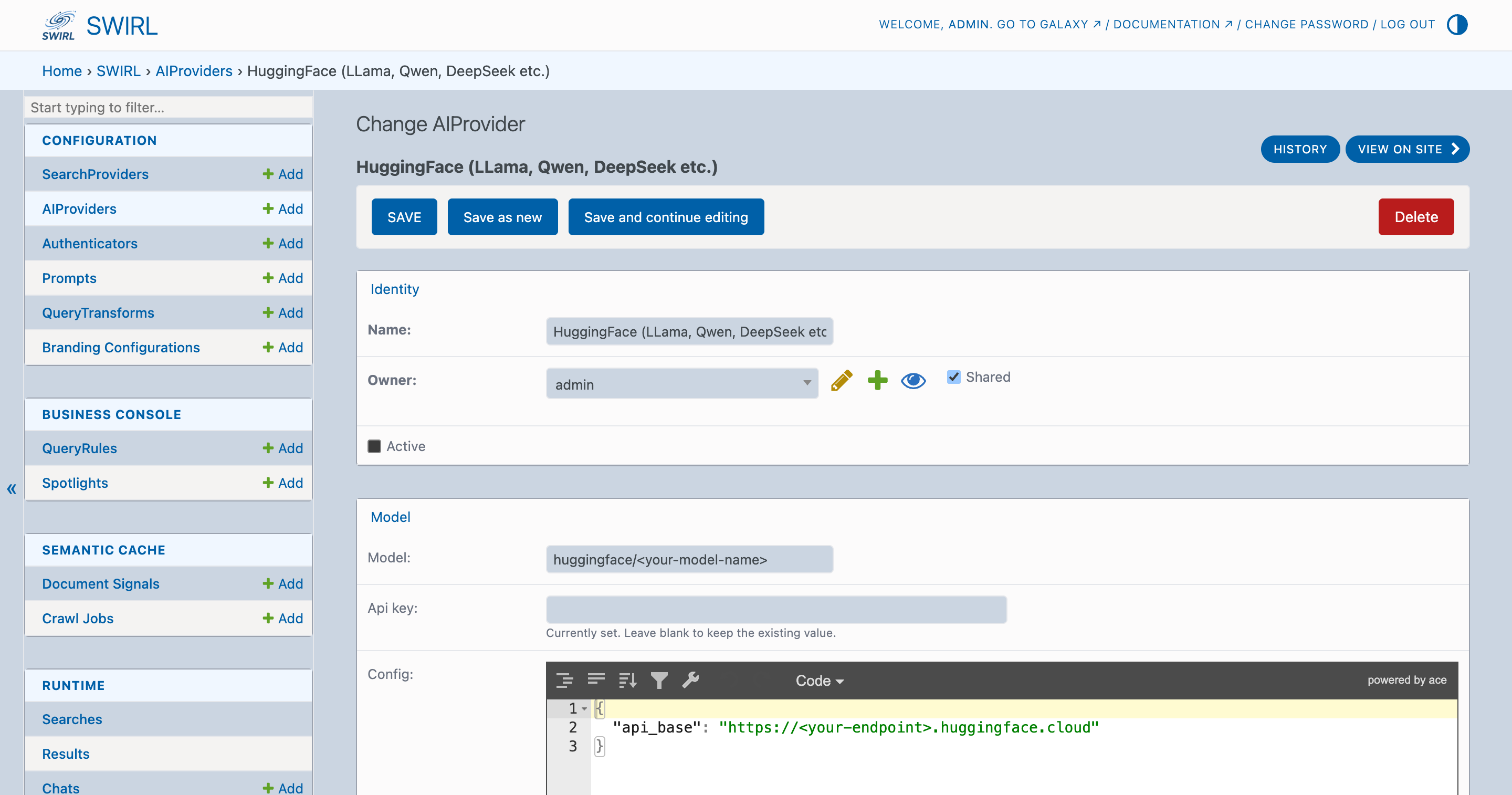
Click SAVE to commit changes.
Click Delete to remove the provider entirely. There is no undo - deleted providers are lost. To save an AIProvider without using it, set its active property to false (unchecked).
Activating AI Providers
To activate a preloaded AI provider:
- Make sure the
activeproperty is checked. - Add a valid API key to the
api_keyfield. - Set the
modeland any requiredconfigitems. - Ensure the provider has the correct
tagsanddefaultssettings.
Switching AI Provider Defaults
To switch the default provider for a role, add the role to the new provider's defaults list and remove it from the old provider's defaults list. Multiple AIProviders can be active for the same role - for example, several chat providers can be offered in the Assistant's model selector - and the defaults list determines which one SWIRL uses when no specific provider is requested. Use active only to enable or disable a provider entirely.
Adding AI Providers
Via the Admin Console
From the Admin Console, click AIProviders, then click Add AIProvider:
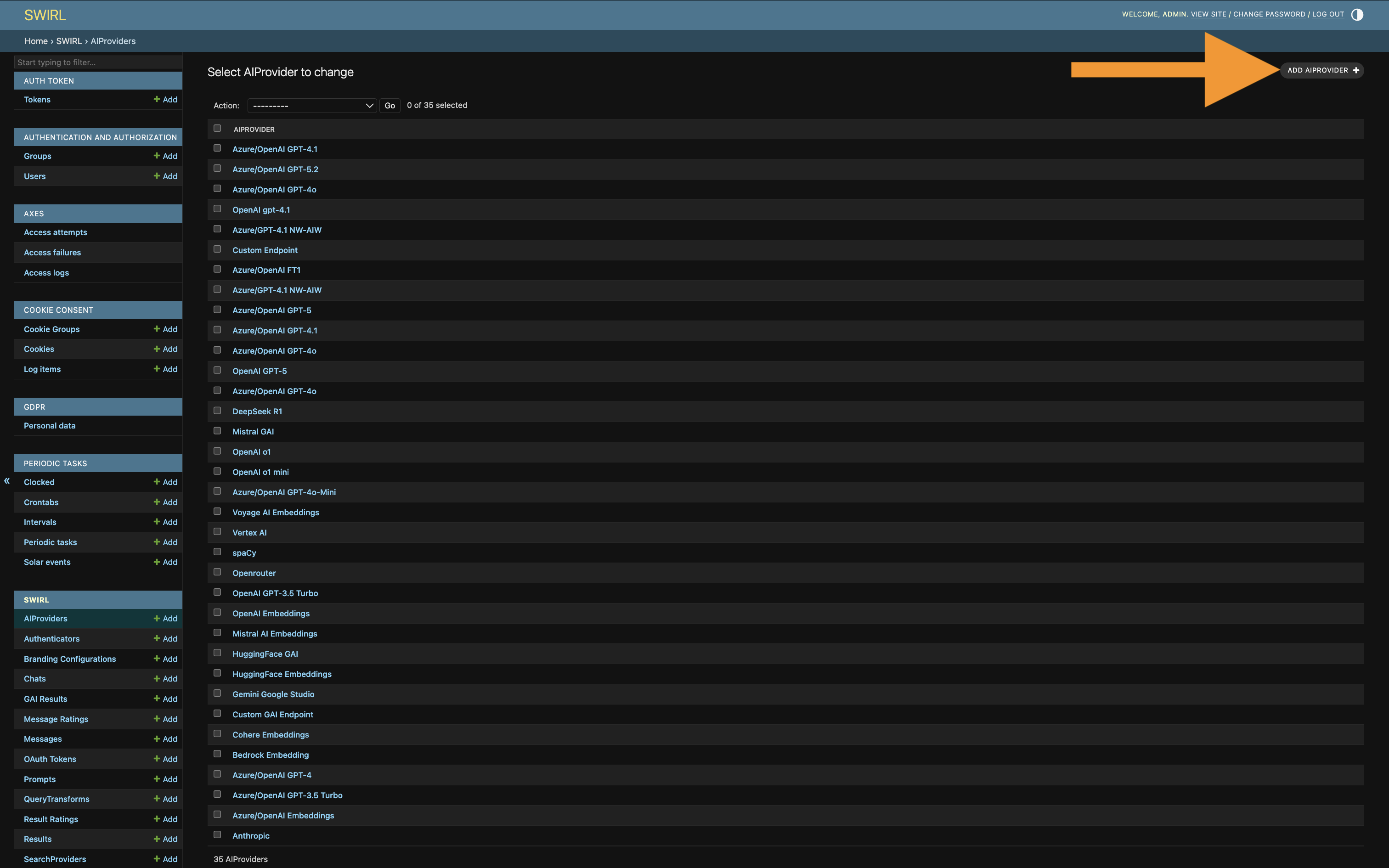
A blank form for a new AIProvider opens:
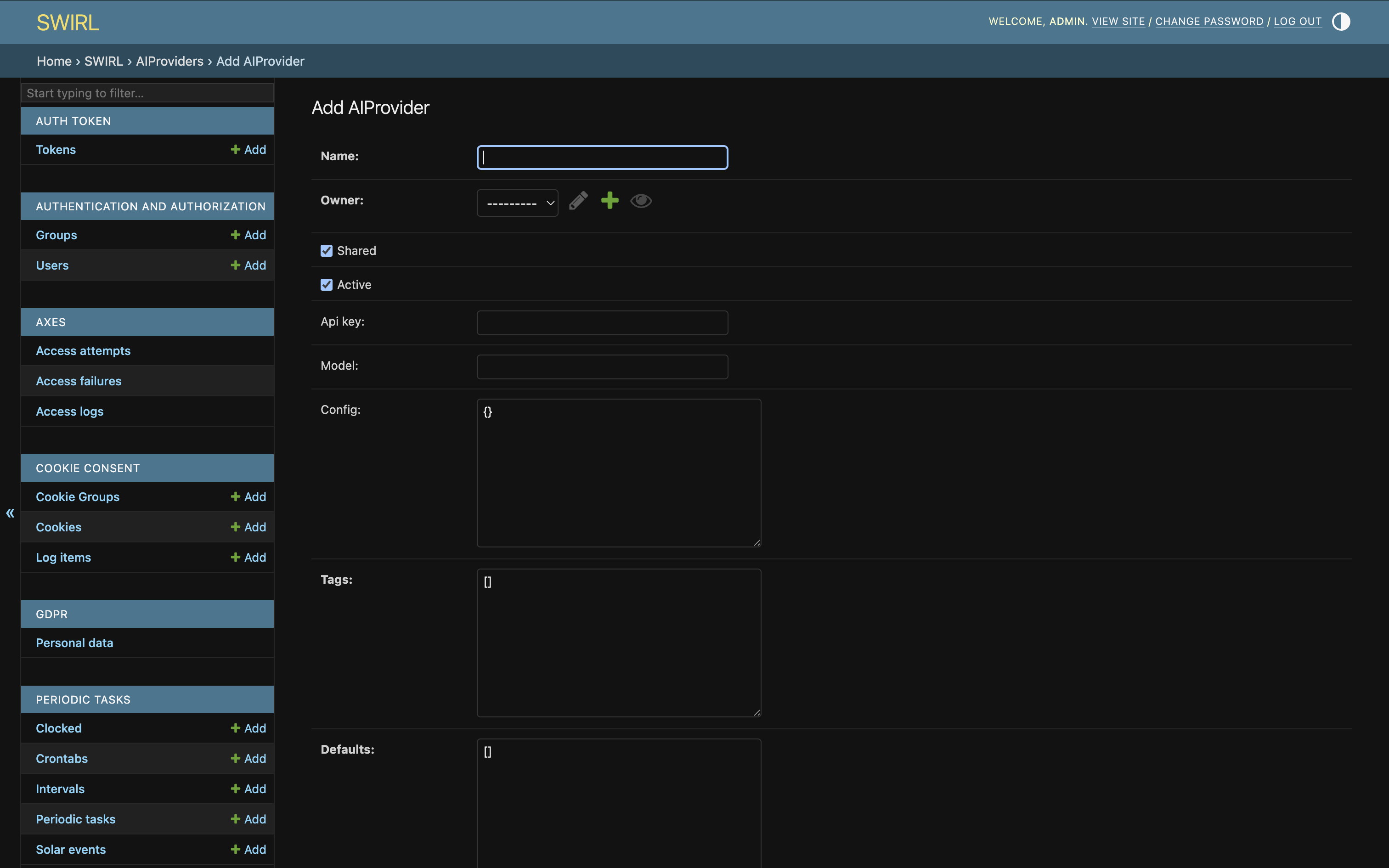
Fill out the form and click SAVE.
Via Copy/Paste
To manually install an AI provider using JSON:
- Make sure you are logged in as the
adminuser. - Open the AI Providers API endpoint: http://localhost:8000/swirl/aiproviders/.
- Click the
Raw datatab at the bottom of the page. - Paste the AI provider's JSON.
- Click
POST.
SWIRL responds with the registered AI provider.
Bulk Loading AI Providers
Use the swirl_load.py script to load multiple AI providers.
Using the Bearer Token Service to Update AI Providers
SWIRL Enterprise includes a Bearer Token Service that refreshes tokens automatically.
How It Works
- Sends a
POSTrequest to an Identity Provider (IDP) URL with user credentials. - Extracts a
bearer_tokenfrom the response. - Updates the
api_keyof the configured AI provider.
Configuration
1. Add the following settings to .env:
BT_IDP_URL=''
BT_IDP_CLIENT_ID=''
BT_IDP_CLIENT_SECRET=''
2. Specify the AI Provider IDs to update:
BT_AIP=9
For multiple providers, use a comma-separated list:
BT_AIP='9,10'
3. Adjust the refresh schedule (optional):
By default, the service runs every 20 minutes (the bt_service periodic task, crontab(minute='*/20')). The schedule is stored as a database-backed django-celery-beat periodic task, editable in the Django Admin Console:
http://localhost:8000/admin/django_celery_beat/crontabschedule/
4. Ensure the celery-beats scheduler is running:
The scheduler starts with the stack by default (SWIRL_BEATS); check with python swirl.py status.
5. Restart the logs:
If python swirl.py logs is running, restart it to view celery-beats messages.
Most Bearer Token service logs appear in the celery worker logs (logs/celery-maintenance-worker.log).
This ensures automatic updates for AI provider credentials, reducing manual intervention.
Managing Prompts
SWIRL Enterprise includes a set of pre-loaded standard prompts used when generating AI Insights via RAG.
SWIRL 5: prompts can also be bound per AI provider via the provider's prompt_overrides field, so each model family (for example Anthropic vs. OpenAI) uses prompts tuned for it. See Per-Family Prompt Overrides in the Admin Guide.
Each consists of three key components:
| Field | Description |
|---|---|
prompt |
The main body of the prompt. Use {query} to represent the SWIRL query. |
note |
Text appended to search result data sent to the LLM for insight generation. |
footer |
Additional instructions appended after the prompt and RAG data. This is ideal for formatting guidance. |
Prompts also carry additional optional fields - post_process_instructions, reminder, and message_preamble - which appear on the admin form and can usually be left at their defaults.
The prompt's name is not significant; SWIRL uses the tags field to determine which prompt is used for a given function.
The following table presents the tags options:
| Tag | LLM Role |
|---|---|
search-rag |
Used by AI Search, Generate AI Insight (RAG) switch; somewhat technical. |
chat |
Used by AI Search Assistant for chat conversations, including company background; not technical. |
chat-rag |
Used by AI Search Assistant to answer questions and summarize data via RAG; somewhat technical. |
search-rag-structured |
Optional structured-output variant of search-rag. Only used when SWIRL_USE_STRUCTURED_RAG is enabled and the AI Provider binds a structured prompt via prompt_overrides. |
chat-rag-structured |
Optional structured-output variant of chat-rag; same conditions as above. |
There must be at least one active prompt for each of the chat, chat-rag, and search-rag tags for the relevant SWIRL features to work.
Modifying the Standard Prompts
Never modify the standard prompts. All changes are discarded when SWIRL updates. Use the Customizing Prompts procedure below instead.
Customizing the AI Search RAG Prompt
Removing important sections of a prompt - such as variables like {header} and {query} - may cause AI Insight generation to fail or to omit features like follow-up questions or citations.
The following procedure copies the standard prompts, modifies them, then activates them. New prompts are preserved across SWIRL upgrades.
-
Open the Admin Console at http://localhost:8000/admin/swirl.
-
Click
Promptsnear the bottom of the page: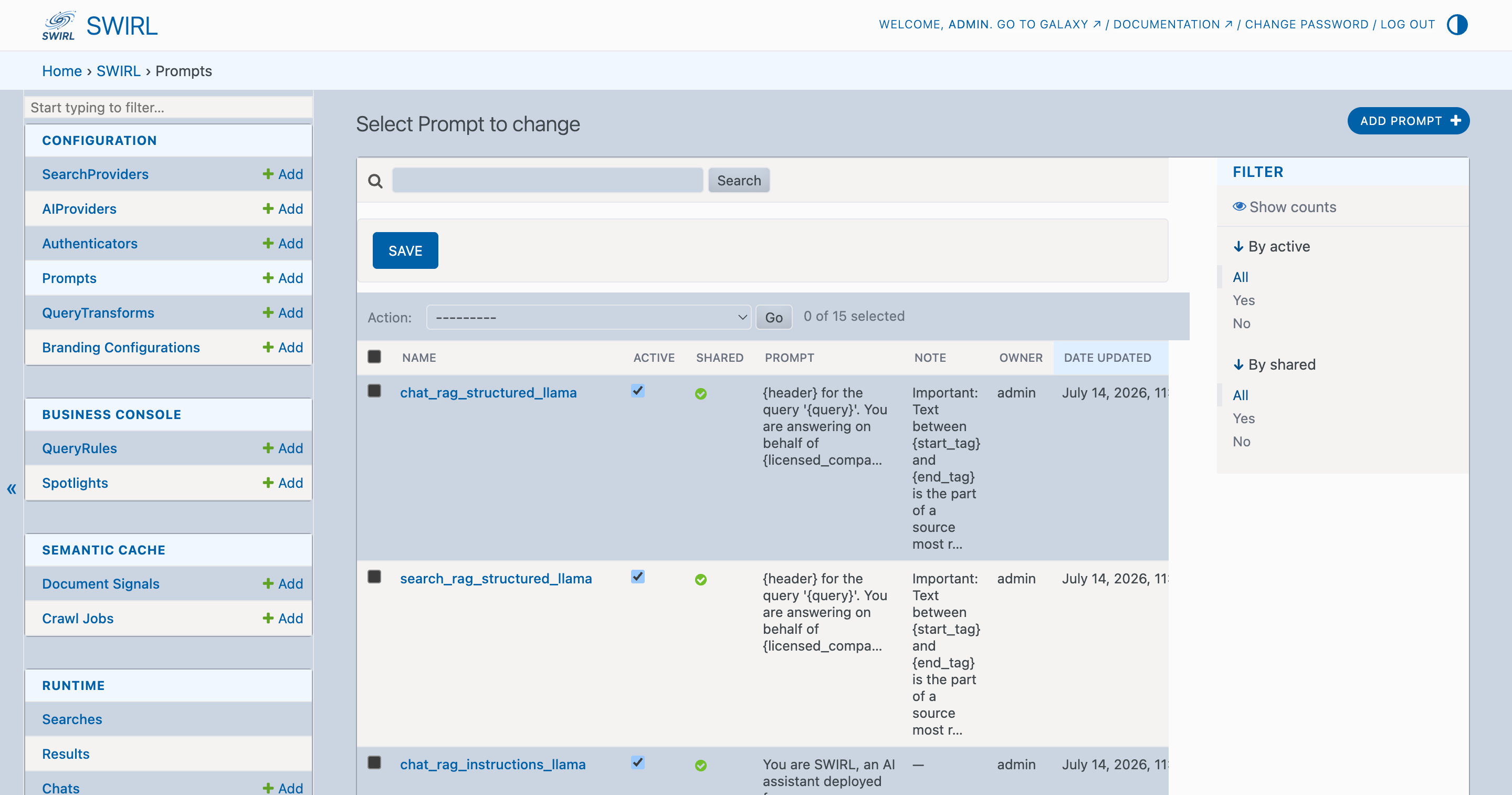
-
Click the
search_rag_standardprompt - or, if using Deep Linking, thesearch_rag_deeplinkprompt: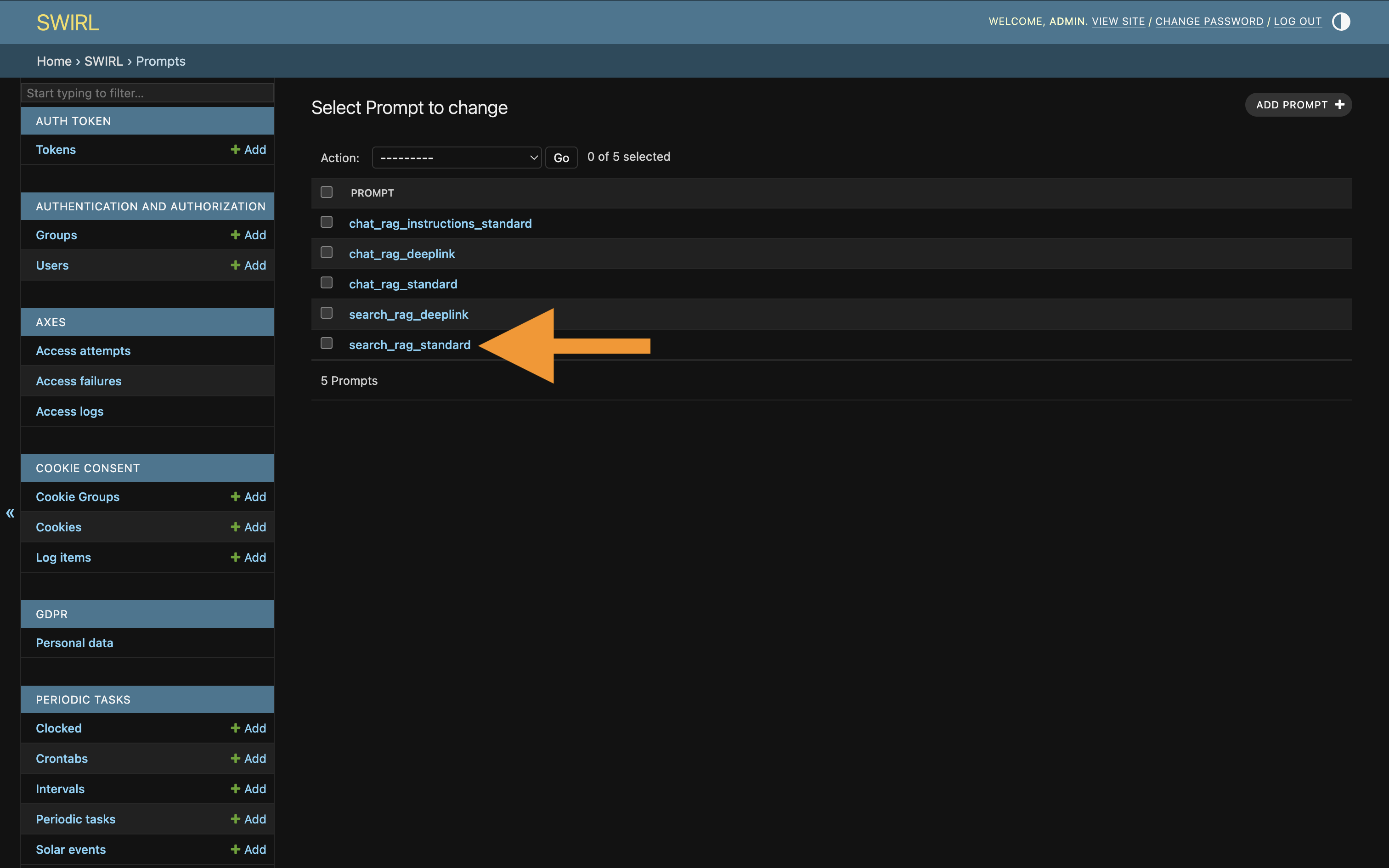
-
Using the form, uncheck
active. ClickSAVEat the bottom of the page: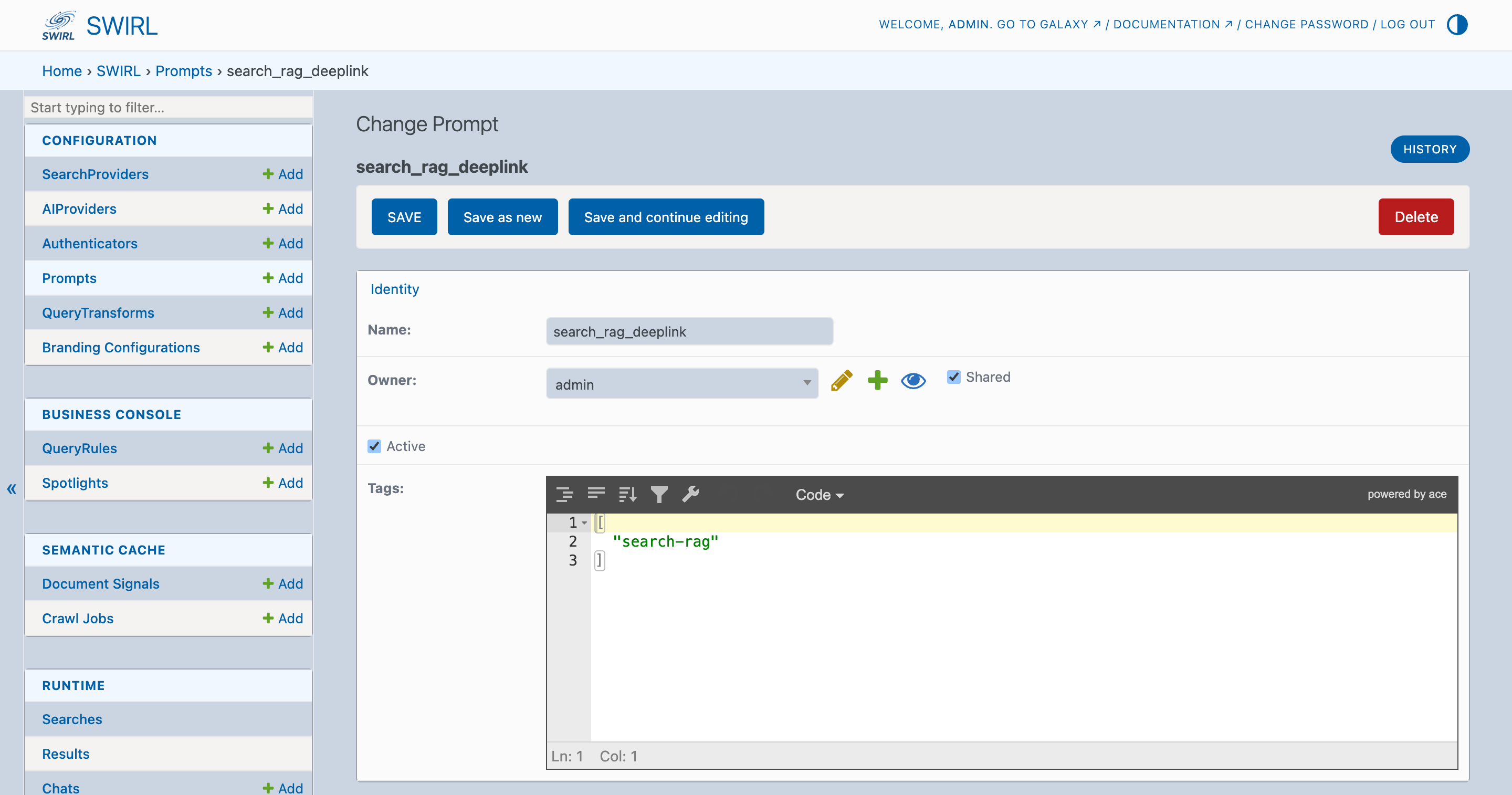
-
Re-open the prompt from the list. Change the
nameof the prompt to something appropriate likemy_custom_prompt. ClickSave as newat the bottom of the page. -
Set the prompt to
active. ClickSAVEto save the new prompt. -
If you don't wish to share this prompt with other users, set
sharedtofalse. -
Modify the
prompt,note, and/orfooteras needed, while retaining all critical instructions. For example, to instruct the LLM to use pirate-speak:
-
Click
SAVEto commit changes. -
Try the new prompt from the Galaxy Search form.
Restoring Standard Prompts
To revert to a standard prompt after creating a new one:
- Open the Admin Console and select
Prompts. - Edit the new prompt, uncheck
active, and clickSAVE. - Edit the system prompt, check
active, and clickSAVE.
Restoring All Prompts to Default
To restore all prompts to the default, see Resetting Prompts in the Admin Guide.
Specifying a Saved Prompt when Generating AI Insights
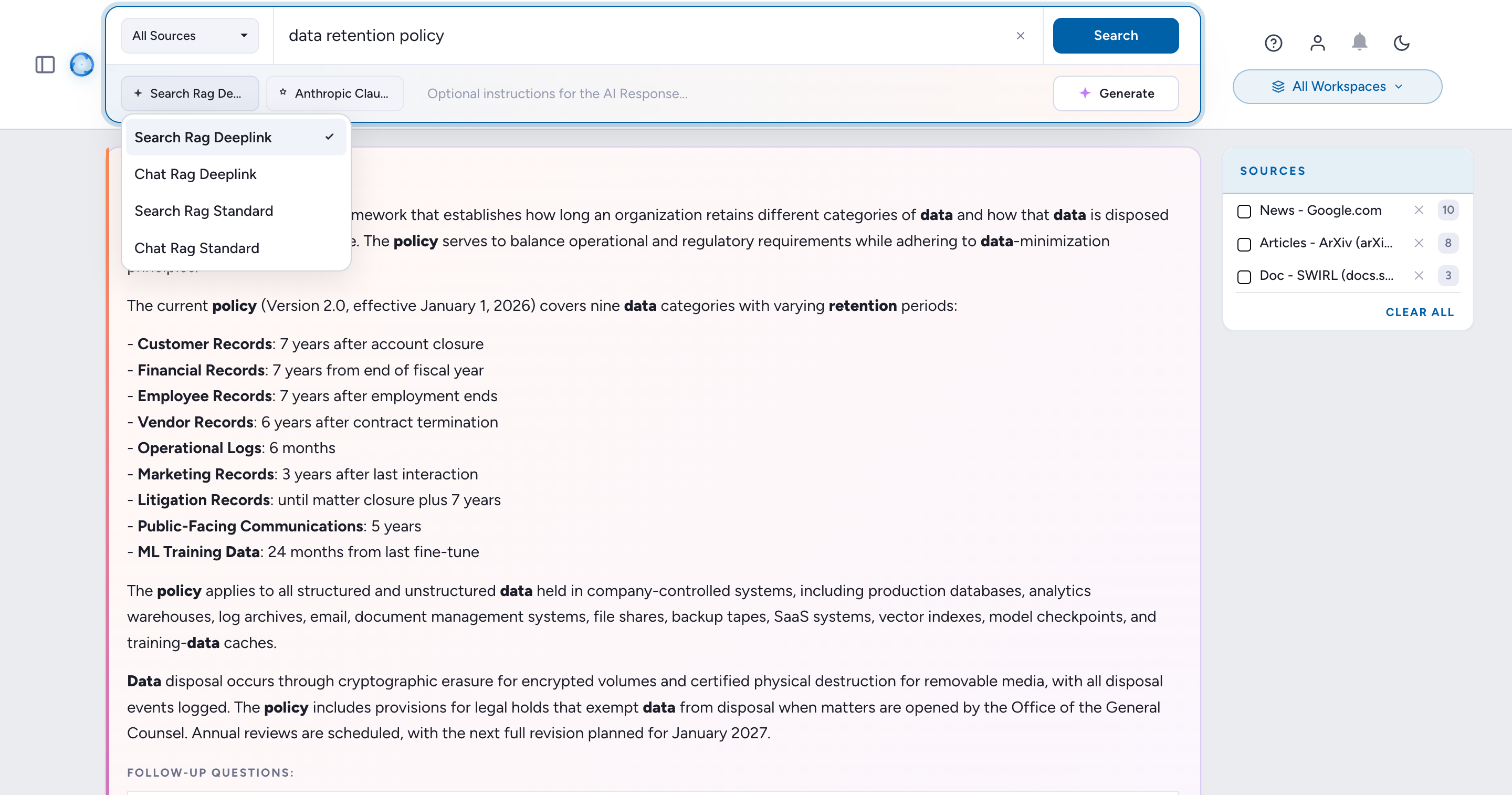
There are two ways to select a saved prompt:
- Use the prompt selector on the AI Search form:
- Use the
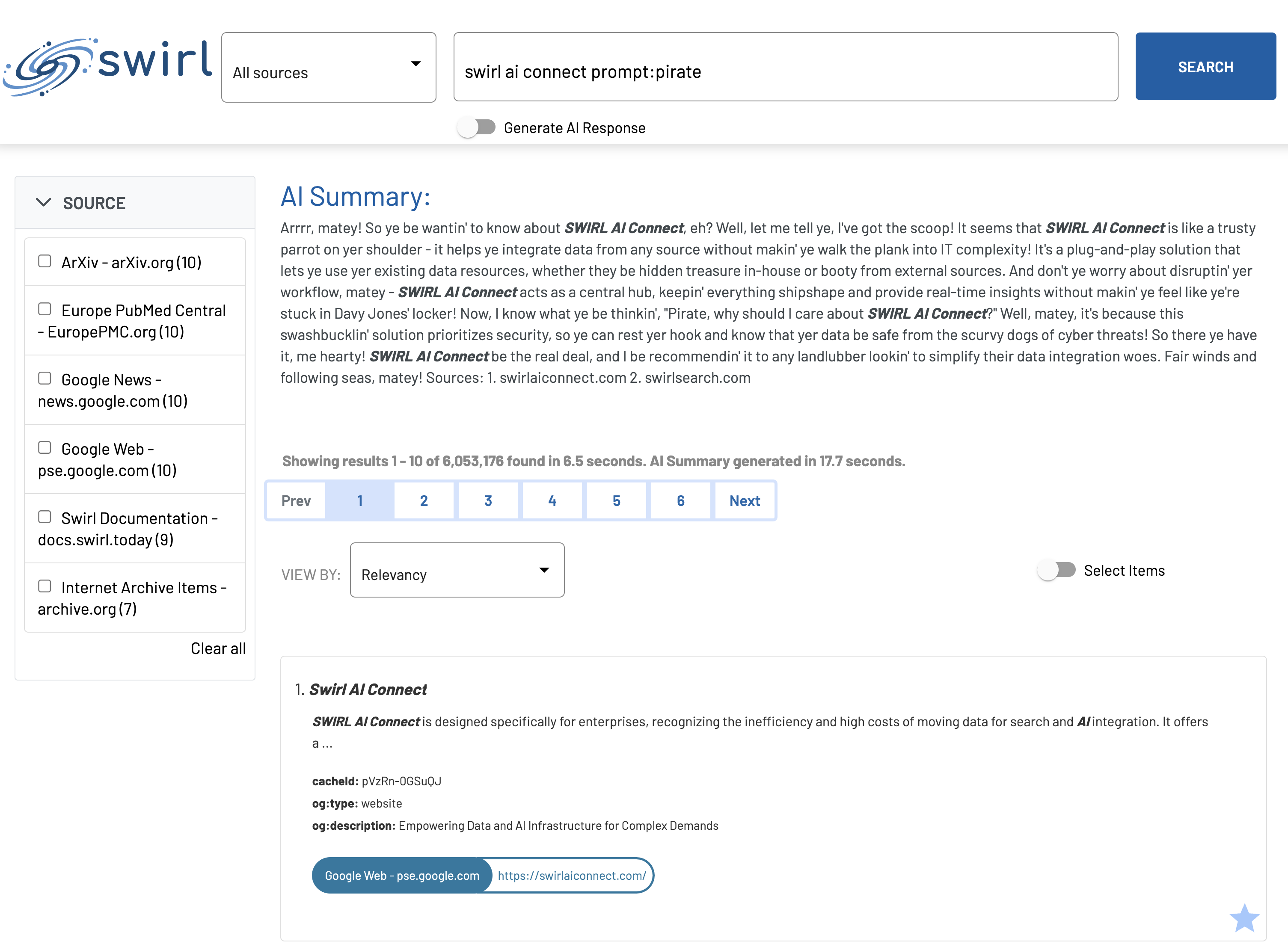
promptoperator in your query. For example:
Swirl AI Search prompt:pirate
In either case, the response is generated in pirate-speak as the prompt instructs:
Using a Prompt in a Query Processor or Connector
To specify a prompt when using an LLM for query rewriting or direct question answering:
- Follow the steps in Connecting to Generative AI (GAI) and Large Language Models (LLMs).
- See the Developer Guide section on Using an LLM to Rewrite Queries.
Optimizing RAG
Using Summaries
SWIRL_ALWAYS_FALL_BACK_TO_SUMMARY (default True) enables SWIRL to use result summaries for RAG when full-page text is unavailable. This is the best option for sources where full-page fetching is restricted due to authentication limitations.
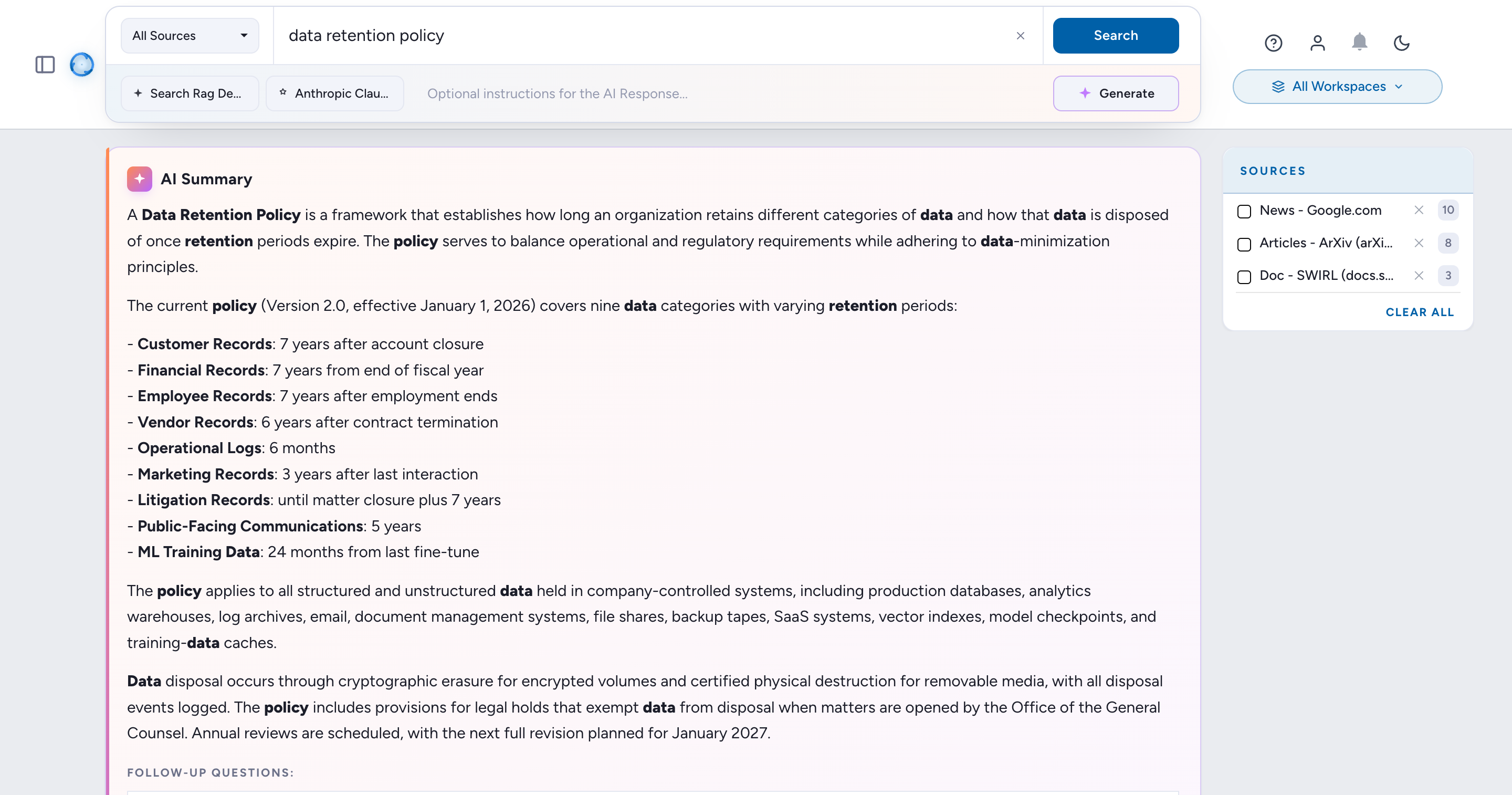
Search plus a generated AI Summary grounded in the results. (Silent; captions included.)
Distribution Strategy
The distribution strategy determines how SWIRL selects pages from search results per source. Configure it by setting SWIRL_RAG_DISTRIBUTION_STRATEGY to one of:
Distributed- maintains the original sort order and evenly selects pages from each source. Example: if two sources return results, SWIRL selects five pages from each, adding them to the prompt until token limits are reached. The sort order remains unchanged, andswirl_scoreis not used.RoundRobin- selects pages in a round-robin fashion across sources. Respects each source's internal sort order but ignoresswirl_score.RoundRobinThreshold- likeRoundRobin, but only results that meet the RAG inclusion threshold (below) are selected.Sorted(default) - selects pages in relevance order, using only results whoseSWIRL_RAG_INCLUSION_FIELDscore (defaultswirl_confidence_score) exceedsSWIRL_RAG_SCORE_INCLUSION_THRESHOLD(default0.8).
Model Maximum Pages and Tokens
- Set the RAG model - the model comes from the AI Provider that is active and default for the
ragrole; set itsmodelfield. - Limit the number of pages considered - configure
SWIRL_RAG_MAX_TO_CONSIDER(default10). - Control token usage - set
"max_tokens"in the AI Provider'sconfigto declare that provider's packing budget; providers without one fall back toSWIRL_RAG_TOK_DEFAULT(default3000). See Per-Model RAG Context Budget below.
Notes
- SWIRL uses model-specific encodings to count tokens but also respects the configured limits.
- SWIRL clamps the configured budget to what the model can actually accept, so a generous
max_tokensis safe; the default budget is set well below typical model maximums to prevent excessive response latency.
Per-Model RAG Context Budget (SWIRL 5)
SWIRL 5 sizes the RAG prompt per model instead of using one global limit:
- Set
"max_tokens"in the AI provider'sconfigto declare that provider's packing budget (for example, a large-context model can carry a six-figure budget). - SWIRL clamps the configured budget to what the model can actually accept: the model's input limit minus its output reserve, a prompt reserve, and the global safety margin
SWIRL_RAG_TOKEN_RESERVE(default2000). - Providers with no configured budget fall back to
SWIRL_RAG_TOK_DEFAULT(default3000).
This lets a deployment mix small local models and large hosted models without re-tuning global token settings.
Configuring the Authenticating Page Fetcher for RAG with Enterprise Content
SWIRL Enterprise includes a Page Fetcher that retrieves results from sources requiring authentication.
-
Search
Federate the query across every active SearchProvider in parallel.
-
Re-Rank
Normalize and re-score results across sources using vector similarity and cross-encoder scoring.
-
Review
Optionally let the user inspect, sort, or trim the result set before generation.
-
Fetch
Pull full text from each chosen source in real time, using authorised credentials.
-
Read
Vectorise the fetched text and pick the passages most relevant to the query.
-
Prompt
Bind passages into a prompt and dispatch to the configured generative model.
-
Package
Return an AI-generated answer with inline citations linking back to each source.
The Page Fetcher authenticates using the user's token or a configured authentication method for each source.
The following sections explain how to configure Page Fetching for specific SearchProviders.
Google PSE SearchProviders
For public source data via Google PSE SearchProviders, the recommended configuration uses Diffbot - a page-fetching and content-cleaning service.
Configuration with Diffbot
"page_fetch_config_json": {
    "cache": "false",
    "fallback": "diffbot",
    "diffbot": {
        "token": "<Diffbot-API-Token-Here>",
        "scholar.google.com": {
            "extract_entity": "article"
        }
    },
    "headers": {
        "User-Agent": "Swirlbot/1.0 (+http://swirl.today)"
    },
    "www.businesswire.com": {
        "timeout": 60
    },
    "www.linkedin.com": {
        "timeout": 5
    },
    "rs.linkedin.com": {
        "timeout": 5
    },
    "uk.linkedin.com": {
        "timeout": 5
    },
    "au.linkedin.com": {
        "timeout": 5
    },
    "timeout": 30
}
To obtain a Diffbot token, sign up at diffbot.com.
Configuration Without Diffbot
If you prefer not to use Diffbot, use the following configuration:
"page_fetch_config_json": {
    "cache": "false",
    "headers": {
        "User-Agent": "Swirlbot/1.0 (+http://swirl.today)"
    },
    "www.businesswire.com": {
        "timeout": 60
    },
    "www.linkedin.com": {
        "timeout": 5
    },
    "rs.linkedin.com": {
        "timeout": 5
    },
    "uk.linkedin.com": {
        "timeout": 5
    },
    "au.linkedin.com": {
        "timeout": 5
    },
    "timeout": 30
}
Note: For more details on configuring Google PSE SearchProviders, refer to the SearchProvider Guide.
Notes
cachedefaults tofalse.fallback: "diffbot"enables automatic failover - SWIRL attempts normal fetching first, using Diffbot only if the initial fetch fails. This improves speed, since Diffbot requests are slower.headersdefine request headers sent with each page request.- Domain-specific
timeoutvalues serve two purposes: allowing slow but valuable sources (e.g.,www.businesswire.com) to return data, and enforcing quick failures for unsupported sites (e.g.,www.linkedin.com) so Diffbot can be used instead. - Diffbot requires a paid account with an associated API token.
M365 Configurations
Diffbot should not be used with Microsoft sources.
Note: The content_url field is a template URL that dynamically constructs a URL using search result data. SWIRL uses this URL to fetch actual content.
Microsoft Outlook Messages
Add the following configuration to the Microsoft Outlook Messages SearchProvider:
"page_fetch_config_json": {
    "cache": "false",
    "headers": {
        "User-Agent": "Swirlbot/1.0 (+http://swirl.today)"
    },
    "timeout": 10
}
Microsoft Calendar
Add the following configuration to the Microsoft Calendar SearchProvider:
"page_fetch_config_json": {
    "cache": "false",
    "content_url": "https://graph.microsoft.com/v1.0/me/events/'{hitId}'",
    "headers": {
        "User-Agent": "Swirlbot/1.0 (+http://swirl.today)"
    },
    "timeout": 30
}
Microsoft OneDrive
Configuration Options
| Field | Description |
|---|---|
content_url |
The URL to fetch the page content if different from the URL mapped to SWIRL’s url field. |
mimetype_url |
The URL to fetch the mimetype of the content. |
mimetype_path |
JSON path to extract the mimetype from the fetched object. |
mimetype_whitelist |
List of mimetypes allowed for content fetching. |
OneDrive Configuration
- The configuration below enables fetching HTML, PDF, PNG, and Microsoft Word and PowerPoint documents. Add other MIME types to the whitelist as needed.
- Binary content (PDF, DOCX, PPTX, etc.) requires a configured text extractor for RAG.
"page_fetch_config_json": {
    "cache": "false",
    "content_url": "https://graph.microsoft.com/v1.0/drives/'{resource.parentReference.driveId}'/items/'{resource.id}'/content",
    "mimetype_url": "https://graph.microsoft.com/v1.0/drives/'{resource.parentReference.driveId}'/items/'{resource.id}'",
    "mimetype_path": "'{file.mimeType}'",
    "mimetype_whitelist": [
        "application/pdf",
        "application/vnd.openxmlformats-officedocument.wordprocessingml.document",
        "application/vnd.openxmlformats-officedocument.presentationml.presentation",
        "image/png",
        "text/html"
    ],
    "headers": {
        "User-Agent": "Swirlbot/1.0 (+http://swirl.today)"
    },
    "timeout": 30
}
Microsoft SharePoint
To fetch SharePoint objects, add the following configuration to the Microsoft SharePoint SearchProvider:
"page_fetch_config_json": {
    "cache": "false",
    "content_url": "https://graph.microsoft.com/beta/sites/'{hitId}'/drives",
    "headers": {
        "User-Agent": "Swirlbot/1.0 (+http://swirl.today)"
    },
    "timeout": 10
}
This configuration lets SWIRL fetch authenticated content from Microsoft sources.
Customizing
SWIRL recommends using the RequestsPost connector for advanced querying. This section describes how to configure it.
Here is a sample SearchProvider:
 {
        "name": "Sharepoint Advanced Query",
        "description": "Searches a set of documents. Supports most languages.",
        "owner": "admin",
        "shared": true,
        "active": true,
        "default": false,
        "authenticator": "Microsoft",
        "connector": "RequestsPost",
        "url": "https://graph.microsoft.com/beta/search/microsoft.graph.query",
        "query_template": "{url}",
        "query_template_json": {},
        "post_query_template": {
            "requests": [
                {
                    "from": 0,
                    "size": 10,
                    "query": {
                        "queryString": "( {query_string} )  AND  site:\"https://<m365-tenant-name>.sharepoint.com/sites/<site-name>*\" AND (ContentTypeId:0x0101009D1CB255DA76424F860D91F20E6C411800FE9B4A881A37C14EB317C8BB00D7678E OR ContentTypeId:0x0101005F15B24C83D3604385BF439DD37F6A1D)"
                    },
                    "fields": [
                        "ContentTypeId",
                        "title",
                        "webUrl",
                        "lastModifiedDateTime",
                        "description"
                    ],
                    "entityTypes": [
                        "driveItem",
                        "listItem"
                    ]
                }
            ]
        },
        "http_request_headers": {
            "Content-Type": "application/json"
        },
        "page_fetch_config_json": {},
        "query_processors": [
            "NoModQueryProcessor"
        ],
        "query_mappings": "NO_URL_ENCODE",
        "result_grouping_field": "",
        "result_processors": [
            "MappingResultProcessor",
            "CosineRelevancyResultProcessor"
        ],
        "response_mappings": "FOUND=value[0].hitsContainers[0].total,RESULTS=value[0].hitsContainers[0].hits",
        "result_mappings": "url=resource.webUrl,title='{$[*].resource..fields.title}',body='{summary} - {resource.fields.description}',date_published=resource.createdDateTime,author=resource.createdBy.user.displayName",
        "results_per_query": 10,
        "credentials": "",
        "eval_credentials": "",
        "tags": [
            "sp1"
        ],
        "ephemeral_store_config_json": {
            "ephemeral": false
        },
        "query_language": "Generic_Keyword",
        "config": {}
    }
The SearchProvider above must be edited before use.
The SearchProvider above will not work without the quote-handling transformer installed. Follow the procedure under Quote Handling to install it.
query_processors
Specify NoModQueryProcessor in the query_processors list instead of AdaptiveQueryProcessor. This ensures the query is not modified in the SearchProvider.
post_query_template
The post_query_template field contains JSON that wraps additional query parameters.
- Change
<m365-tenant-name>and<site-name>to the appropriate values for your tenant. - The
query_stringis filled in at run time by SWIRL. The value is wrapped in parentheses because it may contain keywords likeAND,OR, orNOT, and may include nested parentheses. ContentTypeIdspecifies which types of documents to focus on. For SharePoint and OneDrive, the main types aredriveItemandlistItem.
Quote Handling
Quoted searches in SharePoint require a query transformer to be handled correctly.
To install this transformer:
- Request the
escape_quotes.csvtransform file from support. - Log in to the SWIRL admin's query-transform CSV page at http://localhost:8000/api/swirl/query_transform_form/.

- Enter the name
escape_quotes. - Leave the type set to
Rewrite. - Click
Choose file, select the downloaded CSV, then clickUpload(highlighted in green above).
The file uploads and redirects you back to the homepage.
Contact support if you receive an error message.
Extracting Enterprise Content with Apache Tika
SWIRL integrates Apache Tika to extract text from various file types. The following sections explain how to deploy and configure it.
Running Apache Tika
For local installations, start Tika using Docker:
docker run -d -p 9998:9998 apache/tika
To use a remote Tika instance, set TIKA_SERVER_ENDPOINT in SWIRL’s .env file:
TIKA_SERVER_ENDPOINT='http://<your-tika-server>:9998/'
Restart SWIRL after making changes.
SearchProvider Configuration
Refer to the Microsoft OneDrive section for a Page Fetcher configuration that integrates Tika for extracting text from PDFs, Microsoft Office documents, and other file formats retrieved via the Microsoft Graph API.
To support additional file types, expand the whitelist to include any document format that Tika supports.
Configuring Passage Detection with Reader LLM
SWIRL Enterprise includes passage detection (the topic text matcher), which improves RAG accuracy by identifying the sections of text most relevant to the query. In SWIRL 5 the topic text matcher runs in-process (BM25) - no separate service or Docker container is required.
Configuration Options
The following environment variables allow customization of passage detection and RAG settings:
| Variable | Description | Default |
|---|---|---|
SWIRL_TTM_USE_INPROCESS |
If True, the in-process topic text matcher tags the most relevant passages during RAG page fetch. If False, passage detection is disabled and heuristic body construction is used. |
True |
SWIRL_TEXT_SUMMARIZATION_MAX_SIZE |
Maximum text block size (characters) considered per chunk by the topic text matcher | 4096 |
SWIRL_TEXT_SUMMARIZATION_NUM_CHUNKS |
Number of top-matching chunks used during page fetch | 2 |
SWIRL_RAG_TOK_DEFAULT |
Default maximum tokens of retrieved content packed into the RAG prompt when the AI Provider does not specify a limit | 3000 |
SWIRL_RAG_TOKEN_RESERVE |
Safety margin (tokens) reserved out of the model's context window when computing the per-model RAG packing budget | 2000 |
SWIRL_RAG_MAX_TO_CONSIDER |
Maximum search results considered for RAG | 10 |
SWIRL_RAG_DISTRIBUTION_STRATEGY |
Defines how search results are selected for RAG: Distributed, RoundRobin, RoundRobinThreshold, or Sorted |
Sorted |
About SWIRL_RAG_DISTRIBUTION_STRATEGY
If set to Distributed, and the number of documents is less than SWIRL_RAG_MAX_TO_CONSIDER, SWIRL backfills results by iterating through the next available results.
Example .env Configuration
SWIRL_RAG_DISTRIBUTION_STRATEGY='RoundRobin'
TIKA_SERVER_ENDPOINT='http://localhost:9998/'
This configuration ensures Apache Tika and passage detection are correctly integrated into SWIRL AI Search.
Text Summarization
When passage detection is enabled (the default), SWIRL tags the parts of fetched text most relevant to the query before they are included in the LLM prompt.
Example: Tagged Text in a Prompt
--- Content Details ---
Type: Web Page
Domain: swirl.today
Query Terms: 'Swirl'
Important: Text between <SW-IMPORTANT> and </SW-IMPORTANT> is most pertinent to the query.

--- Content ---
<SW-IMPORTANT>WHO IS SWIRL? </SW-IMPORTANT>
<SW-IMPORTANT>Getting to know Swirl Swirl is a powerful solution for identifying and using information. </SW-IMPORTANT>
<SW-IMPORTANT>Swirl was launched in 2022 and operates under the Apache 2.0 license. </SW-IMPORTANT>
<SW-IMPORTANT>At Swirl we follow an iterative approach to software development adhering to the principles of agile methodology. </SW-IMPORTANT>
We believe in delivering high-quality releases through each stage of our development lifecycle.
PII Detection and Removal
SWIRL Enterprise supports automatic PII (Personally Identifiable Information) detection and removal using Microsoft Presidio. When enabled, PII entities are detected in search results and redacted before being returned to the user.
Supported entity types
Presidio detects a wide range of PII entities, including names, email addresses, phone numbers, credit card numbers, social security numbers, and more.
Configuration:
- Install the Presidio dependencies:
pip install -r requirements-presidio.txt
-
Add
RedactPIIResultProcessorto theresult_processorslist in the relevant SearchProvider configuration. -
Restart SWIRL for changes to take effect.
PII detection adds processing overhead. Test performance impact before enabling in production on high-volume SearchProviders.
Multi-Language Support
SWIRL supports multiple languages for query processing and relevancy ranking through configurable spaCy models.
Configured Languages:
| Language | spaCy Model | Setting |
|---|---|---|
| English | en_core_web_lg |
SWIRL_SPACY_MODEL_EN |
| German | de_core_news_lg |
SWIRL_SPACY_MODEL_DE |
| Japanese | ja_core_news_lg |
SWIRL_SPACY_MODEL_JA |
| PII Detection | en_core_web_sm |
SWIRL_SPACY_MODEL_PII |
Related Settings:
| Setting | Default | Description |
|---|---|---|
SWIRL_DEFAULT_LANGUAGE |
en |
Default language code |
SWIRL_DEFAULT_QUERY_LANGUAGE |
english |
Stopword dictionary language |
SWIRL_PROMPT_LANGUAGE |
en |
Language for AI prompt templates |
Adding a New Language:
- Install the appropriate spaCy model:
python -m spacy download <model-name> - Add a
SWIRL_SPACY_MODEL_<LANG>setting insettings.pyor.env - Restart SWIRL
Performance Optimization:
SWIRL_SPACY_VECTORS_FP16(default:True) - Uses half-precision vectors to reduce memory usageSWIRL_SPACY_USE_EMBEDDINGS_CACHE(default:True, max size: 2000) - Caches computed embeddings for repeated terms