
Retrieval Augmented Generation (RAG) Configuration
SWIRL supports real-time Retrieval-Augmented Generation (RAG) out of the box, using result snippets and/or the full text of fetched result pages.
Configuring RAG
-
Install SWIRL as described in the Quick Start Guide, including the latest Galaxy UI.
-
Configure an AIProvider for RAG. COMMUNITY: as of 4.5 you have two equivalent ways to do this:
Option A - Administration Console (recommended). Sign in to http://localhost:8000/admin/, open Configuration → AIProviders, and either edit the preloaded OpenAI / Azure/OpenAI records or click + Add. Set:
- Name - a human-readable label.
- Model - e.g.
gpt-4.1,gpt-4o-mini. - API key - the OpenAI / Azure key.
- API base - leave blank for OpenAI; for Azure paste the endpoint URL.
- API version - Azure only.
- Roles - tick at least
rag;embeddingsis used for relevancy re-ranking. - Active - must be on.
Option B - environment variables (legacy bootstrap). The settings below in .env are still honored at startup and seed the preloaded AIProvider records:
OpenAI direct:
OPENAI_API_KEY='your-OpenAI-key'
Azure/OpenAI:
AZURE_OPENAI_KEY='your-Azure/OpenAI-key'
AZURE_OPENAI_ENDPOINT='your-Azure/OpenAI-endpoint'
AZURE_MODEL='your-Azure/OpenAI-model'
AZURE_API_VERSION='your-Azure/OpenAI-version'
Optional RAG Configurations:
## Additional model usage options
SWIRL_RAG_MODEL='gpt-4.1'
SWIRL_REWRITE_MODEL='gpt-4.1'
SWIRL_QUERY_MODEL='gpt-4.1'

## RAG token and results budgets (defaults are 3000 and 10, respectively)
SWIRL_RAG_TOK_DEFAULT=25000
SWIRL_RAG_MAX_TO_CONSIDER=12
COMMUNITY: Because AIProvider records live in the database, settings you change in the Administration Console take effect immediately for new searches - no SWIRL restart is required. Restart is only needed when you change values in .env.
SWIRL Community supports RAG with OpenAI, Azure/OpenAI, and any OpenAI-compatible endpoint reachable from your SWIRL host. SWIRL Enterprise adds Anthropic, Cohere, and others, plus Assistant-specific roles (chat, query rewriting, direct answer retrieval).
Local embeddings with Ollama + mxbai-embed-large (Community)
SWIRL Community ships with a preloaded Ollama Embeddings AIProvider record (id 14, model ollama/mxbai-embed-large) for the reader / embeddings role. Enabling it pushes relevancy re-ranking off any paid embeddings API and onto a local Ollama instance - useful when you want re-ranking to run entirely offline, or when you don't want to spend API tokens on embeddings.
This applies to SWIRL Community only. SWIRL Enterprise has its own embedding configurations covered in the AI Search Guide.
-
Install Ollama. The default install starts a background daemon on
http://localhost:11434. -
Pull the
mxbai-embed-largemodel (about 670 MB):ollama pull mxbai-embed-large -
Verify Ollama is reachable and the model is loaded:
curl http://localhost:11434/api/tagsThe response should include
mxbai-embed-largein themodelslist. -
If SWIRL is itself running inside Docker, point the AIProvider at the host machine instead of the container's own loopback. Open the AIProviders admin page, edit the preloaded Ollama Embeddings record, and adjust the
api_basein the Config field:{ "api_base": "http://host.docker.internal:11434", "dimensions": 1024, "NO_KEY_CHECK": true, "NO_MODEL_CHECK": true }(For a source install of SWIRL -
python swirl.py startdirectly on the host - leaveapi_baseat the preloadedhttp://localhost:11434.) -
Toggle Active on for the Ollama Embeddings record and save. No SWIRL restart needed - the next search uses the new embeddings provider for the cosine-relevancy re-ranking step.
-
Confirm it's in use. Run a search and inspect the JSON response at http://localhost:8000/swirl/results/?search_id=1 - the per-provider
result_processorsarray should still containCosineRelevancyResultProcessor, and the SWIRL log should no longer call out to OpenAI for embeddings on subsequent searches.
The 1024-dimension mxbai-embed-large model performs comparably to OpenAI's text-embedding-3-small on retrieval benchmarks while running entirely on your own hardware. If you want a smaller / faster footprint, swap the model with ollama pull nomic-embed-text and update the model + dimensions fields on the same AIProvider record (nomic-embed-text is 768-dim).
- Configure SearchProviders for RAG.
Modify the page_fetch_config_json parameter for each SearchProvider:
"page_fetch_config_json": {
    "cache": "false",
    "headers": {
        "User-Agent": "Swirlbot/1.0 (+http://swirl.today)"
    },
    "timeout": 10
}
- Adjust
timeoutif needed. - Change
User-Agentif required. - Authorize SWIRL to fetch pages from internal applications.
To override the timeout via the Galaxy UI, use:
http://localhost:8000/galaxy/?q=gig%20economics&rag=true&rag_timeout=90
- Restart SWIRL:
python swirl.py restart
-
Run a search in the Galaxy UI:
- Open http://localhost:8000/galaxy/.
- Ensure the
Generate AI Responseswitch is on. - Search for:
http://localhost:8000/galaxy/?q=SWIRL+AI+Search
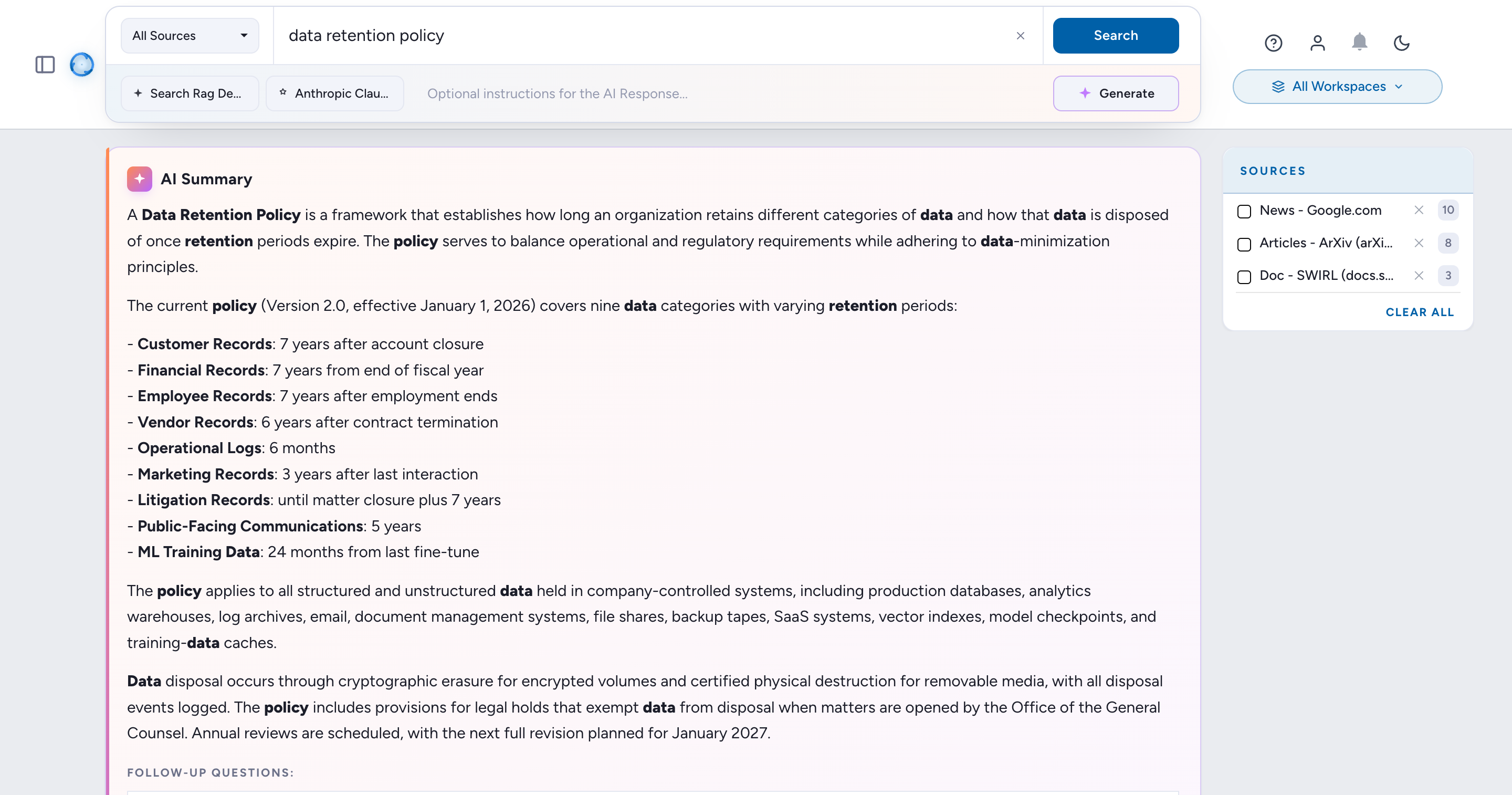
Results appear with an inline AI Summary at the top of the results page:
-
Manually select results for RAG (optional):
- Toggle
Select Itemsto enable manual selection. - Pre-selected results are SWIRL's best matches for RAG.
- Check or uncheck results, sort, or filter.
- Click
+ Generate(or the AI Summary refresh icon). - A spinner appears; results follow within seconds.
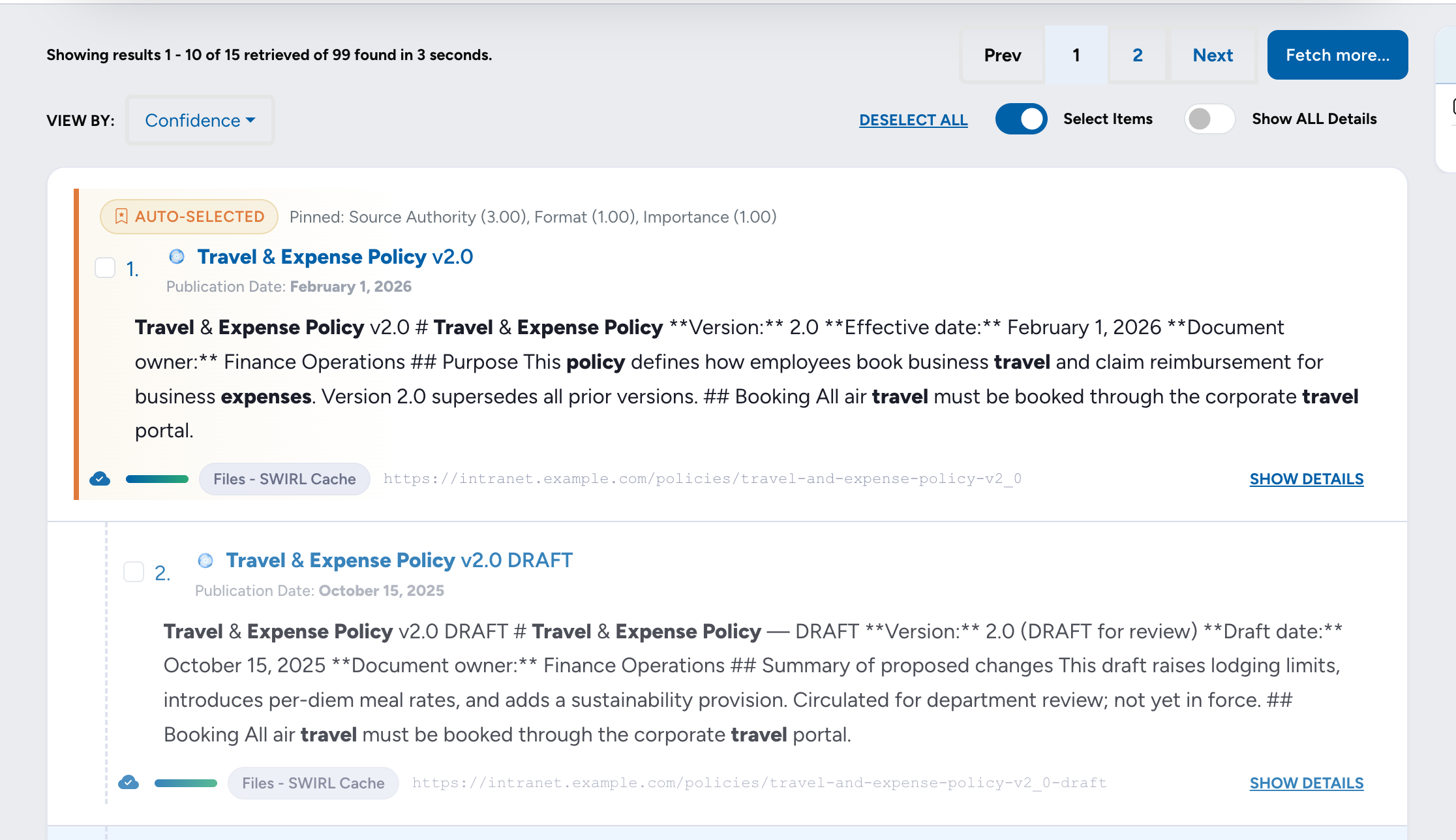
Select Items in action: pick exactly the documents the AI should read, and the citations come back as exactly those documents. (With narration.) - Toggle
-
Steer the AI Response with optional instructions:
- Type into the Optional instructions for the AI Response… textarea in the AI drawer (below the search bar / between the source picker and the Generate sparkle).
- The instructions are passed verbatim to the configured RAG provider as a steering hint - useful for changing tone, length, framing, or focus without editing the underlying prompt template.
- Examples:
Answer in plain English and prioritize practical setup steps over architecture.Limit the response to bullet points and cite only the top three sources.Focus on developments from the last 30 days; ignore older sources.
- The text travels as an
ai_instructions=<your-text>URL parameter and is preserved across follow-up questions in the same session. - Leave the field empty to use the SearchProvider/AIProvider's default prompt unchanged.
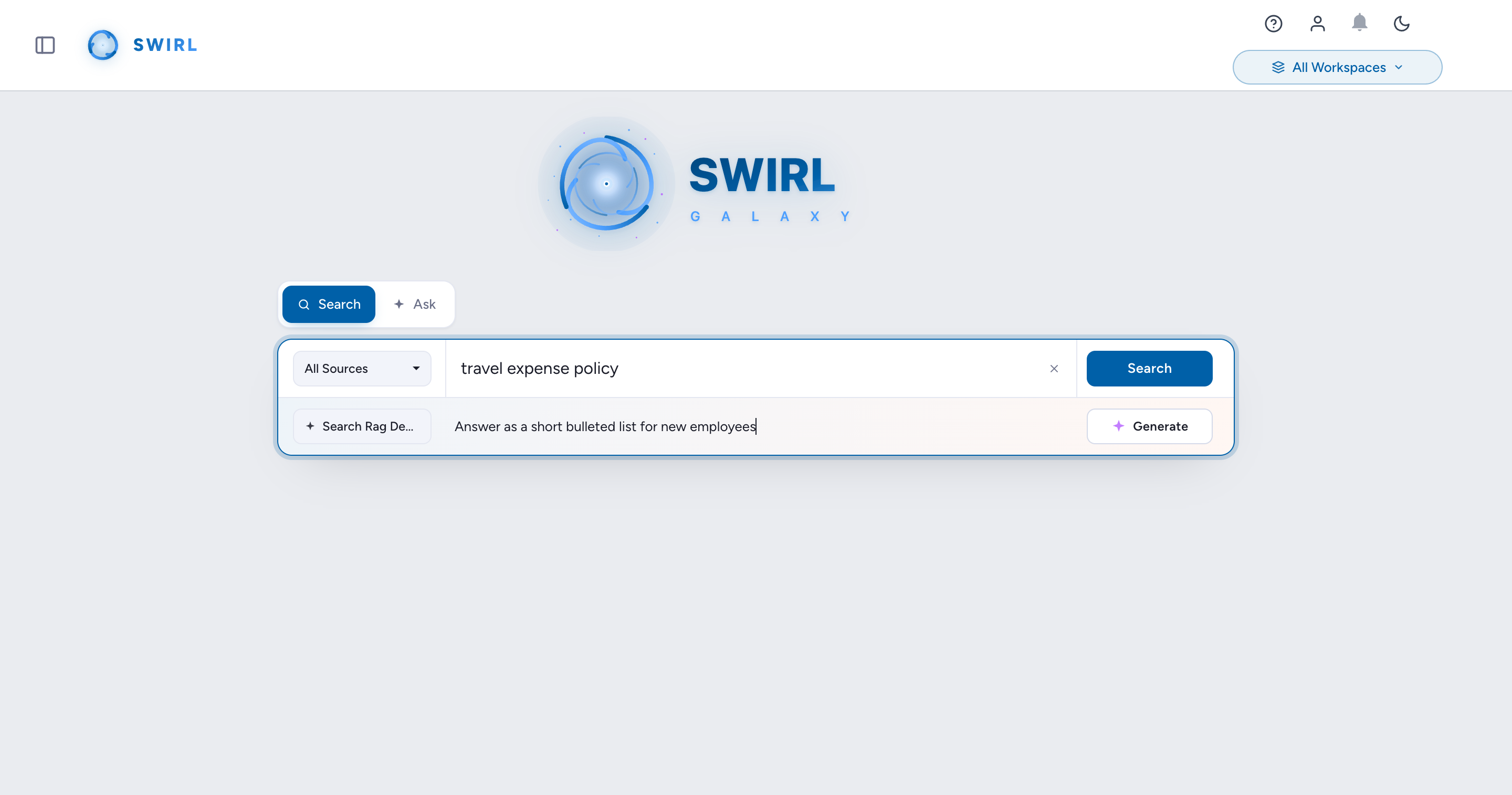
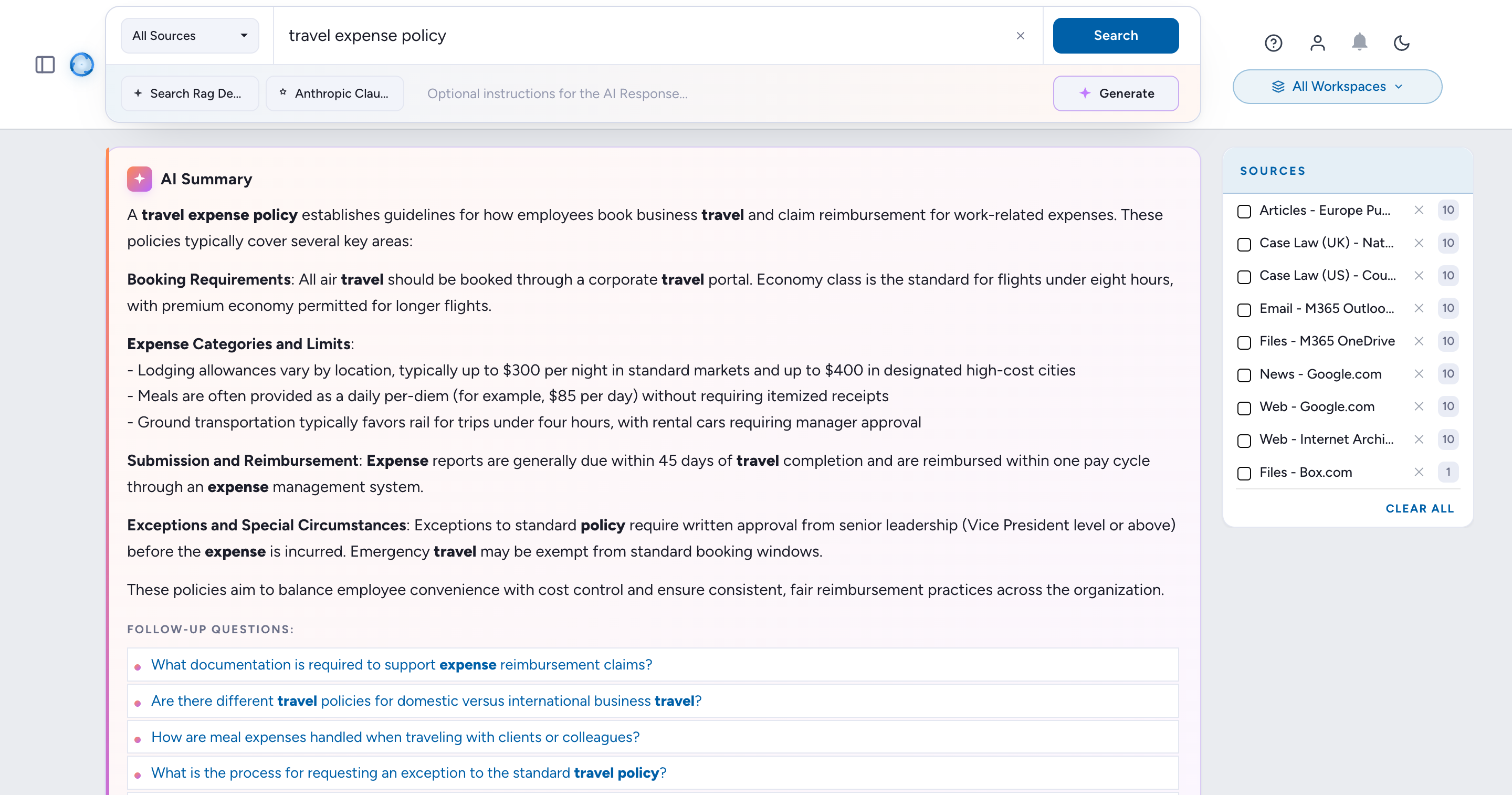
The resulting AI Summary respects the typed instructions:
-
Verify citations under the RAG response.
To cancel a RAG process, toggle
Generate AI Summaryoff.By default, SWIRL's RAG uses the first 10 selected results (auto or manual). To adjust, set
SWIRL_RAG_MAX_TO_CONSIDERin.env, as noted in the AI Search Guide.
SWIRL RAG Process
-
Search
Federate the query across every active SearchProvider in parallel.
-
Re-Rank
Normalize and re-score results across sources using cosine vector similarity.
-
Review
Optionally let the user inspect, sort, or trim the result set before generation.
-
Fetch
Pull full text from each chosen source in real time, using authorised credentials.
-
Read
Vectorise the fetched text and pick the passages most relevant to the query.
-
Prompt
Bind passages into a prompt and dispatch to the configured generative model.
-
Package
Return an AI-generated answer with inline citations linking back to each source.
SWIRL's RAG workflow:
- Search - SWIRL sends the user's query to one or more SearchProviders, then aggregates and normalizes the results.
- Re-Rank - the last step of the search workflow re-ranks the aggregated, normalized results to find the most relevant across all sources.
- Review - SWIRL can present re-ranked results for review and optional adjustment before executing the rest of the workflow.
- Fetch - follows the result link and downloads the full text or dataset.
- Read - SWIRL extracts text from 1,500+ file formats, identifies the most relevant passages, and chunks the text for the next step.
- Prompt - SWIRL binds the chunked text to the appropriate prompt, connects to the configured LLM, sends the prompt, and waits for the response.
- Package - SWIRL compiles the results, prompt, and response and returns them as a single JSON package, ready for visualization in the Galaxy UI.
Enterprise RAG Support
- SWIRL Community can fetch publicly accessible sources.
- For RAG with enterprise services (e.g., Microsoft 365, ServiceNow, Salesforce, Atlassian) using OAuth2 and SSO, contact us for SWIRL Enterprise.
Preloaded RAG Configurations
The following SearchProviders come pre-configured for RAG:
API-Based RAG Processing
RAG processing is available via a single API call:
?qs=metasearch&rag=true
For details, see the Developer Guide.
Configuring Timeout Behavior
- The default timeout is 60 seconds.
- To modify the timeout and error message, update:
"ragConfig": {
    "timeout": 90,
    "timeoutText": "Timeout: No response from Generative AI."
},