
Quick Start Guide - SWIRL 5 Enterprise
Prefer a guided install? The SWIRL Plugin for Claude Code walks you through installation, connecting sources, and your first grounded answer, end to end: claude plugin marketplace add swirlai/swirl-claude-plugin
This guide gets a SWIRL 5 Enterprise deployment running in Docker and verifies search, AI Insights, the Semantic Cache, and the MCP server. Please contact SWIRL for access to SWIRL Enterprise and a license key.
Running SWIRL 4.x? See the 4.x Quick Start.
System Requirements
The recommended minimum is a 32-core server with 64 GB of memory and at least 500 GB of available disk space. This supports up to 25 users.
Docker Engine (or Docker Desktop) with the Compose plugin is required. If using Docker Desktop, ensure its resource limits give the SWIRL stack access to the recommended CPU and memory.
Recommended Cloud Instances
| Cloud Platform | Instance / Machine Type | vCPUs | RAM |
|---|---|---|---|
| AWS EC2 | c6i.8xlarge | 32 | 64 GiB |
| AWS EC2 | c7g.8xlarge | 32 | 64 GiB |
| GCP Compute Engine | n2-custom-32-65536 | 32 | 64 GB |
| GCP Compute Engine | c2d-standard-32 | 32 | 128 GB |
| Azure VMs | Standard_F32s_v2 | 32 | 64 GiB |
What Is in the Stack
SWIRL 5 Enterprise deploys as a Docker Compose stack:
| Service | Purpose |
|---|---|
swirl |
The SWIRL application: API, Galaxy UI, and task workers (port 8000) |
swirl-init |
One-shot database setup (schema, seed data); runs and exits |
postgres |
The SWIRL database |
redis |
Task broker and caches |
qdrant |
Vector store for the Semantic Cache |
seaweedfs |
S3-compatible object storage for cached document bodies |
tika |
Text extraction from 1,500+ file formats |
ollama |
Local LLM and embeddings (see the platform note under Installing SWIRL via Docker) |
mcp |
The MCP server sidecar (port 8675) |
Installing SWIRL via Docker
- Obtain a SWIRL Enterprise license from SWIRL, then clone the compose repository:
git clone https://github.com/swirlai/docker-compose. (For a production VM with systemd and TLS, follow the repository's Production Deployment guide instead.) - Copy the provided
.envtemplate and set at minimum:
SWIRL_LICENSE=<license-json>
ADMIN_PASSWORD=<administrator-password>
SQL_USER=swirl
SQL_PASSWORD=<database-password>
To enable the built-in MCP server, also set MCP_ENABLED=true and SWIRL_MCP_TOKEN. Never commit .env to version control. The license is signed JSON; paste it exactly as provided.
- Start the stack:
docker compose pull
docker compose up -d
docker compose logs -f swirl-init   # watch one-time DB setup complete
First startup pulls images and initializes the database; allow a few minutes. swirl-init exiting with code 0 is normal - it is a one-shot setup task.
Verifying SWIRL Startup
Open a browser and navigate to http://localhost:8000/galaxy.
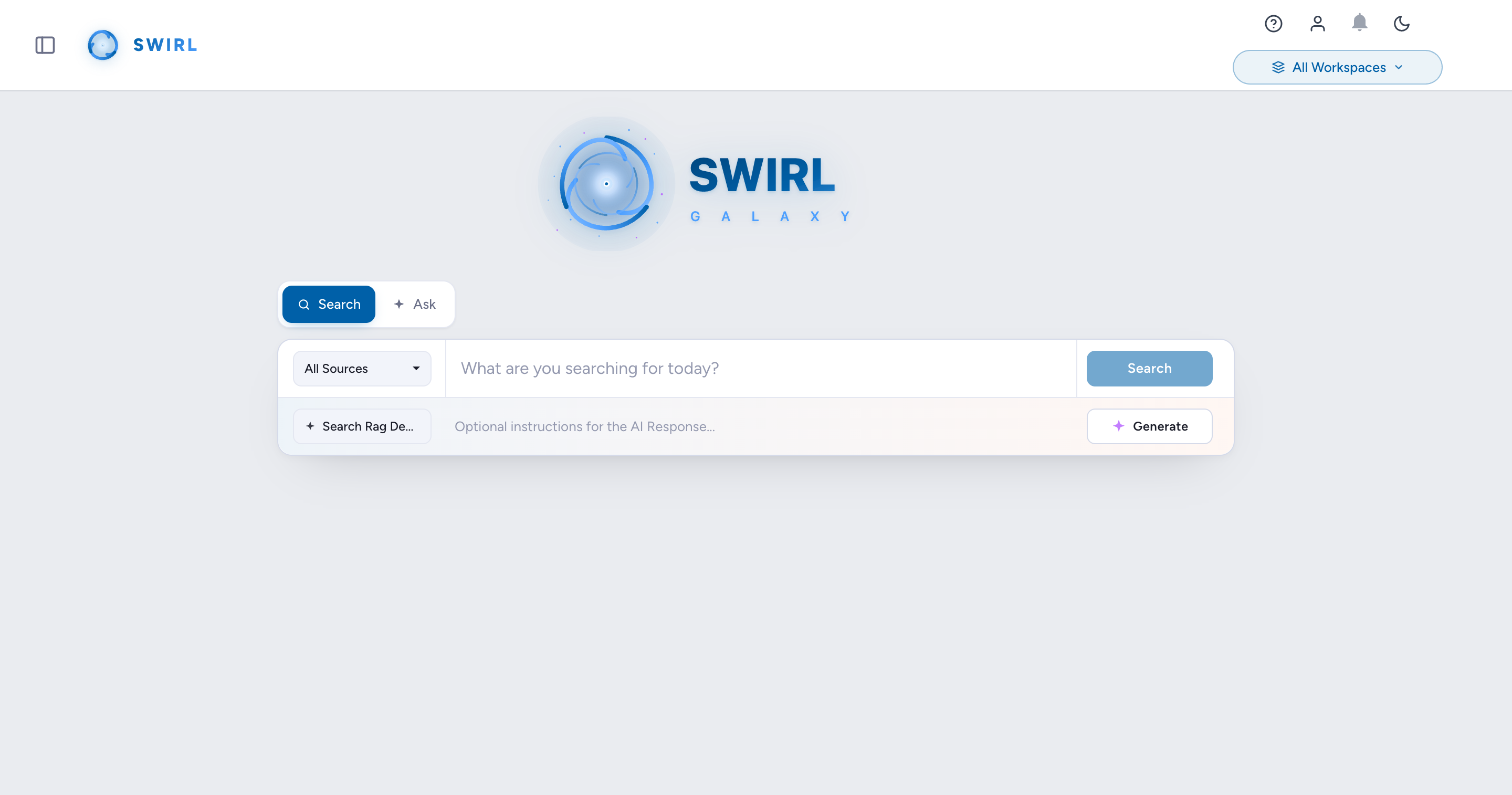
If the search page loads, click Log Out in the top-right corner, then log in with:
- Username:
admin - Password: the
ADMIN_PASSWORDvalue you set in.env
To change the administrator password later, see Changing the Super User Password.
Enter a search term and press Search. Ranked results from the preloaded sources should appear. If no results appear or an error occurs, check the container logs (docker compose logs swirl), see the Troubleshooting Guide, and contact support.
Enabling AI Features
To use Generate AI Insights (RAG) or the AI Search Assistant, at least one AI provider must be active:
- Go to
http://localhost:8000/swirl/aiproviders/and review the preloaded AI providers. - To edit a provider, add its ID to the URL - for example,
http://localhost:8000/swirl/aiproviders/16/- and use the "Raw Data" form, then click PUT.
To function, an AI provider must:
- Have
"active": true. - Include
"rag"and/or"chat"in the"tags"list. - Include
"rag"and/or"chat"in the"defaults"list. - Have a valid API key (if required):
"api_key": "<api-key>".
Once an active RAG provider exists, click Generate AI Insights on the search page. For the AI Search Assistant, visit http://localhost:8000/galaxy/chat. See the AI Search Guide for roles, defaults, and per-family prompt overrides.
Verifying the Semantic Cache
If your license includes the Semantic Cache ("cache": true), the seeded Files - SWIRL Cache source is active out of the box:
- Run a search and generate an AI Insight - the fetched documents are cached automatically.
- Repeat the search: cached copies now appear from the Files - SWIRL Cache source, with version clustering and pinning available on the result cards.
If cache results never appear, the license may not include the cache - check the Admin console license panel. See the Semantic Cache Guide.
Trying the MCP Server
The stack includes an MCP sidecar at http://localhost:8675/mcp (streamable HTTP), and the same image can run the stdio transport for desktop clients. See the MCP Server (Enterprise) guide for client configuration and the security notes before exposing it beyond localhost.
Starting and Stopping SWIRL
docker compose up -d      # start
docker compose stop       # stop, keep data
docker compose down       # remove containers, keep volumes/data
docker compose logs -f swirl   # follow application logs
docker compose down -v deletes the database and cache volumes - only use it when you intend to reset the deployment.
Viewing Logs
From the compose checkout directory:
docker compose logs -f              # all services, follow
docker compose logs -f swirl        # the SWIRL app only
docker compose logs swirl-init      # one-time database setup
docker compose logs swirl-job       # one-time seed/config job
The application also writes log files that are bind-mounted to logs/ in the checkout, so they can be tailed directly on the host:
tail -f logs/django.log                  # web/API server
tail -f logs/celery-search-worker.log    # federated search execution
Also present: celery-pagefetch-worker.log, celery-interactive-worker.log, celery-maintenance-worker.log, celery-healthcheck-worker.log, and celery-beats.log.
Running as a systemd service (see the repository's Production Deployment guide):
sudo journalctl -f -u swirlAdministrators can also watch live logs in the browser via the Business Console Log Viewer.
Optional Steps
- Upload a branding configuration, including logos and Galaxy control labels.
- Customize the RAG and Assistant prompts.
- Create workspaces and invite members.
- Manage SWIRL via the Galaxy UI: click the profile avatar (top-right), then Manage SWIRL to open the Administration Console (
http://localhost:8000/admin/).
Microsoft 365 Integration
To connect SWIRL with Microsoft 365 you need admin access to the Azure/M365 tenant, an app registration in Azure, and the app ID and secrets added to SWIRL. Setup takes about an hour. See the Microsoft 365 Integration Guide.
Google Workspace Integration
To connect SWIRL with Google Workspace you need admin access to the Google Workspace tenant, an app registration, and the app ID and secrets added to SWIRL. Setup takes about an hour. See the Google Workspace Integration Guide.
Migrating from SWIRL Community
To bring SearchProviders and AI provider settings from a SWIRL Community deployment into SWIRL 5 Enterprise, see the migration procedure or contact support for assistance.