
Quick Start Guide
Prefer a guided install? The SWIRL Plugin for Claude Code walks you through installation, connecting sources, and your first grounded answer, end to end: claude plugin marketplace add swirlai/swirl-claude-plugin
1. Prerequisites
- To run SWIRL in Docker, install the latest Docker app for macOS, Linux, or Windows.
- Windows users: install and configure WSL 2 or Hyper-V first, as outlined in the Docker Desktop system requirements.
Ensure that the Docker app is running before proceeding!
2. Download and Start SWIRL
- Download the Docker Compose file
curl https://raw.githubusercontent.com/swirlai/swirl-search/main/docker-compose.yaml -o docker-compose.yaml
- Set Up Environment Variables
Set the host and port the Galaxy UI uses for Microsoft sign-in callbacks:
macOS or Linux:
export MSAL_CB_PORT=8000
export MSAL_HOST=localhost
Windows (PowerShell):
$Env:MSAL_CB_PORT = "8000"
$Env:MSAL_HOST = "localhost"
To enable real-time Retrieval-Augmented Generation (RAG), configure an AIProvider with a valid API key after SWIRL starts - see step 4, Generate AI Insights, and the RAG Configuration Guide.
- Start SWIRL
For macOS or Linux:
docker compose pull && docker compose up
For Windows (PowerShell):
docker compose pull
docker compose up
After a few minutes, you should see output similar to:
app-1    | Start: celery-worker -> celery -A swirl_server worker ... Ok, pid: 55
app-1    | INFO 2025-02-17 15:45:00 server Listening on TCP address 0.0.0.0:8000
3. Access the SWIRL Interface
- Open http://localhost:8000 (or http://localhost:8000/galaxy) in your browser.
- If you land on a search page, click your profile avatar →
Log Outfirst; this returns you to the SWIRL login.
- Login credentials:
- Username:
admin - Password:
password
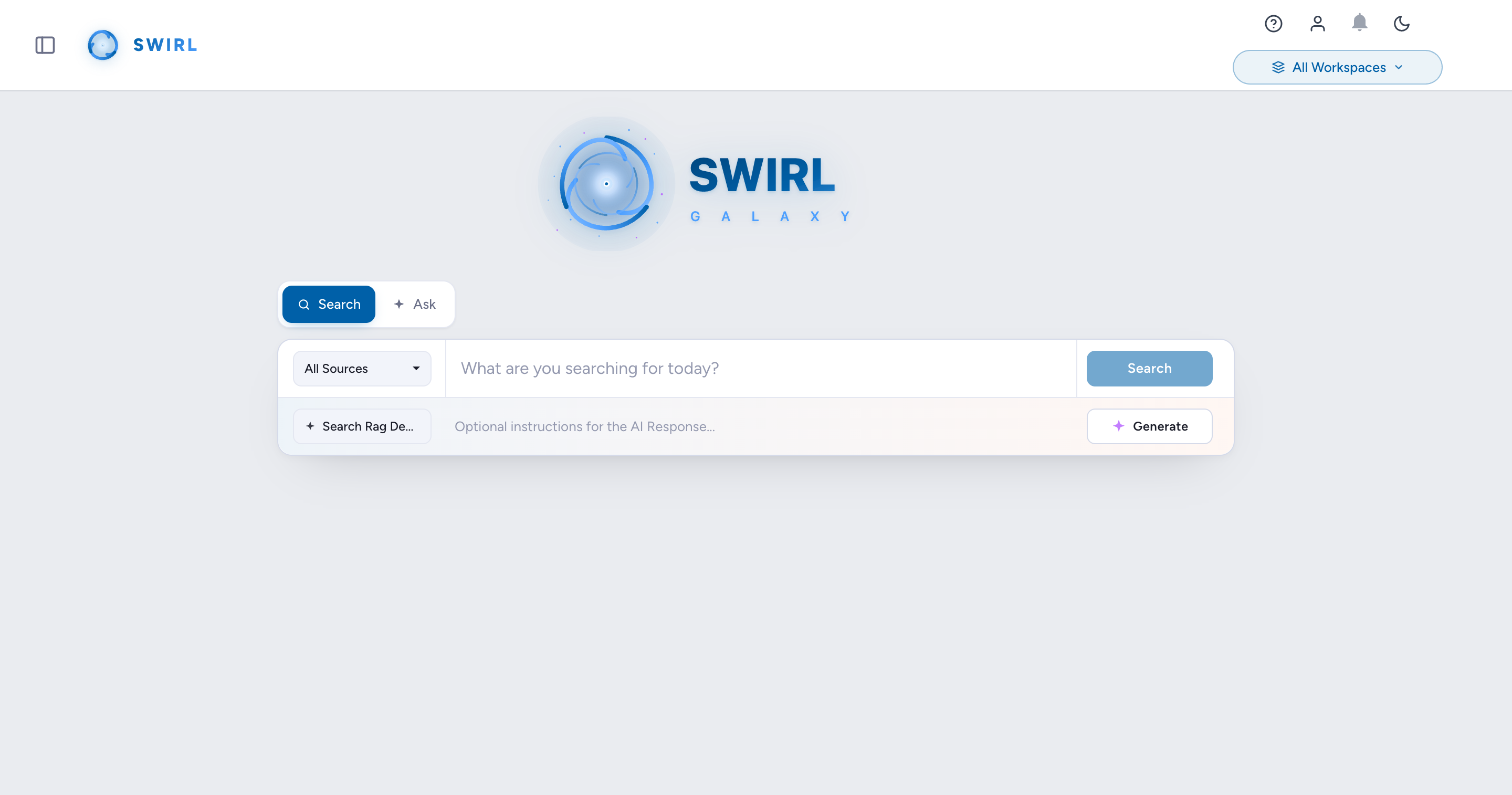
After signing in, the SWIRL Galaxy home page appears, with a search bar, source selector, a Search/Ask toggle, and AI-response controls:
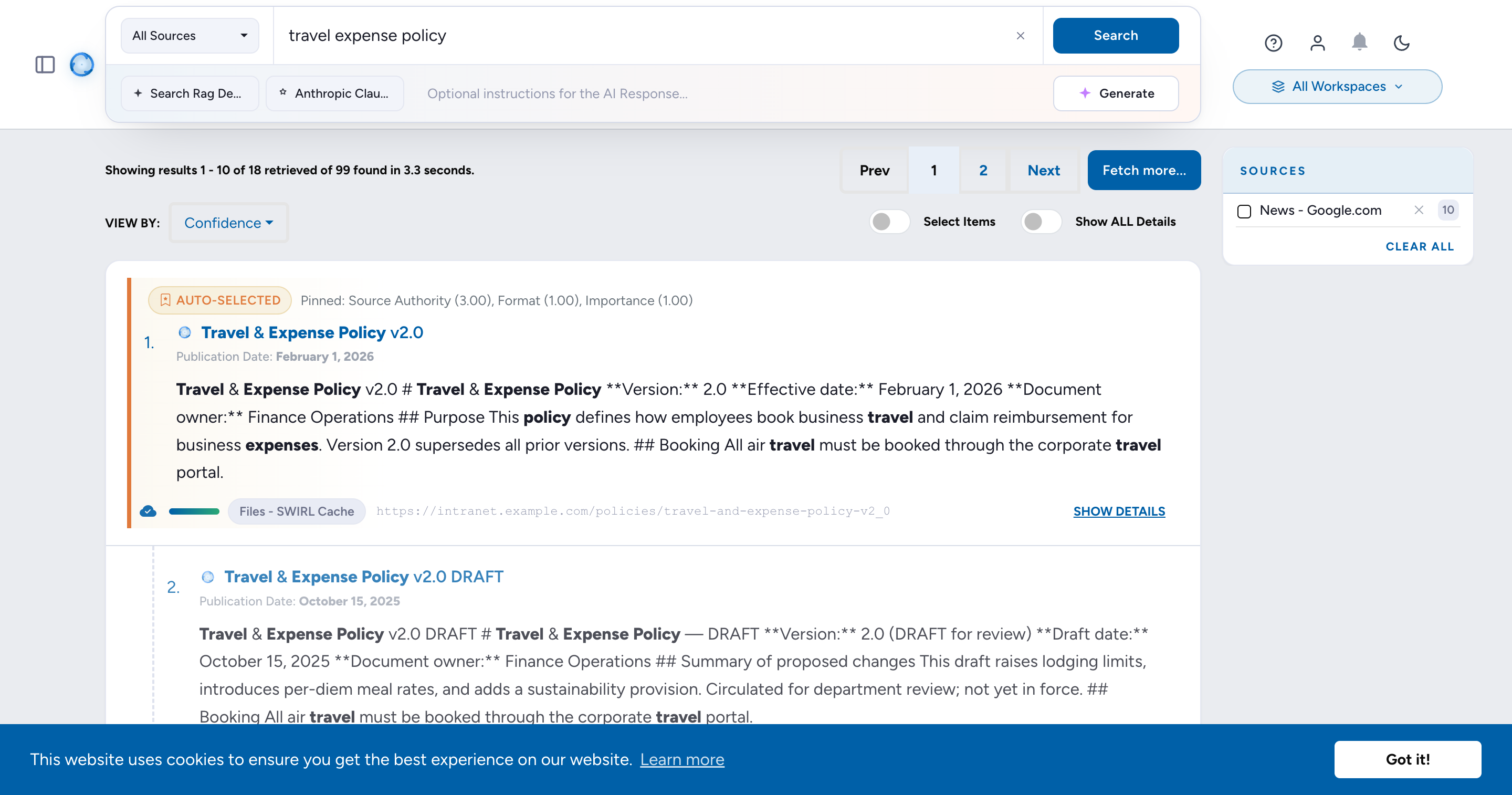
- Enter a search query in the search box and click
Search. Ranked results - and, if RAG is enabled, an AI Summary at the top - appear within a few seconds:
4. Generate AI Insights
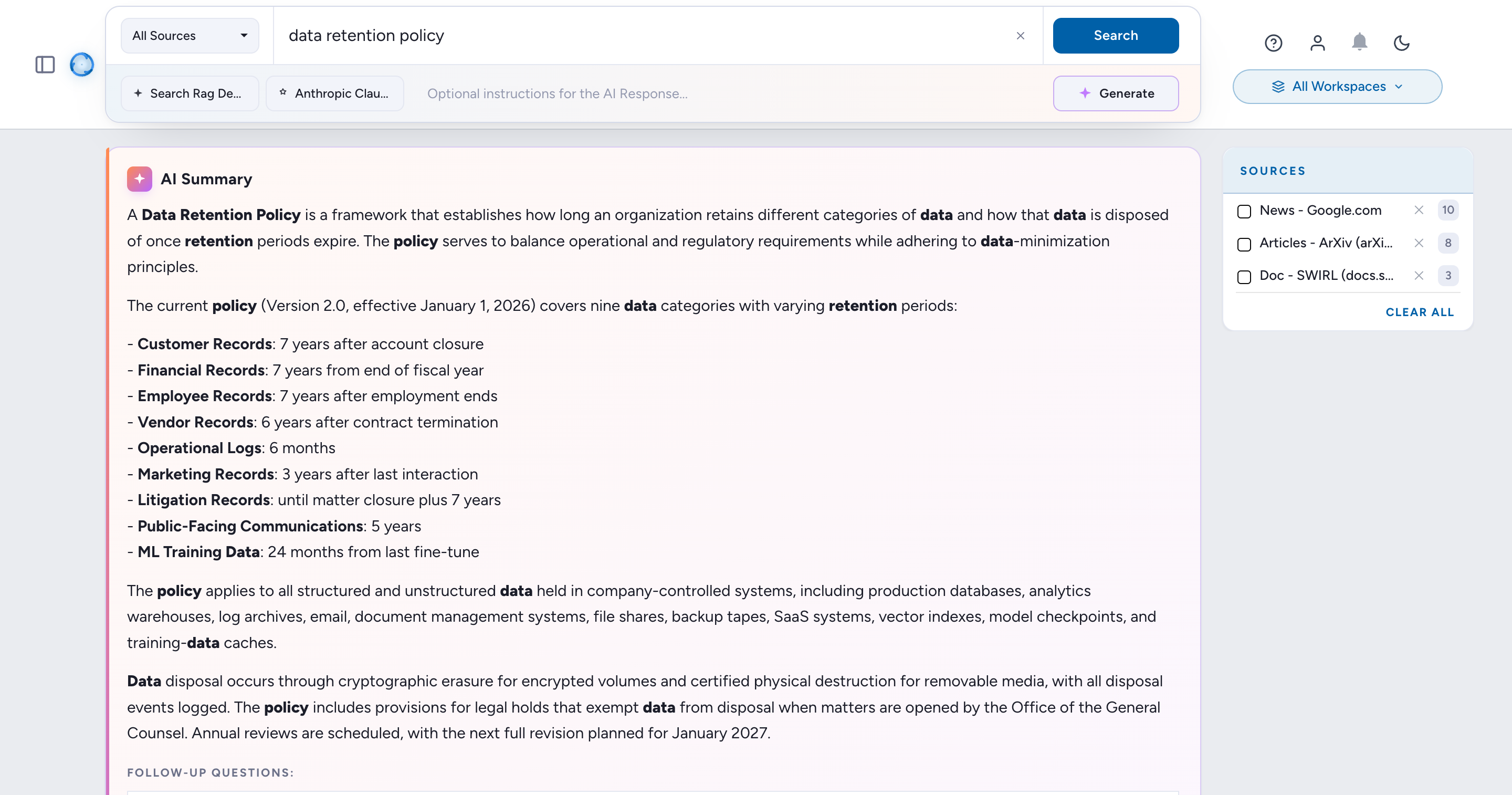
- Click the
+ Generatebutton below the search bar (or theGenerate AI Insightbutton on a results page) to apply RAG to the most relevant results.
Important: SWIRL Community ships preloaded with OpenAI and Azure/OpenAI AIProvider records - but you still need to supply an API key for the call to succeed. Paste the key directly into the AIProvider record from the Administration Console at /admin/swirl/aiprovider/, or set OPENAI_API_KEY (or Azure equivalents) in the environment.
5. Managing SWIRL
Manage SWIRL from the Administration Console at http://localhost:8000/admin/ (the /swirl/ URL redirects here). From the Administration Console you can:
- Add and edit SearchProviders, AIProviders, and Query Transforms without touching
.envor JSON fixtures. - Open the Log Viewer to tail Django and Celery logs.
- Open Activity Analytics to inspect search volume, top providers, and futile queries.
- Manage users, groups, API tokens, and OAuth tokens.
To view raw search results in JSON format, use the browsable REST API at http://localhost:8000/swirl/search/ and click the result_url link on any search record. For the full schema, see Swagger / OpenAPI.
{
  "messages": [
    "SWIRL AI COMMUNITY 5.0.0.0",
    "[2026-05-20 11:38:04.559113] Retrieved 10 of 100 results from: News - Google News",
    "[2026-05-20 11:38:04.974641] Retrieved 10 of 5187 results from: Articles - EuropePMC",
    "[2026-05-20 11:38:05.507881] Retrieved 10 of 1449 results from: Web - Internet Archive",
    "[2026-05-20 11:38:05.983136] Results ordered by: RelevancyMixer"
  ],
  "info": {
    "results": {
      "found_total": 6727,
      "retrieved_total": 30,
      "retrieved": 10,
      "federation_time": 10.8,
      "result_blocks": [
        "ai_summary"
      ],
      "next_page": "http://localhost:8000/swirl/results/?search_id=9&page=2"
    },
    "Web - Internet Archive": {
      "found": 1449,
      "retrieved": 10,
      "filter_url": "http://localhost:8000/swirl/results/?search_id=9&provider=4",
      "query_string_to_provider": "cybersecurity policy",
      "search_time": 3.6
    },
    "Articles - EuropePMC": {
      "found": 5187,
      "retrieved": 10,
      "filter_url": "http://localhost:8000/swirl/results/?search_id=9&provider=5",
      "query_string_to_provider": "cybersecurity policy",
      "search_time": 3.2
    },
    "News - Google News": {
      "found": 100,
      "retrieved": 10,
      "filter_url": "http://localhost:8000/swirl/results/?search_id=9&provider=2",
      "query_string_to_provider": "cybersecurity policy",
      "search_time": 2.0
    }
  },
  "results": [
    {
      "swirl_rank": 1,
      "swirl_score": 24911.43237469431,
      "searchprovider": "News - Google News",
      "searchprovider_rank": 5,
      "title": "Maryland unveils statewide zero-trust <em>cybersecurity</em> <em>policy</em> - StateScoop",
      "url": "https://news.google.com/rss/articles/CBMijgFBVV95cUxOR2VDaEJaU1ZVNzg4Xzc3SGZkTkV3MEFrblFZTExJcXh1OWN...",
      "body": "Maryland unveils statewide zero-trust <em>cybersecurity</em> <em>policy</em> StateScoop...",
      "date_published": "2026-02-24 08:00:00+00:00",
      "author": "StateScoop",
      "swirl_id": 5
    },
    {
      "swirl_rank": 9,
      "swirl_score": 5750.152160674617,
      "searchprovider": "Articles - EuropePMC",
      "searchprovider_rank": 1,
      "title": "<em>Cybersecurity</em> <em>policy</em> framework requirements for the establishment of highly interoperable and intercon",
      "url": "https://europepmc.org/article/MED/38784226",
      "body": "This paper examines <em>cybersecurity</em> <em>policy</em> framework requirements for establishing highly interoperable and interconnected health data spaces, w...",
      "date_published": "2024-01-01 00:00:00",
      "author": "Luidold C, Jungbauer C.",
      "swirl_id": 11
    }
  ],
  "ai_summary": []
}
6. Shutting Down SWIRL
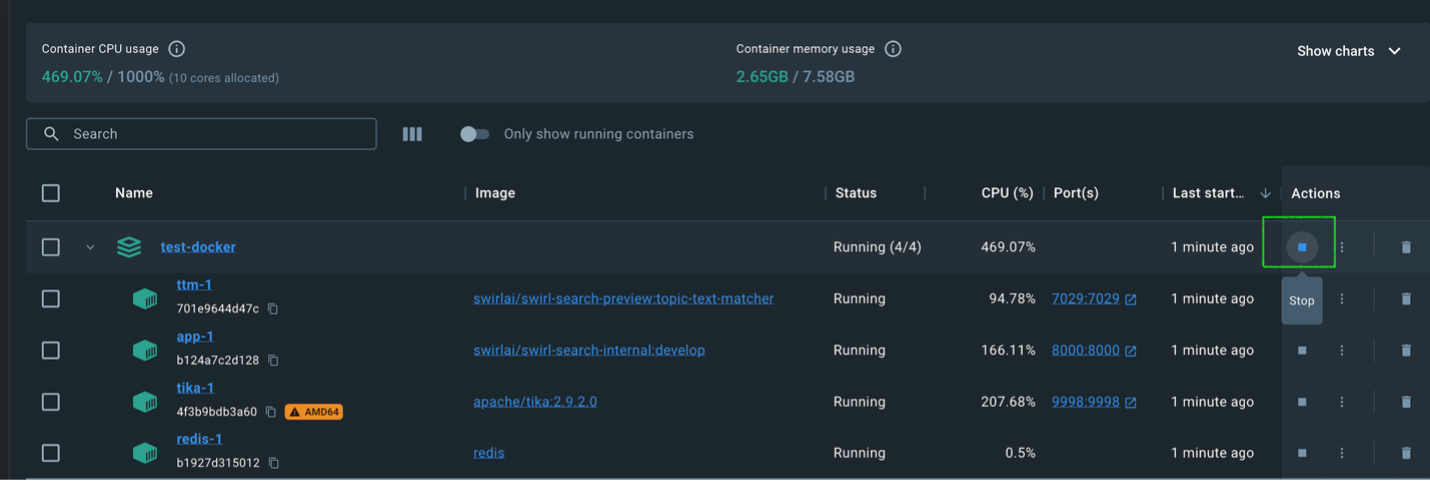
You can stop SWIRL in several ways:
-
Using Docker Desktop:
-
Using Terminal (CTRL+C):

-
Using Docker Compose (from a new terminal window):
docker compose stop

The Docker version of SWIRL Community does not retain any data or configuration when shut down.
Notes
Pre-configured SearchProviders. SWIRL ships with active SearchProviders, including:
- Arxiv.org
- European PMC
- Google News
Review the full list, and which providers are included in searches by default, at Admin Console → SearchProviders.
These work out of the box as long as internet access is available.
The Web - Google PSE and Docs - SWIRL SearchProviders are inactive by default and require your own Google credentials. SWIRL does not ship a Google API key - Google's Custom Search API is billed against whichever account owns the key, so every install must supply its own. You will need both a Google API key (from Google Cloud Console) and a Programmable Search Engine ID (from programmablesearchengine.google.com). Paste both into the SearchProvider record at Admin Console → SearchProviders - the full walkthrough is in the SearchProvider Guide.
Using SWIRL with Microsoft 365 requires installation and approval by an authorized company administrator. See the M365 Guide or contact support.