
User Guide
Please contact SWIRL for access to SWIRL Enterprise.
Using AI Search
If running locally, access the Search Interface here:
http://localhost:8000/galaxy/search/
A federated search: one query, every in-scope source, one ranked list. (Silent; captions included.)
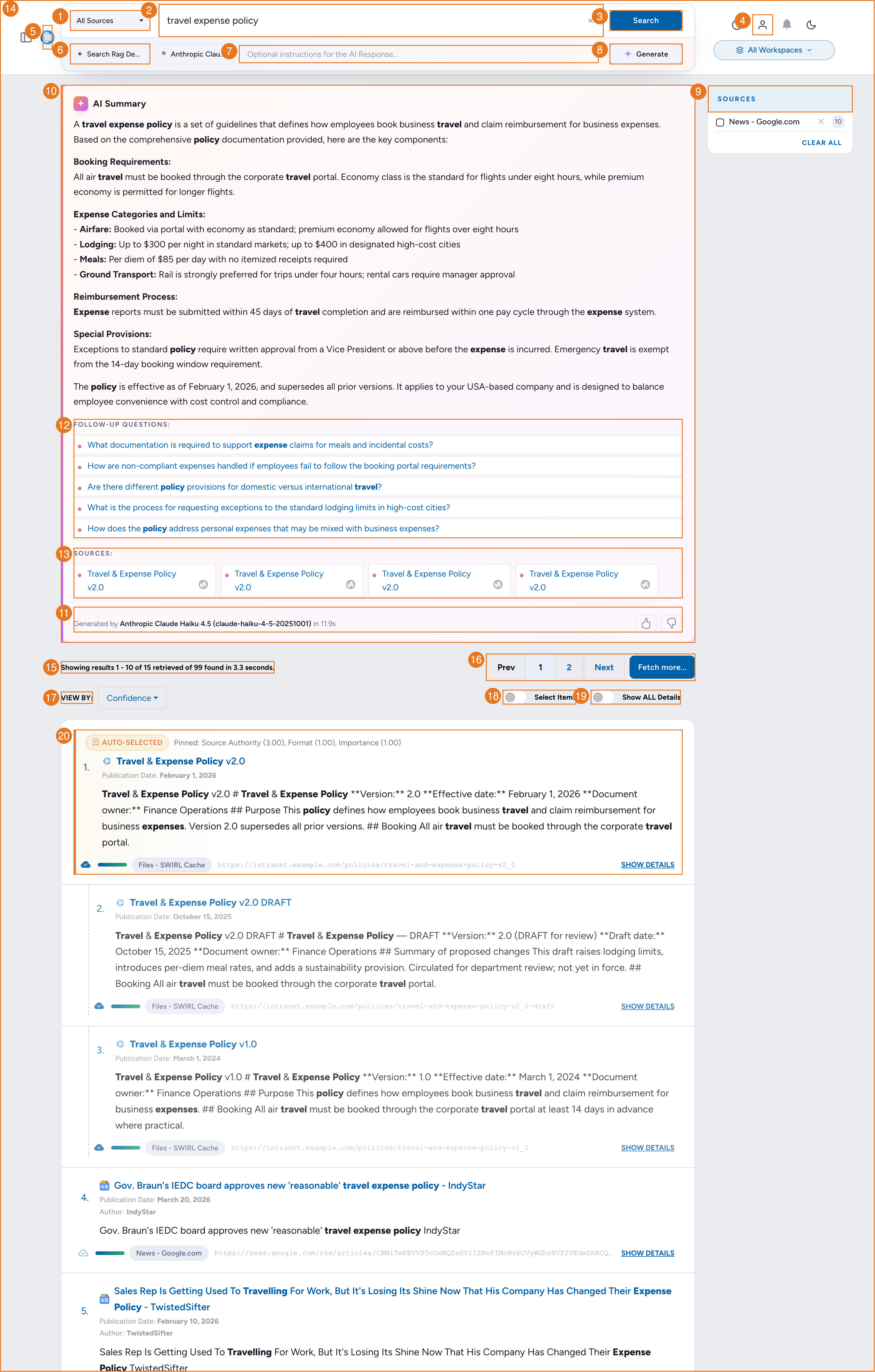
The AI Search Form Explained
-
Source Selector. Click to select one or more sources to target for search.
-
Search Box. Much larger than it looks. By default, favors results that contain your search terms. Feel free to ask questions or query in SQL, MQL, etc. if targeting a source that supports it (see Generating Complex Queries).
-
Search Button. Click to get results for your search, from the selected source(s).
-
User Profile. Click the profile icon to view authentication status, then click a switch to connect/disconnect from a specific source. Refer to the AI Assistant section on Login and Authentication for more information.
-
SWIRL Logo. Click on it to reset the form and start over.
-
Select AI Prompt. Click to select a special prompt before clicking the
Generateswitch. -
AI Instructions. Use this to provide instructions to the AI/LLM when generating insight. This input won’t change or alter the search results or item selections you make.
-
Generate switch. Click to make SWIRL fetch the most relevant (starred) items and provide them to the configured AI/LLM to generate insight.
-
Source Filter Options. By default, SWIRL returns the best results from all available sources. To filter results, check the desired
Sourceboxes. The displayed results will update instantly. ClickClear allto reset the filter and view all results. -
AI Summary. This is where an AI/LLM insight will appear, typically in 15 seconds or more.
-
AI Summary Model & Timing. Provides the name of the model responding, and how long the response took to generate.
-
AI Generated Follow-Up Questions. Click one to view the answer, which typically appears in 15 seconds or more.
-
AI Summary Citations. Click to verify the results, with deep linking on many sources.
-
Summary Rating. Click the “thumbs-up” or “thumbs-down” to provide feedback on AI messages. (If prompted, select or enter a reason.)
-
Result Summary & Timing. Summarizes the number of results, and how long it took to re-rank them.
-
Page Navigation. Use to page through search results. When you reach the end, click
Fetch more...to retrieve additional results from every source that has more - no need to re-run the search. The SWIRL Administrator can increase the number of results retrieved from each source per page.
One query federated across 17 sources, re-ranked in three passes, then Fetch More folding in the next page from every source live. (With narration.) -
Result Sort Selector. By default, SWIRL sorts by Confidence Score. Use
Dateto see the latest, andTop Pickto see the best from each responding source. Note that when sorting by date, results with nodate_publishedfield are hidden. -
Select Items & DESELECT switch. Click to select individual results to use when Generating AI Insights.
-
Show ALL Details switch. Click to show any hidden result field(s).
-
Result Item. Each result may include a linked title, a snippet of text that matched your query from the source, the author's name, the date published and/or retrieved, the result type and URL, a “highly relevant” star (when appropriate), a shopping cart selection checkbox and a “SHOW DETAILS” link.
Read on for more information about these capabilities.
Search Syntax
The following table details SWIRL's search syntax:
| Syntax | Handling | Notes |
|---|---|---|
| AND, OR | Passed down to all SearchProviders | SWIRL does not modify or verify whether a provider supports these operators. |
| NOT, -term | Passed down to configured SearchProviders and rewritten if necessary; removed for providers that do not support NOT or -term |
SWIRL verifies compliance and down-weights or flags responses that contain terms excluded by NOT. |
| tag:term | Passes term to SearchProviders configured with that Tag in their tags field. The untagged portion of the query is discarded. If a query starts with tag:, only providers with that Tag are searched. |
Example: electric vehicle company:tesla → Only the term tesla is sent to SearchProviders with the company Tag.Example: company:facebook → The query facebook is only sent to SearchProviders with the company Tag. |
AND, OR
- AND and OR operators are passed unchanged to all SearchProviders.
- SWIRL does not verify whether a provider supports these operators or correctly applies them.
NOT (NOT and - Syntax)
NOTremains in queries for SearchProviders that haveNOT=Truein theirquery_mappings. TheNOToperator applies to all terms that follow it (if the provider supports it).NOTis rewritten as-termfor SearchProviders that haveNOT_CHAR=-andNOT=False(orNOTunspecified). The-termapplies to all terms that follow it.- For SearchProviders without
NOT=True,NOTand its associated terms are removed from the query. - SWIRL scans responses for compliance with
NOTstatements. If a response contains excluded terms, its relevancy score is reduced.
Plus/Minus (+/-) Syntax
+(PLUS) before a term ensures it must be included in results. It is passed unchanged to all SearchProviders.-(MINUS) before a term functions asNOTfor providers that support it.- If a provider has
NOT_CHAR=-configured inquery_mappings,-termis passed unchanged. - If a provider has
NOT=Truebut notNOT_CHAR=-,-termis rewritten toNOT term. - For providers without
NOT_CHAR=-, all-termexclusions are removed from the query.
Using Tags to Select SearchProviders
Tags categorize SearchProviders by topic, entity type, or relevant concepts (e.g., company, person, financial).
These tags can:
- Filter SearchProviders - Only tagged providers are selected when a query starts with tag:.
- Direct query terms - SWIRL rewrites portions of the query based on the provider's tags.
For example, the funding dataset included with SWIRL has SearchProviders for SQLite3, PostgreSQL, and Google BigQuery, each containing relevant Tags:
{
    "name": "Company Funding Records (cloud/BigQuery)",
    "connector": "BigQuery",
    ...
    "tags": [
        "Company",
        "BigQuery"
    ]
}
How Tags Work in Queries
1. Filtering by Tag Only
If a query begins with tag:, only SearchProviders with that Tag are selected - regardless of their default status.
company:facebook
- This limits the query to SearchProviders with the
companyTag. - Unrelated providers are excluded, even if they are
default=true.
2. Combining a Tag with a General Query
A default search can be combined with a tagged search for specific terms.
electric vehicle company:tesla
- Default SearchProviders receive the full query:
"electric vehicle tesla". - SearchProviders with the
companyTag receive only"tesla".
For example, the BigQuery SearchProvider will receive:
tesla
This makes direct hits on funding records more likely to rank higher in the results.
For more details, see Organizing SearchProviders with Active, Default, and Tags.
Hit Highlighting
SWIRL highlights query term matches in the following fields:
- title
- body
- author
For example:
"body": "<em>Performance</em> <em>management</em> is the process of setting goals and expectations for employees and then tracking and measuring their progress. This can be done through regular one-on-one meetings, <em>performance</em> reviews, and other feedback mechanisms."
Confidence Scores
SWIRL Enterprise uses a confidence-based relevancy ranking model.
The confidence score ranges from 0 (not relevant) to 1.0 (extremely relevant) and is comparable across queries.
How Confidence Scores Work:
The score factors in: - Number of matched query terms - Term importance - Contextual similarity between the query and the results - The source-reported rank - Other advanced ranking factors
To sort by relevancy instead, select Relevancy in the View By dropdown (the Result Sort Selector).
AI Insights use only results above a configurable minimum confidence score.
Document Versions, Canonical Selection, and Pinning
Requires the separately licensed Semantic Cache (SWIRL 5).
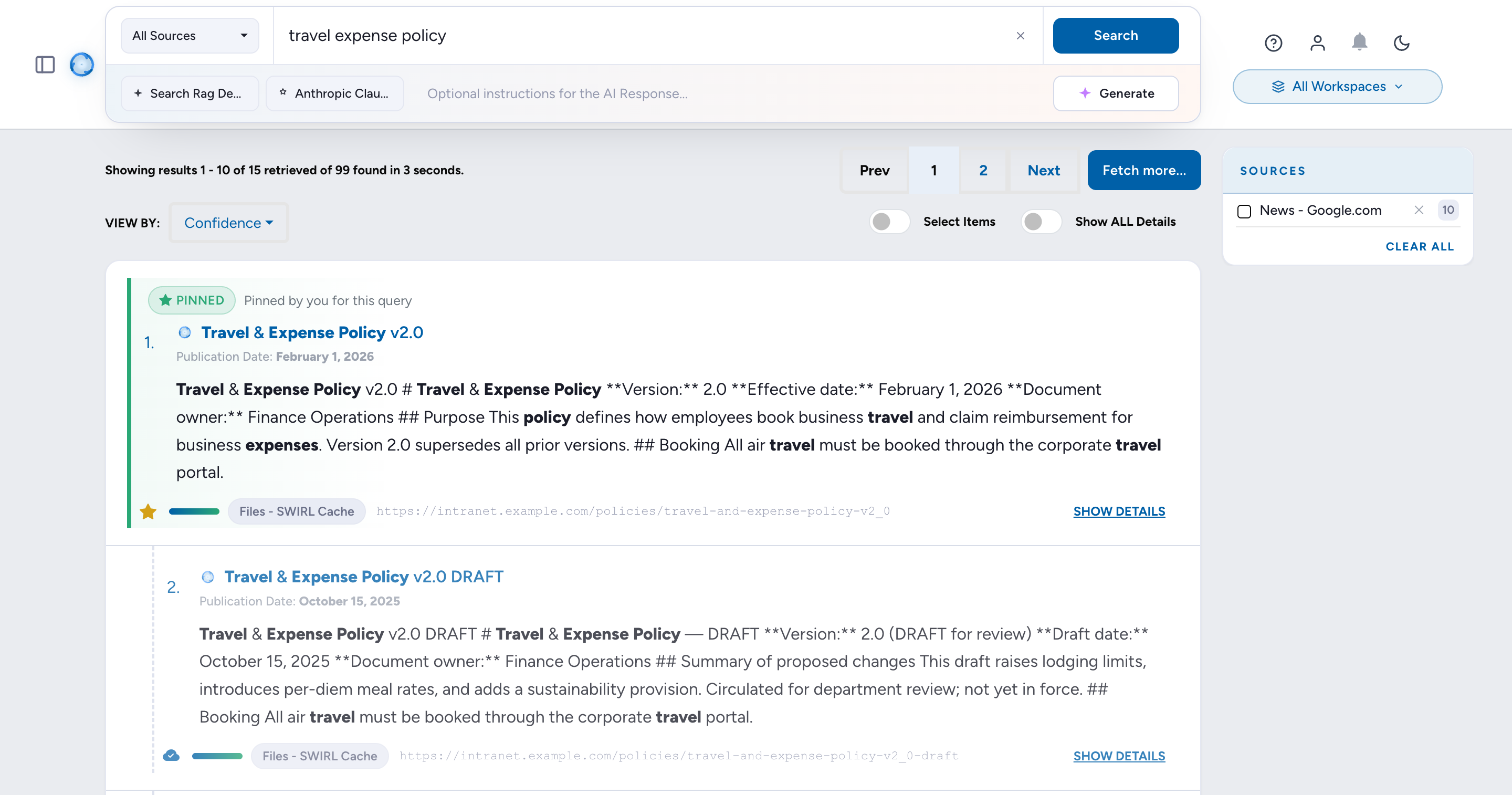
When your deployment includes the Semantic Cache, results from the Files - SWIRL Cache source are grouped so that multiple versions of the same document appear as a single result:
- Version clusters. Drafts, finals, and copies of the same document are collapsed into one result card; the other versions are available from the card.
- Auto-selected badge. SWIRL elects the best version of a clustered document - favoring authoritative sources, final naming, recency, and format - and badges it Auto-selected.
- Pinned badge. A curator can pin the correct version for a specific query from the result card. Pinned documents outrank automatic selection for that query and are badged Pinned. Unpinning is neutral: SWIRL simply re-selects the best version on the next search.
- Freshness badges. Cached results indicate when they were last verified against the source. If a cached document may no longer exist at its source, the card offers a one-click check and shows No longer available from source when the source confirms it is gone.
- Curating results. Use the result card's cache action to add a useful document to the cache, or remove one that should no longer be offered.
See the Semantic Cache Guide for concepts, administration, and the full API.
Workspaces
SWIRL 5 Enterprise. Workspaces group sources for a team: when you work in a workspace, searches target that workspace's sources plus the deployment-wide ones. Workspace owners can add members with different roles (owner, partner, editor, viewer) and send invites.
Workspaces scope sources, not documents - cached documents and pinned versions are shared across all workspaces. See Workspaces and Members in the Admin Guide.
The Topic Dashboard
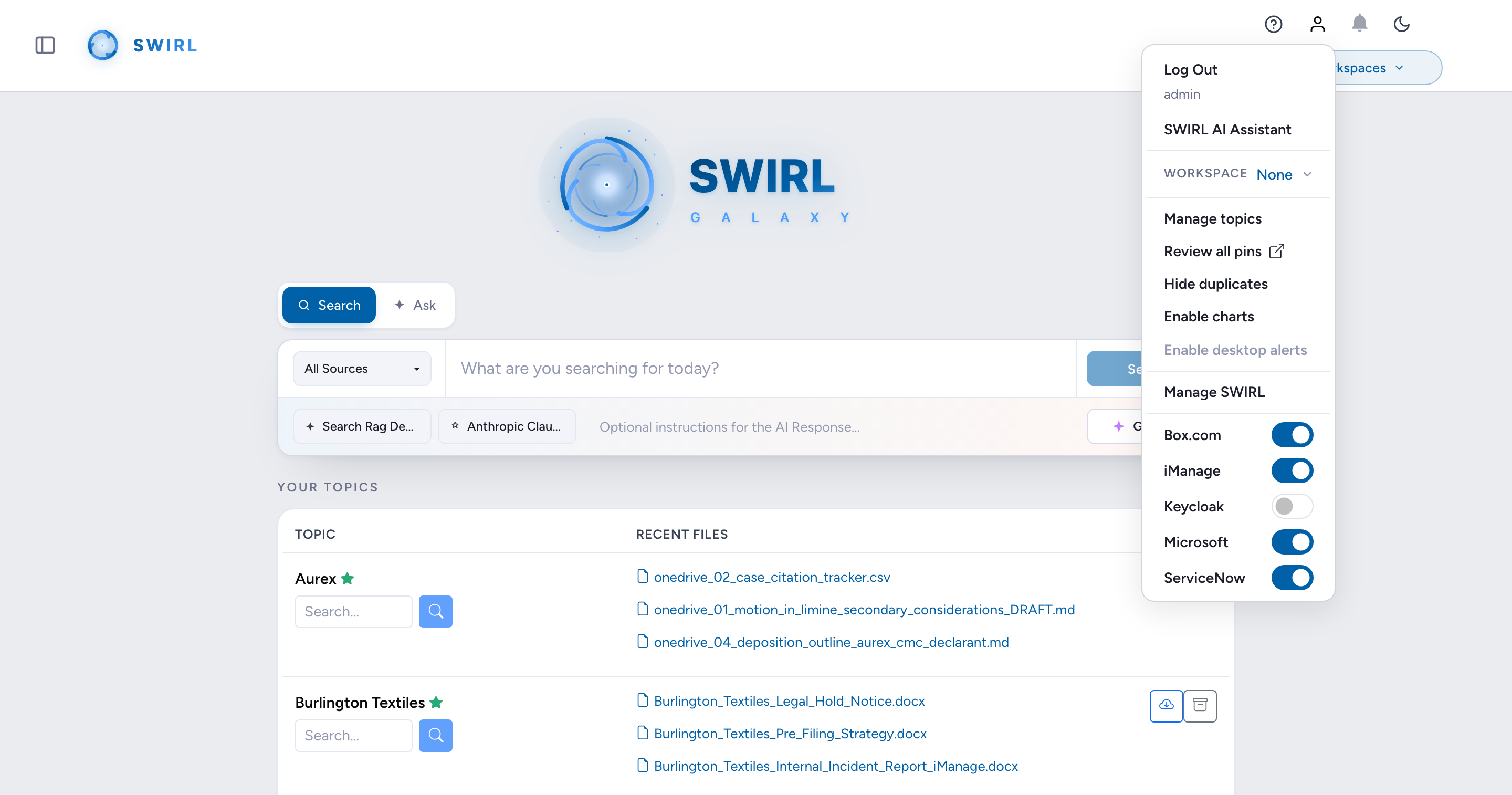
SWIRL 5 Enterprise. Below the search form, the Topic Dashboard organizes your work into topics - one per source folder, such as a OneDrive matter or project folder. Each topic card offers a scoped search, the topic's most recently updated cached documents, and one-click caching of the folder's contents. Topics belong to you and live inside the active workspace.
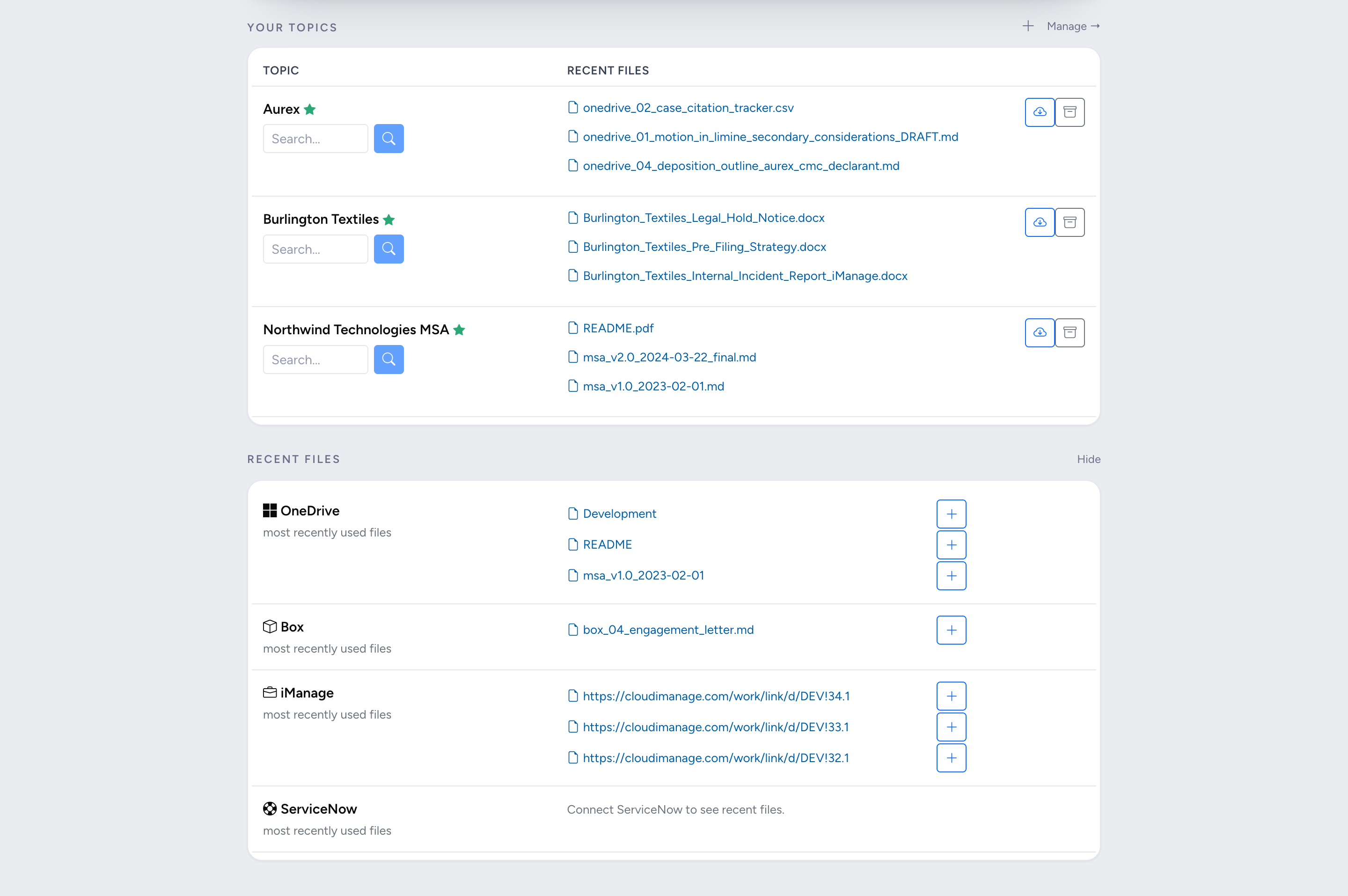
On each topic card:
- Topic name. Click to open the source folder (for example, in OneDrive). A green star marks a cached topic.
- Search box. Run a search scoped to this topic - SWIRL folder-scopes the query to the topic's folder and includes the topic's cached documents.
- Recent files. The topic's three most recently updated cached documents, as direct links.
- Cache button (cloud icon). Crawl the topic's folder and cache its documents; use it again any time to re-cache. Progress appears live on the card - Caching 4 / 12… with a progress bar - while SWIRL fetches, extracts, embeds, and indexes each document into the Semantic Cache.
- Archive button. Remove the topic from the dashboard; archived topics can be restored from Manage topics.
A live caching run: one click crawls the topic's folder, indexes every document, and the topic search returns the cached matter documents clustered by version. (Silent; captions included.)
Cached topic documents participate fully in version clustering, canonical selection, and pinning - searching a topic whose folder holds several versions of an agreement returns them as one cluster with the best version selected.
Recent Files
Below your topics, the Recent files section lists your most recently used files from each connected source - OneDrive, Box, iManage, ServiceNow, and any other source your administrator has configured. Click + next to a file to add it to the Semantic Cache, making it available to every search. Sources you have not connected yet show a connect prompt; use the profile menu (top-right) to connect. The section can be collapsed with Hide.
Managing Topics
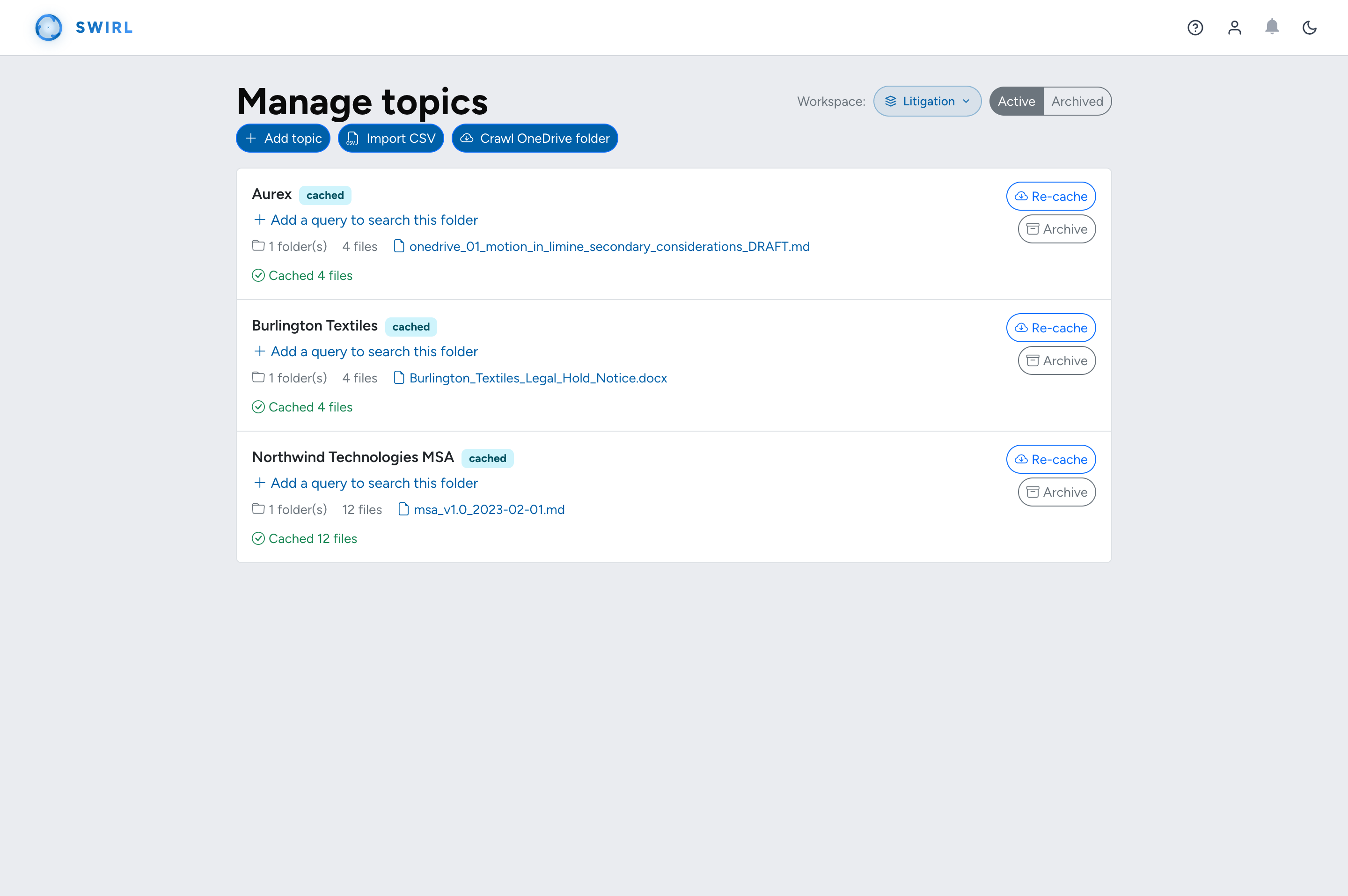
Click Manage → on the dashboard (or + to jump straight to the add form) to open Manage topics, where you can:
- Add a topic manually - a name, an optional default query, and optionally one or more OneDrive folders to scope it to.
- Import CSV - bulk-create topics from a spreadsheet.
- Crawl OneDrive folder - browse your OneDrive and create one topic per subfolder, with optional caching as each is created. Connect Microsoft 365 in the profile menu first.
- Re-cache or archive any topic, and switch between Active and Archived views. The workspace selector shows the topics of any workspace you belong to.
Managing Prompts
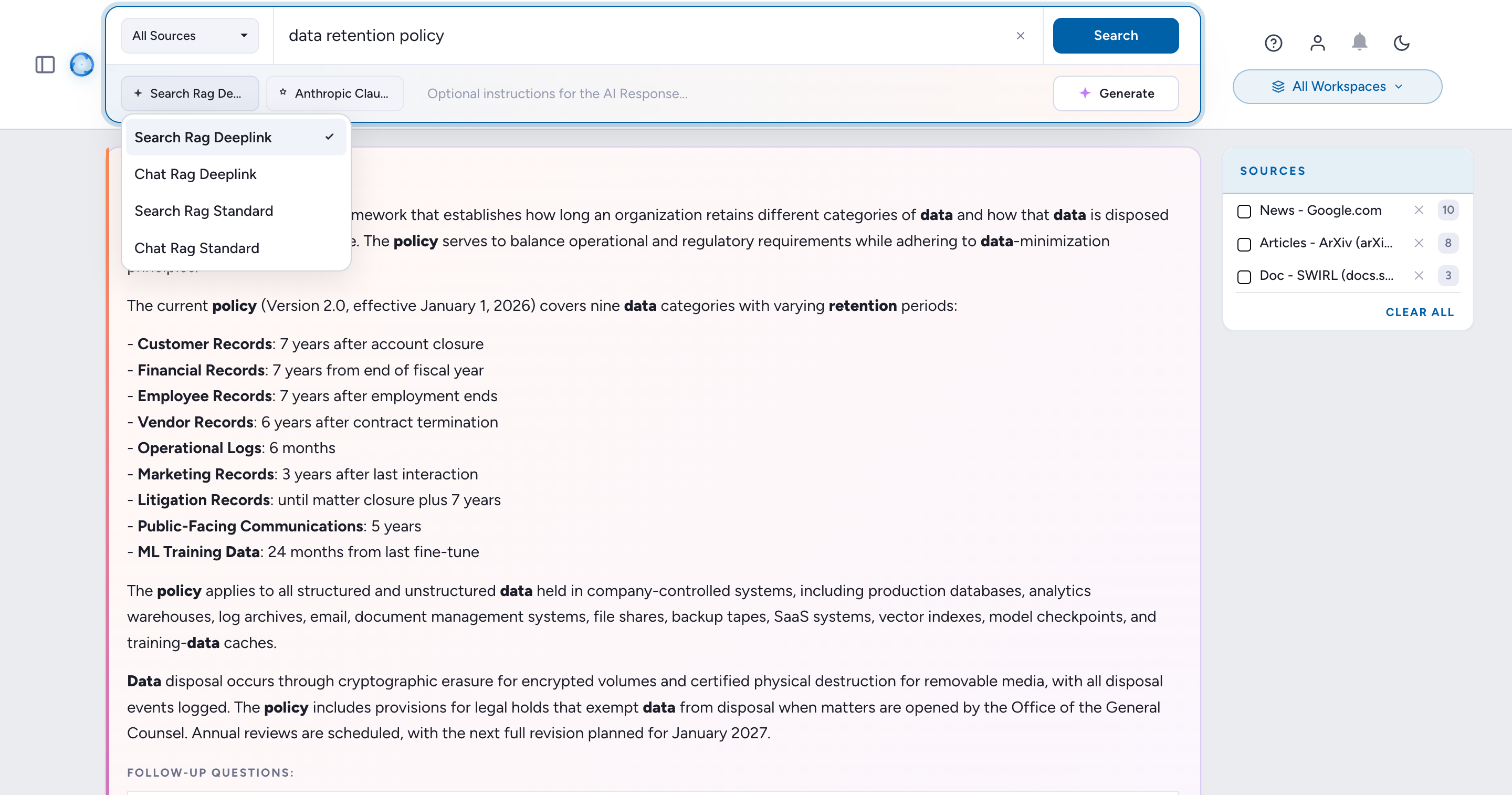
SWIRL prompts consist of three key components:
| Field | Description |
|---|---|
prompt |
The main body of the prompt. Use {query} to represent the SWIRL query. |
note |
Text appended to RAG data chunks, annotated by the Text Analyzer. |
footer |
Additional instructions appended after the prompt and RAG data. This is ideal for formatting guidance. |
Viewing Prompts
-
Any user may view the prompts endpoint: http://localhost:8000/swirl/prompts/
-
Admins may use the Admin Tool - Manage Prompts interface.
Modifying Prompts
Request new prompts, or modifications to existing ones, from SWIRL administrators.
Guiding Retrieval Augmented Generation (RAG) for AI Insight Generation
The search form includes an Optional instructions for the AI Response... field. Use it to provide instructions to the LLM that summarizes the retrieved results, without affecting the selection criteria. The search box (with the hint "What are you searching for today?") determines which results are retrieved. For full coverage of AI insight generation, see the AI Search Guide.
For example, this query selects the top documents about Karen Sparck Jones and instructs the configured LLM to report on her major inventions.
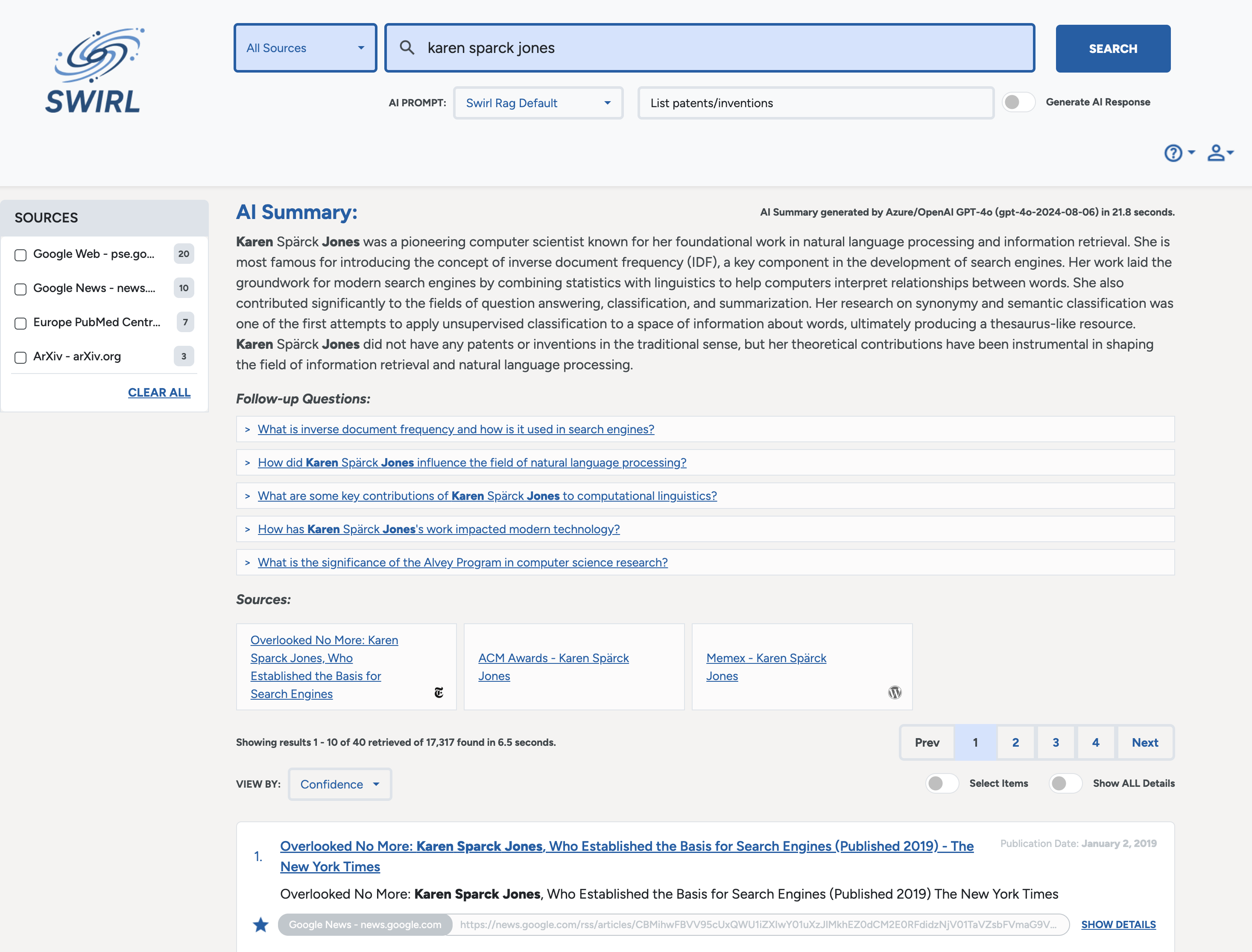
The RAG result includes details of her invention of IDF term weighting (the basis of TF/IDF) as expected.
Selecting Items for AI Generation
Click Select Items to manually select the results (via the shopping cart checkboxes) to use during RAG.
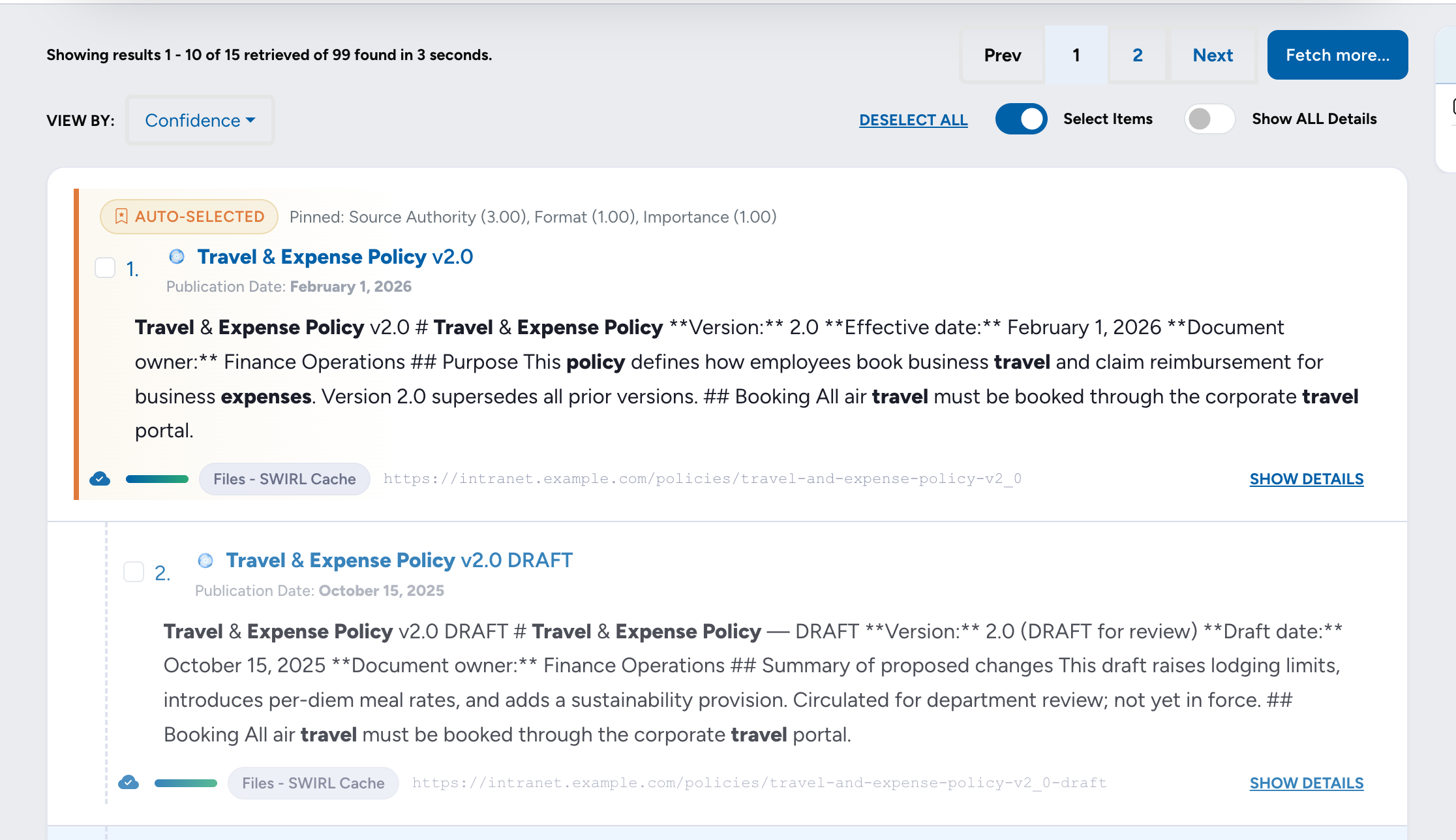
Use the DESELECT ALL / SELECT ALL link to check or uncheck all results, then adjust as desired.
Click the Generate switch to send the selected items to the LLM for response.
Deep Linked Citations
When possible, AI Insights generated using the Search form deep-link directly to the relevant section of a result used in a RAG response and highlight it.
See Deep Linked Citations in the Assistant section for examples.
Starting a New Search
Click the SWIRL logo to reset the search form and start over.
Accessing the SWIRL AI Search Assistant
For local installs, open http://localhost:8000/galaxy/chat/ in a browser. For full coverage of the Assistant, see the AI Search Assistant Guide.
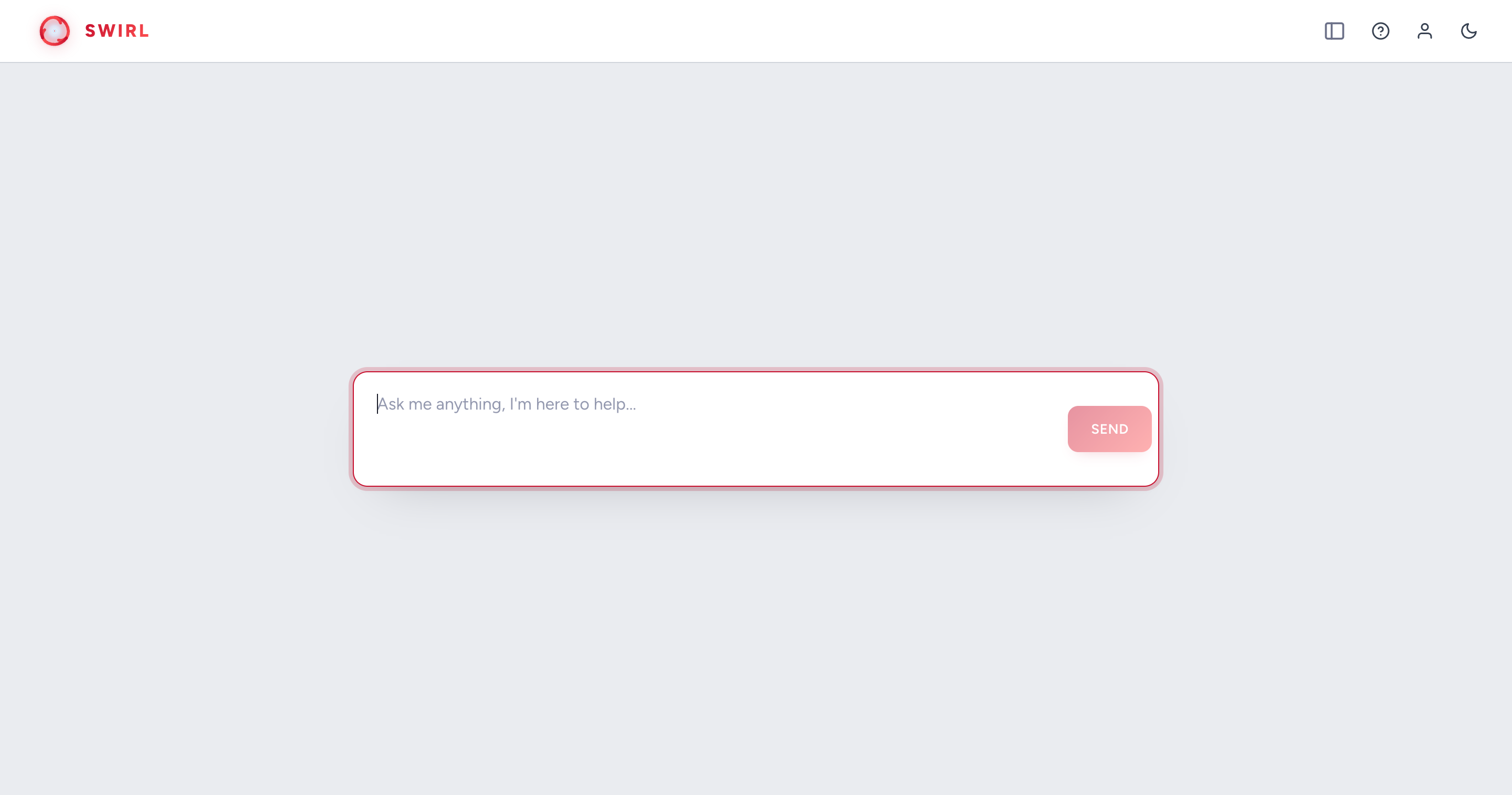
From SWIRL AI Search
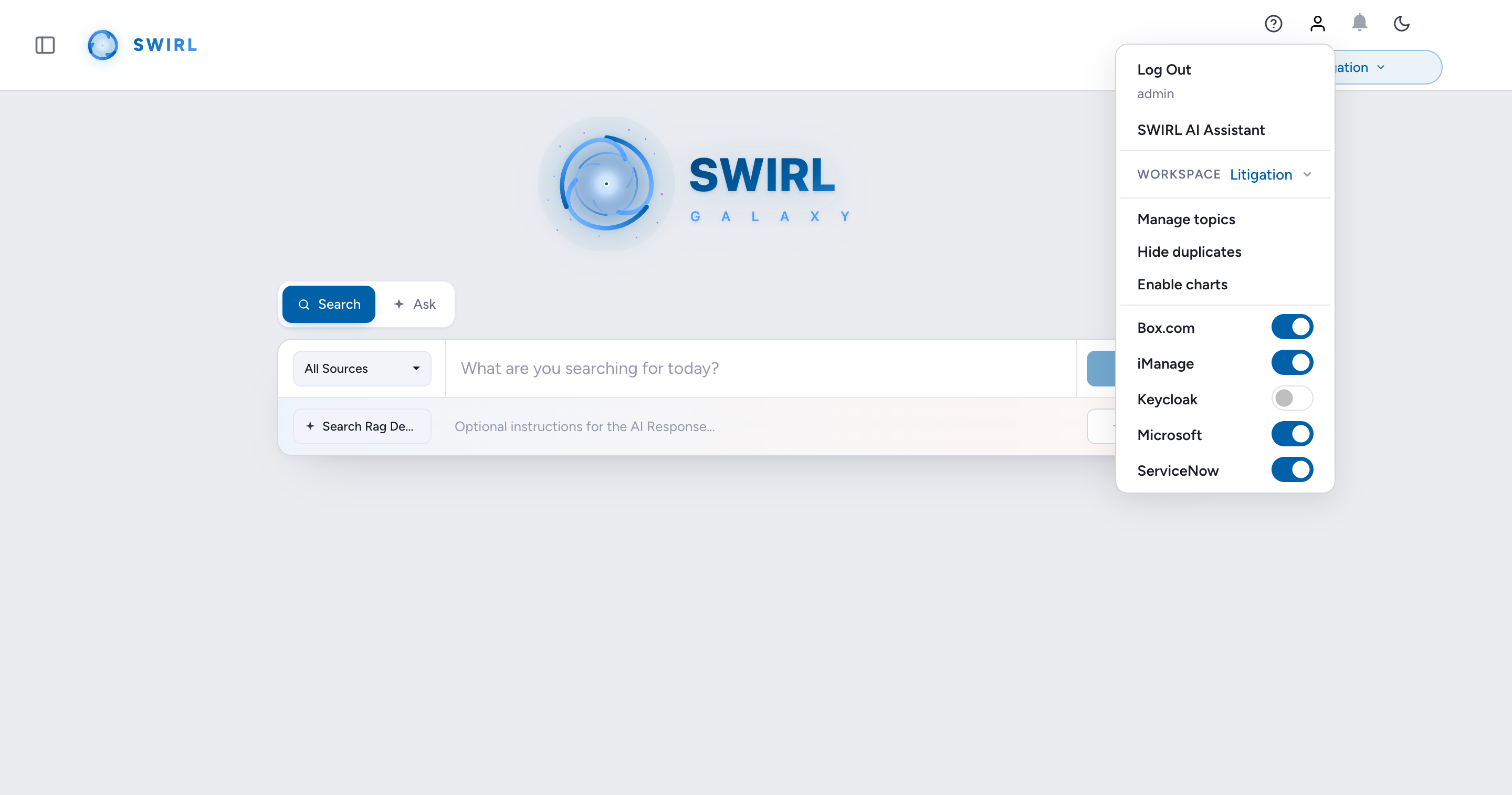
Click the user profile icon (top-right) on the SWIRL Search page, then click SWIRL AI Search Assistant.
Login and Authentication
If the SWIRL login page appears:
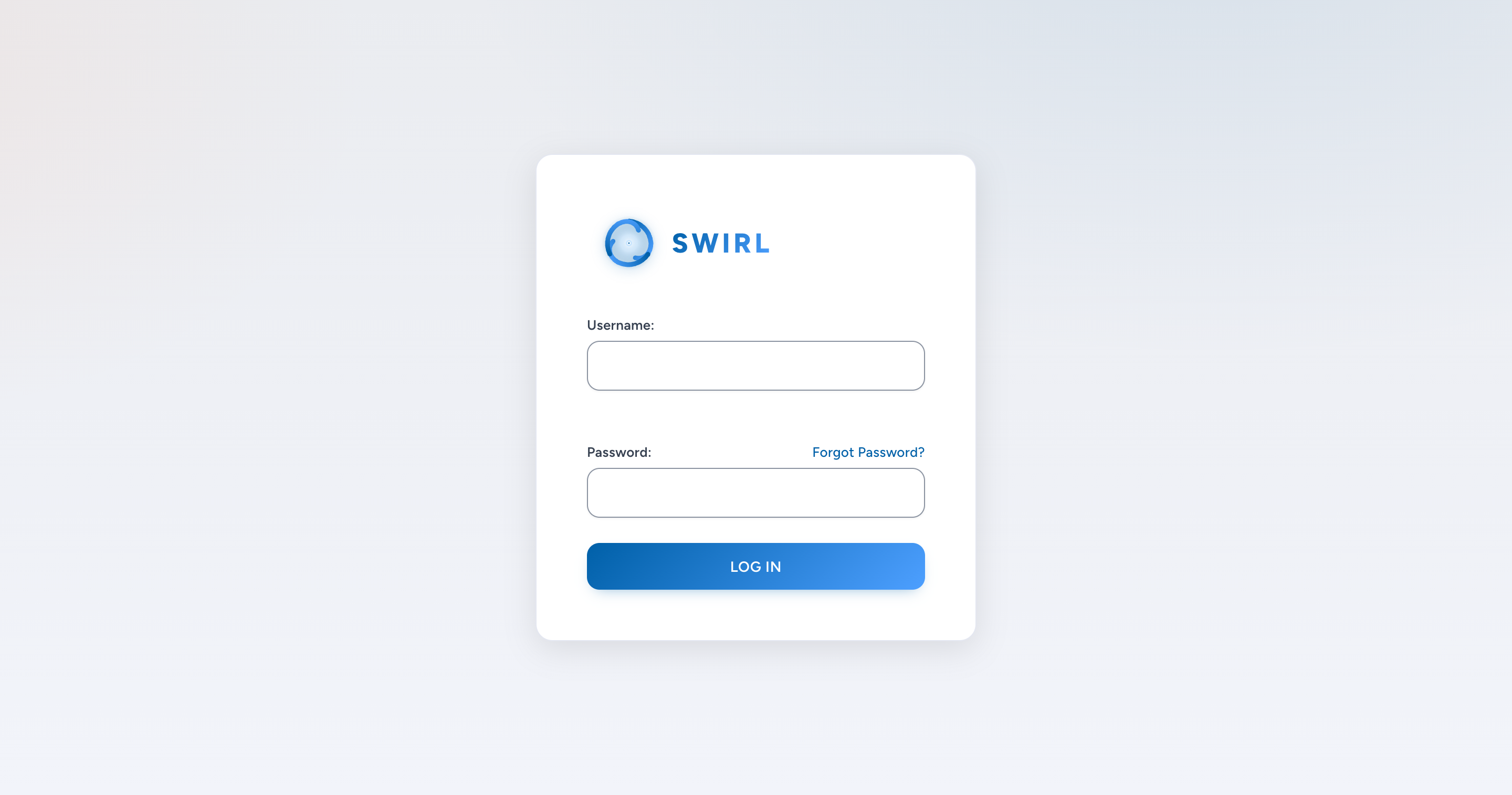
- Username:
admin - Password:
password - Click
Login.
If you receive a warning about the password being compromised, change the super user password.
Logging In With SSO
If your organization uses SSO, the SWIRL login page (shown above) includes an SSO login button:
- Click the SSO login button.
-
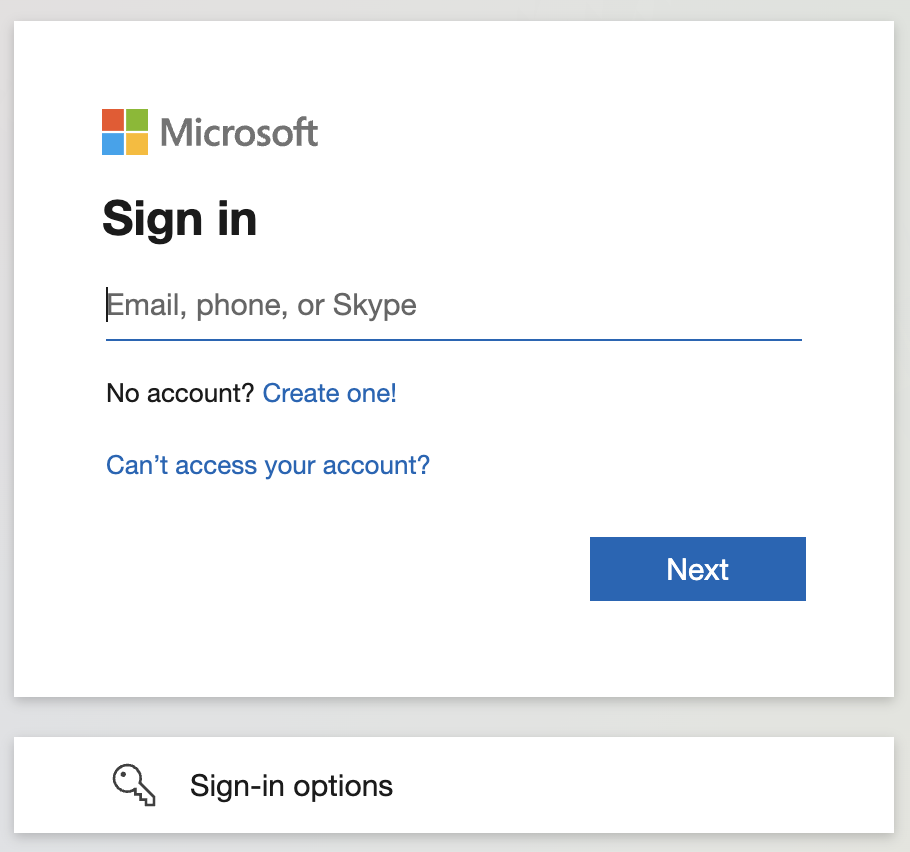
You may need to authenticate:
-
Once logged in, you will be redirected to the AI Search Assistant, shown at the top of this section.
Verifying Authentication
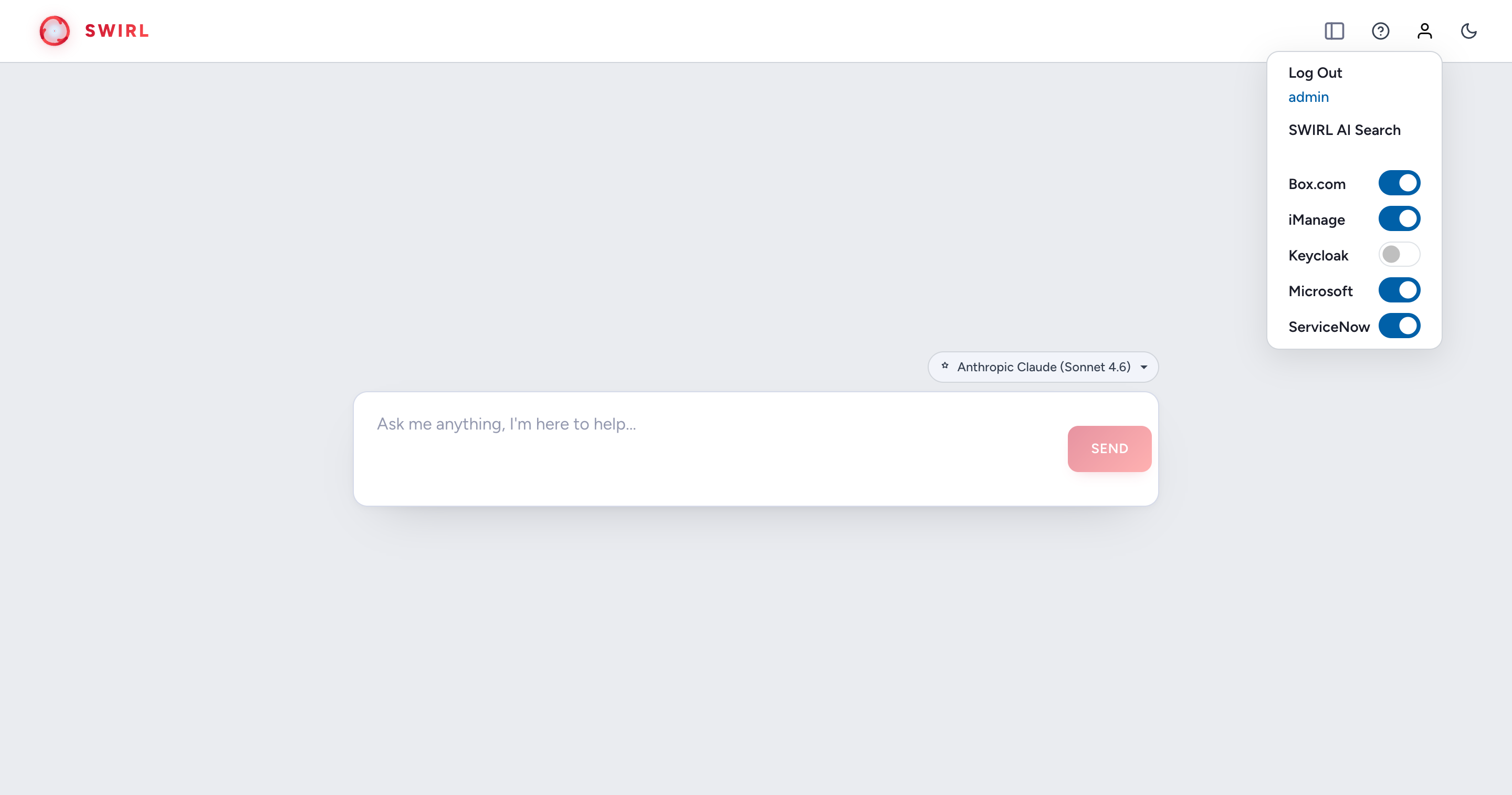
Click the profile icon (top-right) to verify your connection to individual sources, which may vary depending on your SSO configuration.
Use the toggle switches to connect or disconnect from any source as needed.
Connecting to Sources
The profile menu on the search page lists each configured source with a connection toggle. Turn a source on to connect it - the source's login page appears if a new sign-in is required. Turn a source off to disconnect it.
The AI Search Assistant Explained
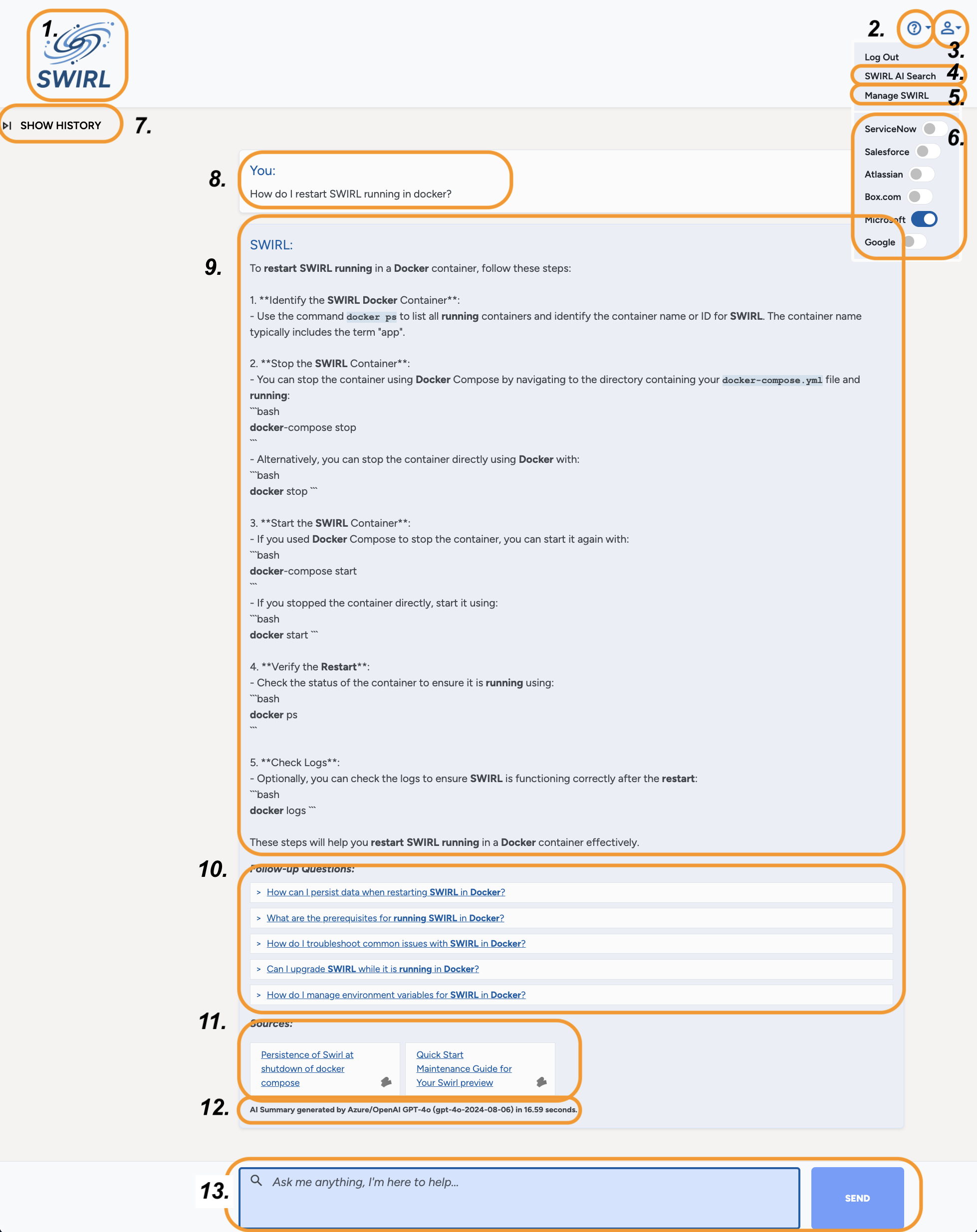
- SWIRL Logo - click to reset the form and start over.
- Support Link - click the information icon to view the SWIRL version and optionally open a support ticket.
- User Profile - click the profile icon to view profile management tools.
- Link to SWIRL AI Search form - click to use the search form instead of the Assistant.
- Manage SWIRL - admins may click this link to administer SWIRL.
- View Authentication Status - for each configured source. Click a switch to connect or disconnect. See Login and Authentication for more.
- Show/Hide History - click to view the chat history and optionally manage it. Click again to hide.
- Your First Message in this chat - appears at the top of the conversation scroll.
- SWIRL's First Response.
- Follow-up Questions - click to view the response.
- Citations - click to verify the response behind the summary or answer. Web sources may be deep linked. If the Search Assistant doesn't provide citations, rate the response and instruct it to provide them.
- Model and Timing - the LLM model used to generate the response, and the time it took.
- Message Window - use the input box and send button to talk to the Assistant. Once the Assistant has confirmed what you're looking for, it searches one or more sources and either summarizes the results or answers your question.
Read on to learn more about the SWIRL AI Search Assistant's capabilities.
Understanding Prompts
SWIRL prompts consist of three key components:
| Field | Description |
|---|---|
prompt |
The main body of the prompt. Use {query} to represent the SWIRL query. |
note |
Text appended to RAG data chunks, annotated by the Text Analyzer. |
footer |
Additional instructions appended after the prompt and RAG data. This is ideal for formatting guidance. |
The name of the prompt has no importance. SWIRL uses the tags field to determine which prompt is used for a given function.
The following table presents the tags options:
| Tag | LLM Role |
|---|---|
| chat | Used by AI Search Assistant for chat conversations, including company background; not technical |
| chat-rag | Used by AI Search Assistant to answer questions and summarize data via RAG; somewhat technical |
| search-rag | Used by AI Search, Generate (RAG) switch, somewhat technical |
Viewing Prompts
-
Any user may view the prompts endpoint: http://localhost:8000/swirl/prompts/
-
Admins may use the Admin Tool - Manage Prompts interface.
Modifying Prompts
Administrators can modify prompts:
Deep Linked Citations
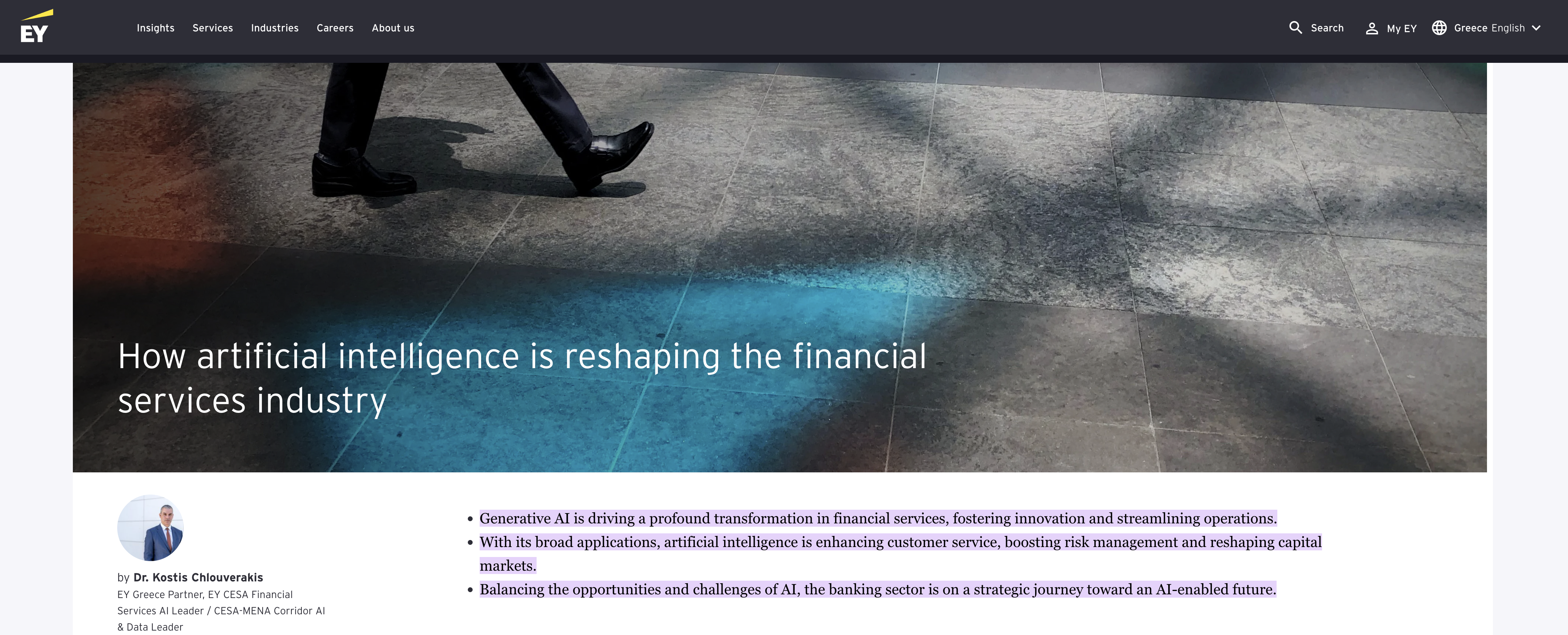
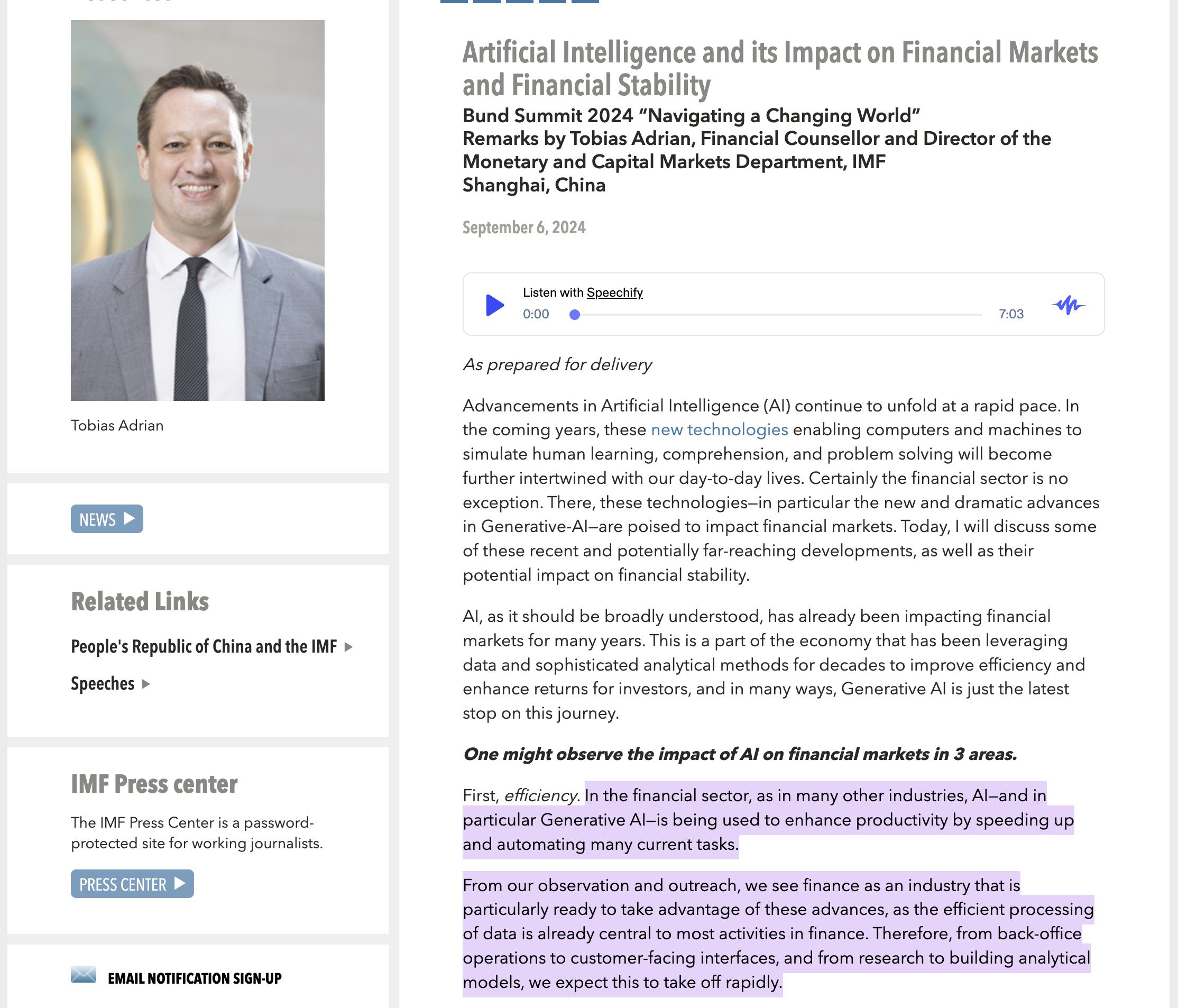
When possible, the Assistant links directly to the relevant section of a web page used in a RAG response and highlights it.
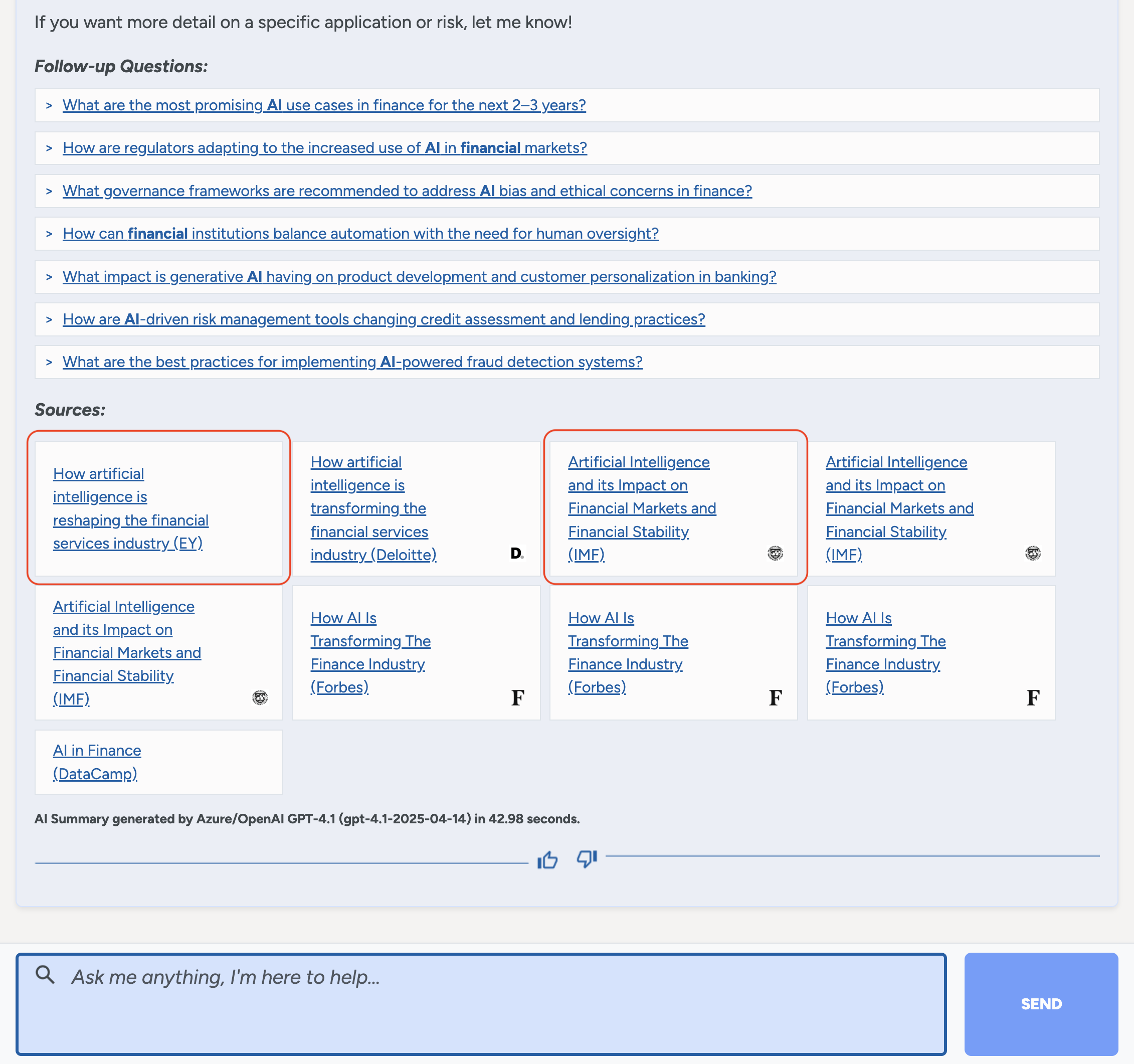
The first citation is a page on EY.com:
The second citation is on the IMF site:
Generating Complex Queries
SWIRL Assistant can generate queries in any query language supported by the underlying model, including most SQL dialects:
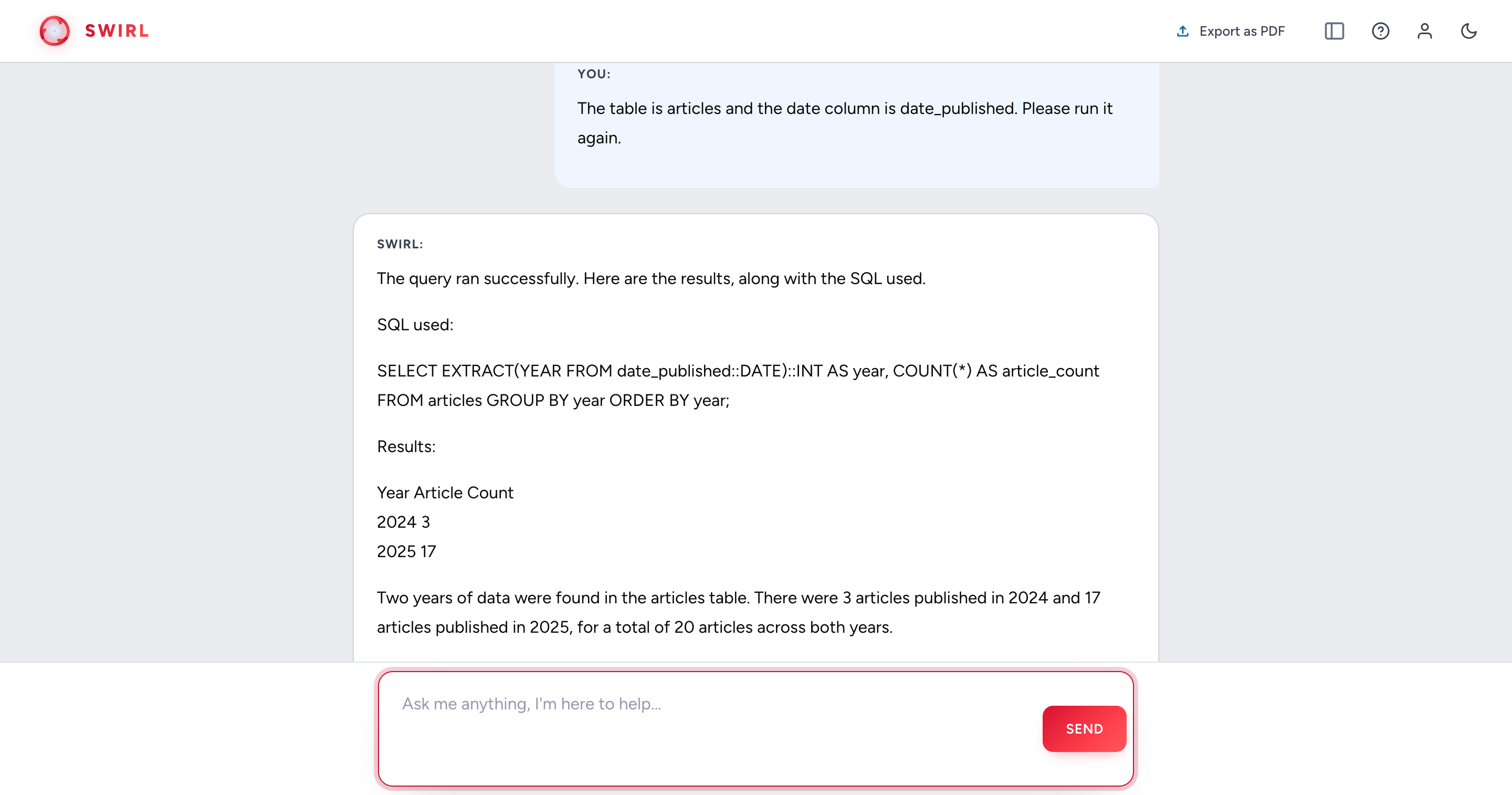
Other supported query languages include MongoDB MQL, Elasticsearch ES|QL and Query DSL, OpenSearch Query DSL, and Solr syntax.
For assistance with specific query languages, contact SWIRL.
Human Language Support
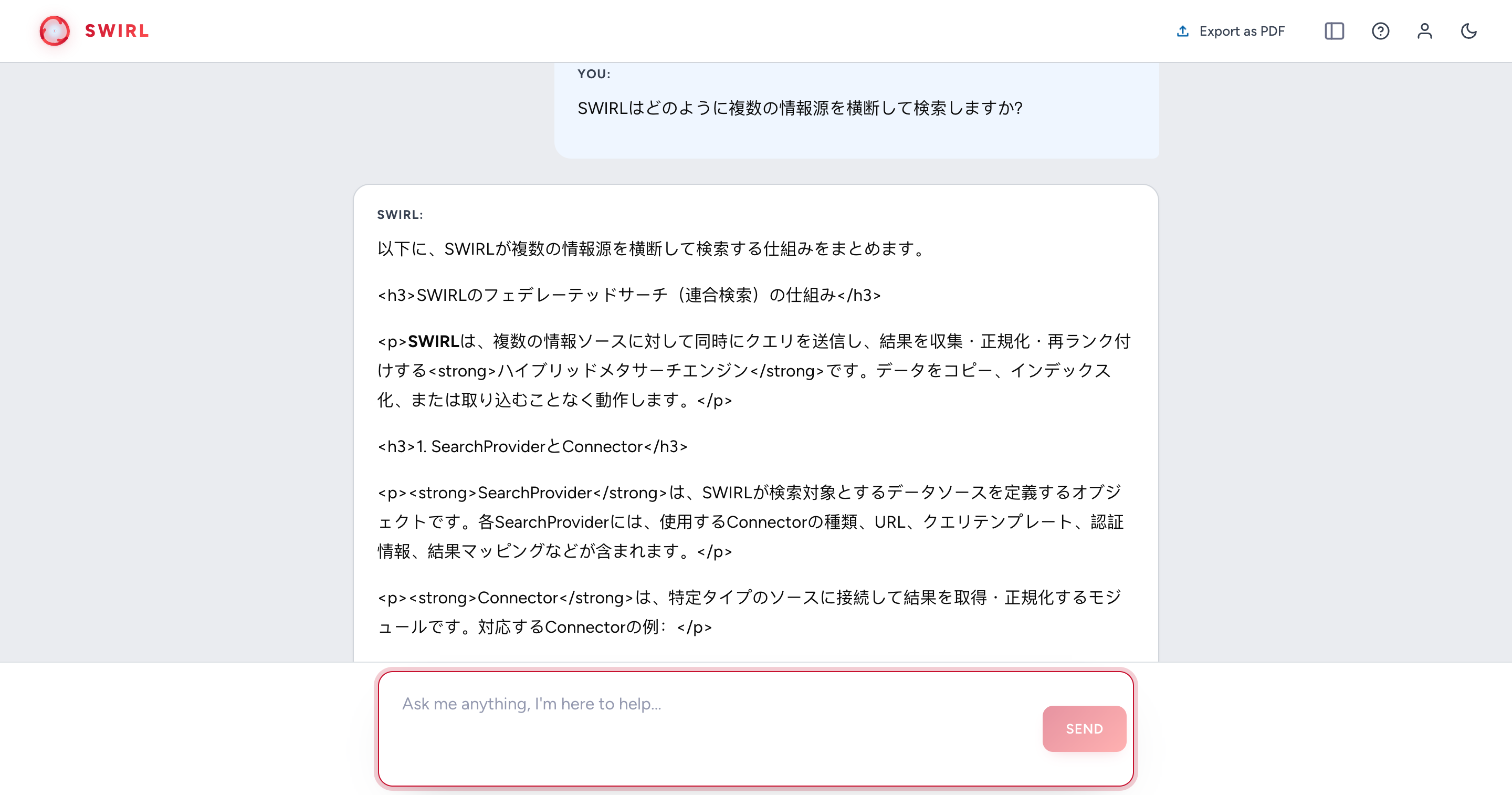
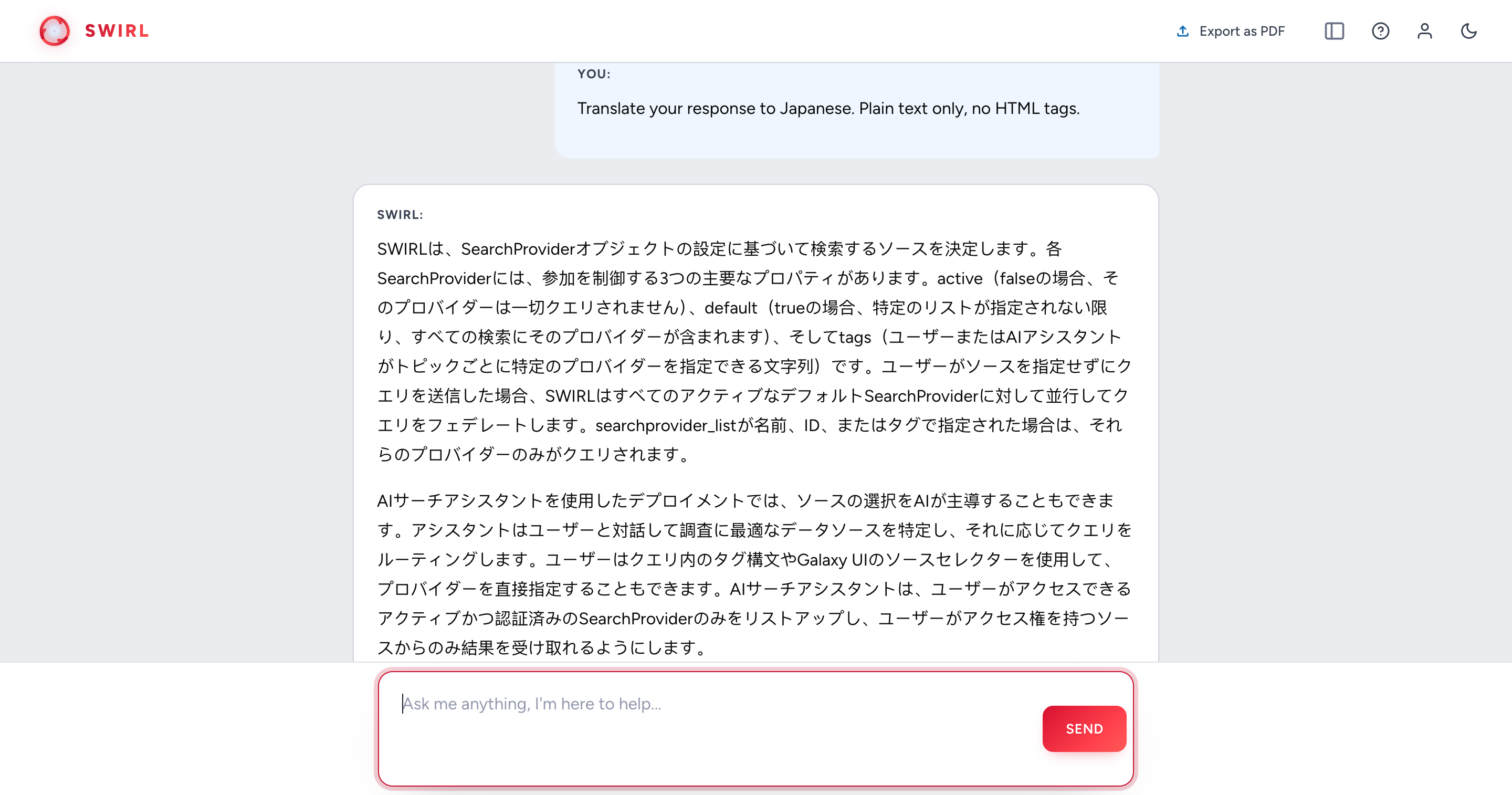
SWIRL Assistant can converse and query in any language supported by the underlying model - current models converse in 100+ languages:
Other Model Capabilities
SWIRL Assistant does not limit LLM capabilities. You can:
- Summarize an Assistant chat in various formats (e.g., bullet points, narrative, iambic pentameter), as long as it is within the same chat session.
- Translate Assistant responses into other languages.
- Reformat, revise, or retry responses.
- Resume past conversations - SWIRL saves your chat history; see Resuming and Managing Existing Chat Conversations.
Handling Errors
Sometimes the Assistant won't find results. Try the following:
- Correct the query.
- Remove specific terms.
- Simplify the search.
- Try a different source.
- Run the search again.
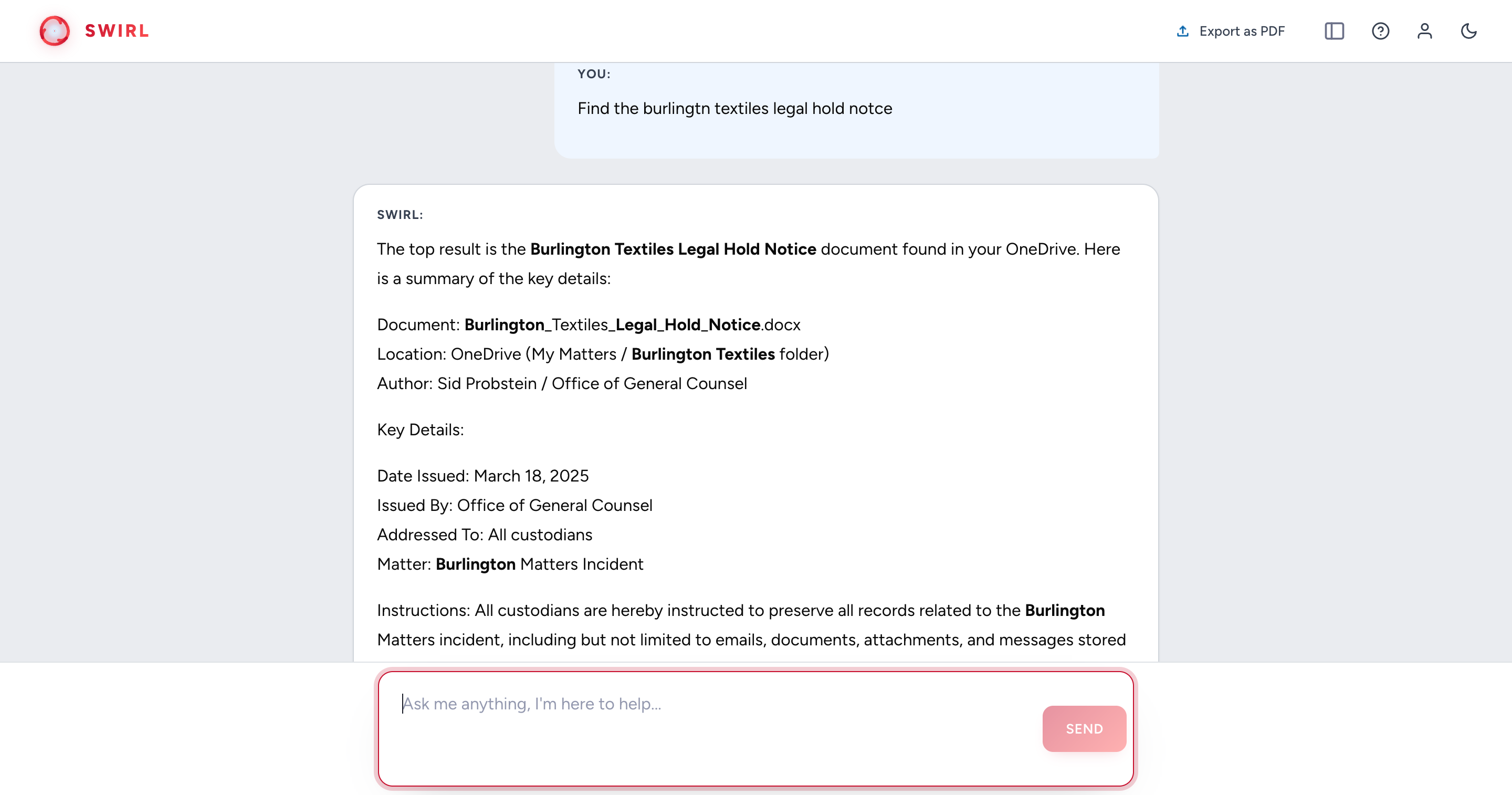
When querying with SQL or other structured query languages, some models may require occasional correction:
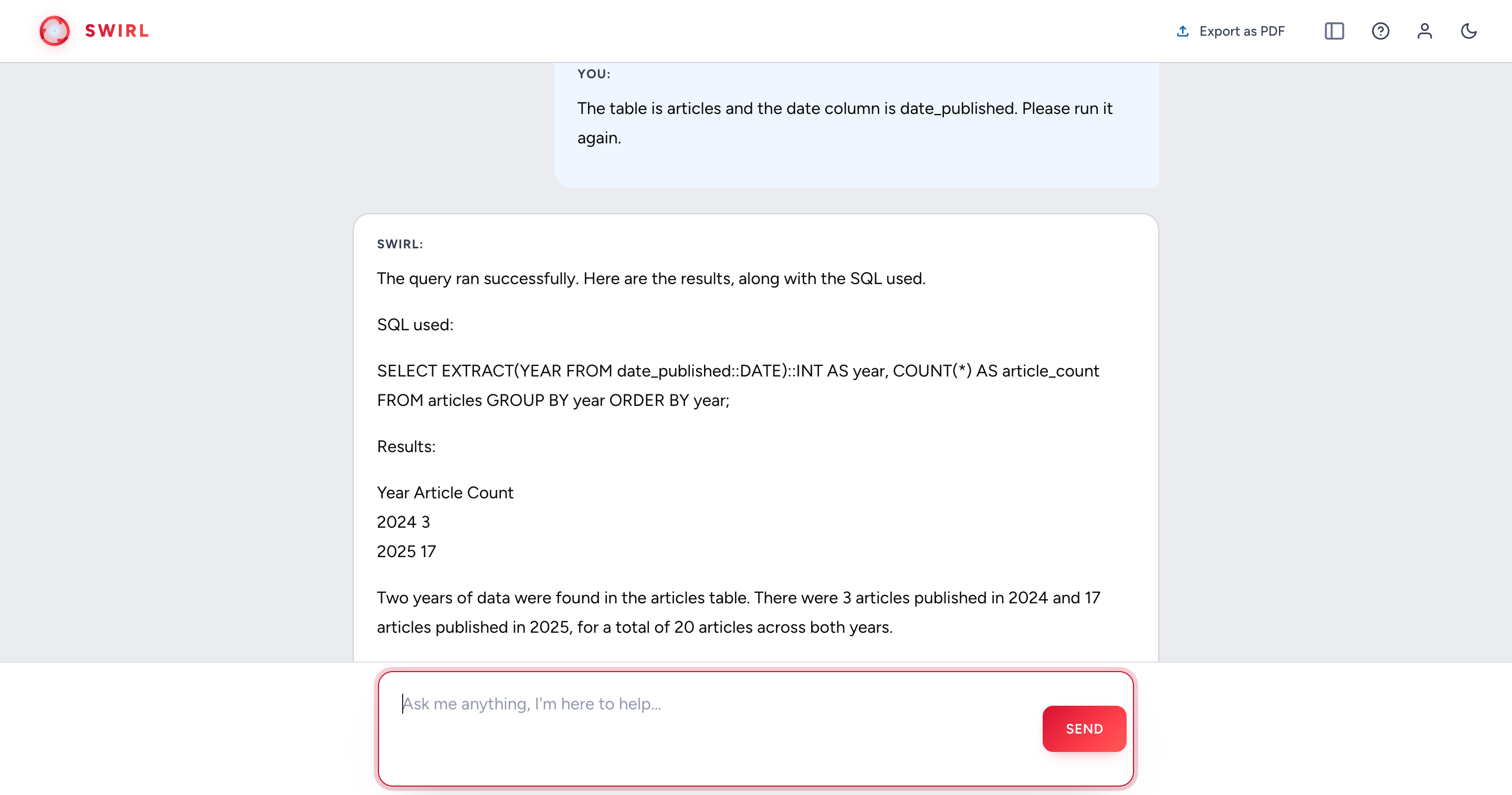
Contact support for assistance using the Assistant with any advanced query language.
Ending a Chat Conversation
To end a conversation, click the SWIRL logo at the top of the page. This starts a new conversation.
A new conversation starts without the prior chat's context. Your chat history is saved - see Resuming and Managing Existing Chat Conversations below.
Resuming and Managing Existing Chat Conversations
To resume a conversation, use the Show/Hide History link at the top of the Search Assistant page.
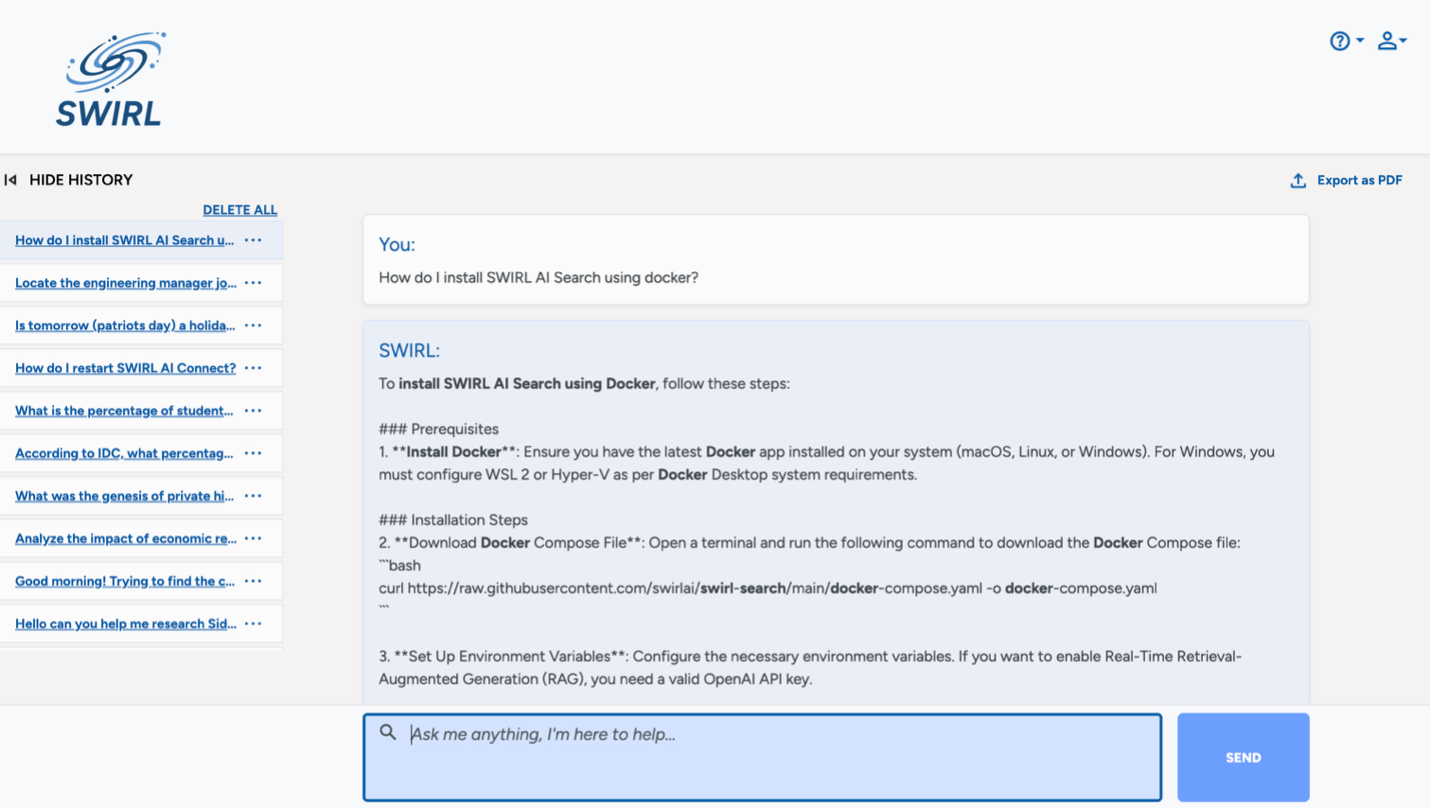
Use the controls in the box to delete and rename individual chats. Click Delete all to clear your chat history.
Going to the AI Search Form
From the Assistant page, click the profile button, then click SWIRL AI Search.